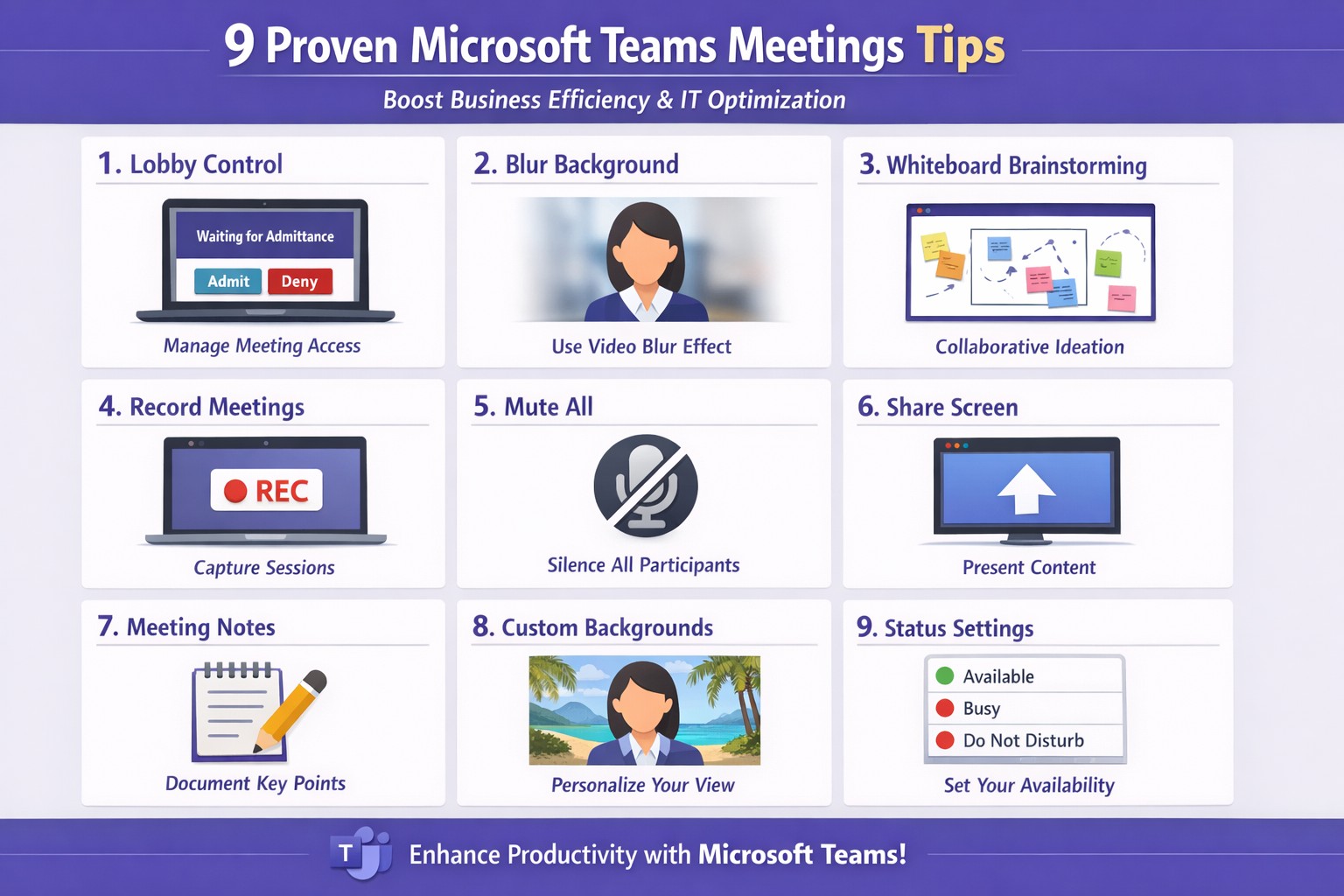
Apply these 9 Microsoft Teams meetings tips to enhance productivity and secure client calls
Ineffective meetings drain time and productivity. Mastering Microsoft Teams meetings ensures seamless collaboration, especially for remote teams in accounting, healthcare, or charity sectors where compliance and client trust matter.
Actionable Setup Steps
Business owners and IT departments can implement these steps for optimal Teams performance.
Verify hardware and network: Upgrade to Teams-certified devices like HD webcams and headsets; ensure 1.5 Mbps upload/download speeds per user. IT: Run network assessments via Teams admin center.
Configure meeting policies: In Teams admin center, enable lobby for external guests, restrict presentations to organizers, and auto-mute participants. Test via a pilot meeting.
Pre-load apps and integrations: Install Whiteboard, Planner, and OneNote; share agendas/files 24 hours ahead using channel posts.
These steps cut setup time by 30-50% based on Microsoft benchmarks.
9 Key Tips for High-Impact Meetings
Apply these practical tips, drawn from Microsoft and expert sources, to run concise, engaging sessions.
Control access with lobby: Require approval for entrants; mute all on join to minimize disruptions.
Mandate video with blur: Turn on cameras for face-to-face feel; use background blur to focus on faces.
Share selectively: Present specific windows/apps, not full desktop; request control for annotations.
Brainstorm via Whiteboard: Co-edit in real-time; save sessions automatically for follow-up.
Assign roles: Designate leader for flow, admin for tech (muting, lobby); use chat for side notes.
Leverage transcripts: Enable live captions/transcripts for accuracy, accessibility.
Keep short with breaks: Target 15-30 min huddles; park off-topic items.
Record and review: Auto-transcribe; search keywords post-meeting for action items.
Tip Category
Benefit
IT Action
Access Control
Reduces chaos
Set policies in admin center
Video/Sharing
Boosts engagement
Test bandwidth tools
Collaboration Tools
Enhances output
Integrate apps pre-rollout
FAQs for Client Inquiries
Q: How do we handle external clients securely? A: Use guest access with lobby approval and end-to-end encryption; review compliance in Teams settings.
Q: What if bandwidth lags? A: Lower video to 720p, disable HD; IT can prioritize QoS on routers.
Q: Can non-Teams users join? A: Yes, via browser link—no install needed; limit to view-only if sensitive.
Q: How to track action items? A: Assign in chat/Whiteboard; use Planner integration for tasks.
How Farmhouse Networking Helps
Farmhouse Networking specializes in tailored Microsoft 365 setups for accounting, healthcare, and charity businesses. We audit your Teams environment, implement these tips via custom policies, and optimize for SEO-driven branding—driving organic traffic and B2B leads. Our IT experts handle migrations, training, and 24/7 support to convert visitors into clients.
And God will generously provide all you need. Then you will always have everything you need and plenty left over to share with others. As the Scriptures say,
“They share freely and give generously to the poor. Their good deeds will be remembered forever.”
For God is the one who provides seed for the farmer and then bread to eat. In the same way, he will provide and increase your resources and then produce a great harvest of generosity in you. - 2 Corinthians 9:8-10
We use cookies to ensure that we give you the best experience on our website. If you continue to use this site we will assume that you are happy with it.