As our business continues to focus on providing white labeled Tier 3 IT support services, RMM as a service, and co-managed IT services this blog will be highlighting tips for using Powershell to create Office 365 User and add them to groups. We have several clients with high employee turn-over which makes it necessary to often create Office 365 user. We will detail how to find all the needed data to create the proper script for each client (yes it will take a different script for each client due to different group names for each client).
Research
You need to get two pieces of information – the license type used by the organization to create users and the names of the groups to add users to
To find out the license types used use this commands:
Connect-MsolService
Get-MsolAccountSku
To find out all the groups in the organization use this commands:
Connect-ExchangeOnline
Get-UnifiedGroup | Format-Table Alias
Variables
$displayName = Full user name – usually First name & Last Name $userPrincipleName = Email address for user $adminuser = Email address for admin of Office 365 Tenant $adminpass = Password for admin of Office 365 Tenant $licenseType = Office 365 license type found in research above
There is also the need for variables for each group you will be adding users to (found in research above). For this example I will be using:
$CompanyShared = Company Shared Contacts $CompanyTimeOff = Company Time Off Calendar $BillingPayroll = Billing & Payroll Group Email
Script Snippet
###Use this command to be allowed to use DotNet assemblies
Add-Type -AssemblyName System.web

$displayName = "UserFirst UserLast"
$userPrincipleName = “User@Company.com”
$adminuser = "admin@Company.com"
$adminpass = '@dm1nP4ssw0rd'

$CompanyShared = "yes"
$CompanyTimeOff = "yes"
$BillingPayroll = "no"

###converts admin credentials to useable format for connections to Office 365
$adminpassword = ConvertTo-SecureString -string $adminpass -AsPlainText -Force
$admincred = new-object -typename System.Management.Automation.PSCredential -argumentlist $adminuser, $adminpassword

Connect-AzureAD -Credential $admincred
Connect-MsolService -Credential $admincred

$mailNickname = $userPrincipleName.Split("@")[0]

###To find User License Types use Get-MsolAccountSku
$licenseType = "companytenantID:SPB"

###Generates a random password length
$minPassLength = 8 ## characters
$maxPassLength = 15 ## characters
$passlength = Get-Random -Minimum $minPassLength -Maximum $maxPassLength

###Generates a random number of non-alpha characters in the password
$minNonAlphaChars = 1 ## characters
$maxNonAlphaChars = 5 ## characters
$nonAlphaChars = Get-Random -Minimum $minNonAlphaChars -Maximum $maxNonAlphaChars

###Creates the password, makes it useable by Azure, sets it up to not require password change, and creates account
$password = [System.Web.Security.Membership]::GeneratePassword($passlength, $nonAlphaChars)
$PasswordProfile = New-Object -TypeName Microsoft.Open.AzureAD.Model.PasswordProfile
$PasswordProfile.Password = "$password"
$PasswordProfile.ForceChangePasswordNextLogin = $false
Write-Host "Password is set to $password for $displayName"
$user = New-AzureADUSer -DisplayName $displayName -PasswordProfile $PasswordProfile -UserPrincipalName $userPrincipleName -mailNickname $mailNickname -AccountEnabled $true

###Waits 5 minutes for the user creation process in Office 365
Start-Sleep -Seconds 300

###Sets additional parameters for account that are needed like location, license type, and sets password to never expire
Get-MsolUser -UserPrincipalName $userPrincipleName | Set-MsolUser -UsageLocation US
Get-MsolUser -UserPrincipalName $userPrincipleName | Set-MsolUserLicense -AddLicenses $licenseType
Get-MsolUser –UserPrincipalName $userPrincipleName | Set-MsolUser –PasswordNeverExpires $True

###Adds new user to groups
if ($CompanyShared -eq "yes")
{ Add-MailboxPermission -Identity companyshared@premieror.com -User $userPrincipleName -AccessRights FullAccess -InheritanceType All}

if ($CompanyTimeOff -eq "yes")
{ Add-MailboxPermission -Identity companytimeoff@premieror.com -User $userPrincipleName -AccessRights FullAccess -InheritanceType All}

if ($BillingPayroll -eq "yes")
{ Add-MailboxPermission -Identity billing_payroll@premieror.com -User $userPrincipleName -AccessRights FullAccess -InheritanceType All}
This script requires that the admin account you use to setup the user have multifactor authentication turned off (I know not secure), so use a really long complex password. The script creates a random password for the new user and write it to output. The script will take several minutes to run due to the waiting for the account to finish setup before adding additional parameters and adding them to groups.
If your company is a MSP or wants to become one and automation just seems out of reach, then contact usto run your RMM for you.
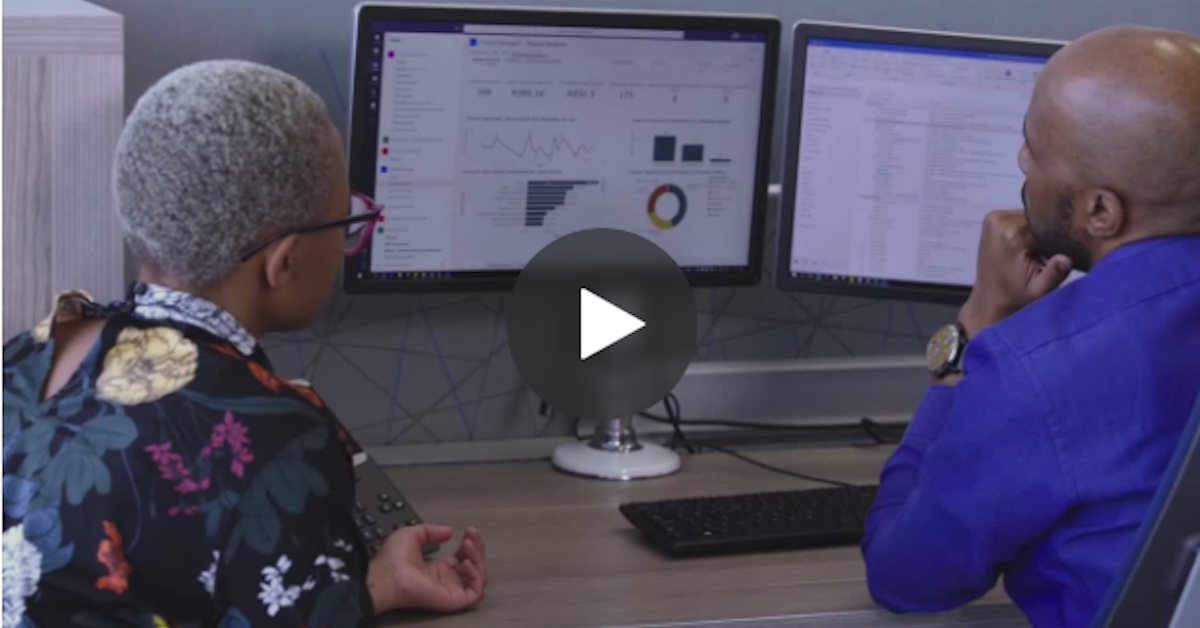
With over 150 years of history and experience in the legal market, Webber Wentzel has become one of South Africa’s most prominent law firms, operating at the forefront of legal services and home to the country’s longest-standing pro bono practices. The firm aims to act as a beacon of innovation for the industry. In this video, see how Webber Wentzel has taken advantage of the capabilities of Office 365 to create a more efficient and collaborative workplace for its teams, while facilitating and securing client interactions.
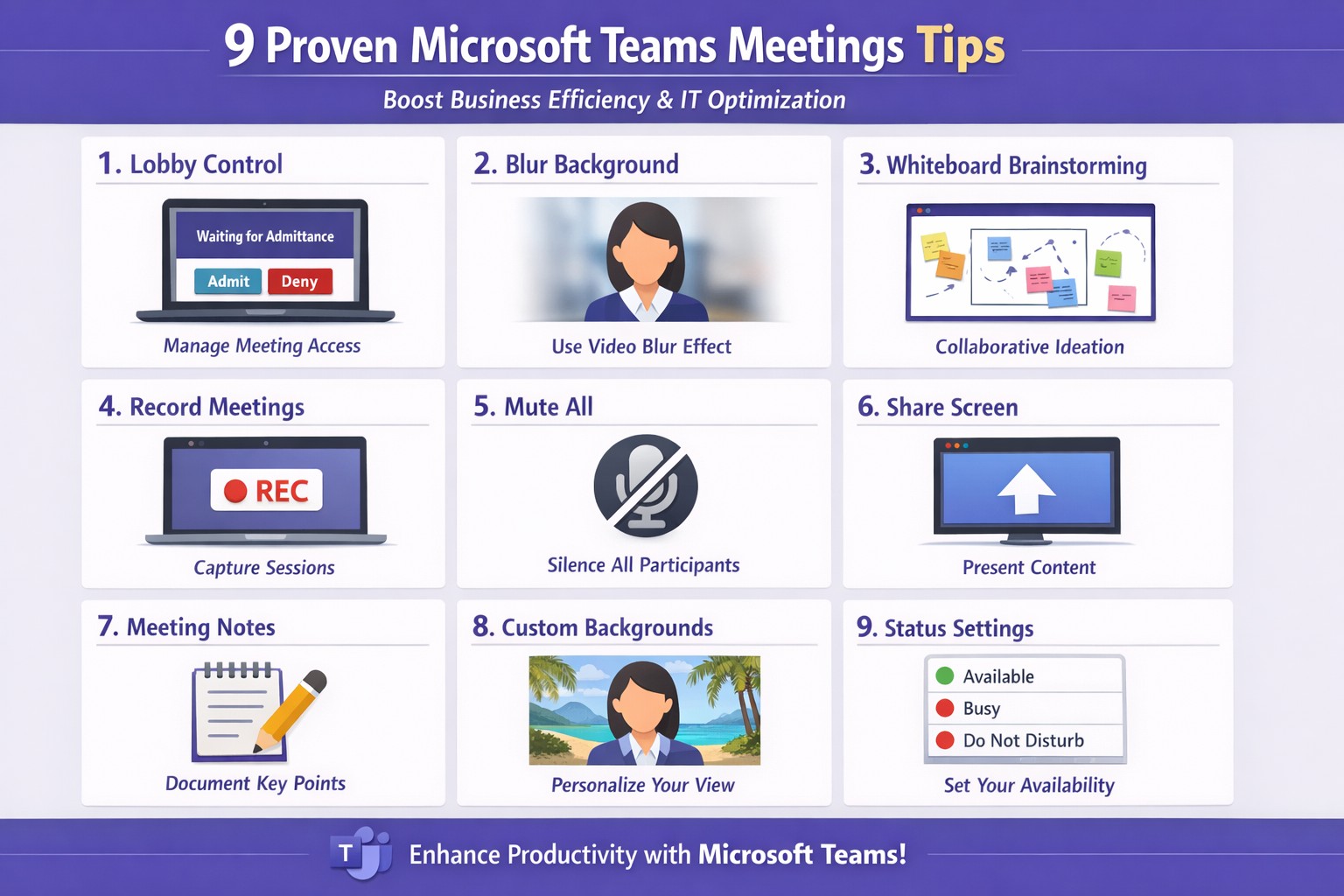
Apply these 9 Microsoft Teams meetings tips to enhance productivity and secure client calls
Ineffective meetings drain time and productivity. Mastering Microsoft Teams meetings ensures seamless collaboration, especially for remote teams in accounting, healthcare, or charity sectors where compliance and client trust matter.
Actionable Setup Steps
Business owners and IT departments can implement these steps for optimal Teams performance.
Verify hardware and network: Upgrade to Teams-certified devices like HD webcams and headsets; ensure 1.5 Mbps upload/download speeds per user. IT: Run network assessments via Teams admin center.
Configure meeting policies: In Teams admin center, enable lobby for external guests, restrict presentations to organizers, and auto-mute participants. Test via a pilot meeting.
Pre-load apps and integrations: Install Whiteboard, Planner, and OneNote; share agendas/files 24 hours ahead using channel posts.
These steps cut setup time by 30-50% based on Microsoft benchmarks.
9 Key Tips for High-Impact Meetings
Apply these practical tips, drawn from Microsoft and expert sources, to run concise, engaging sessions.
Control access with lobby: Require approval for entrants; mute all on join to minimize disruptions.
Mandate video with blur: Turn on cameras for face-to-face feel; use background blur to focus on faces.
Share selectively: Present specific windows/apps, not full desktop; request control for annotations.
Brainstorm via Whiteboard: Co-edit in real-time; save sessions automatically for follow-up.
Assign roles: Designate leader for flow, admin for tech (muting, lobby); use chat for side notes.
Leverage transcripts: Enable live captions/transcripts for accuracy, accessibility.
Keep short with breaks: Target 15-30 min huddles; park off-topic items.
Record and review: Auto-transcribe; search keywords post-meeting for action items.
Tip Category
Benefit
IT Action
Access Control
Reduces chaos
Set policies in admin center
Video/Sharing
Boosts engagement
Test bandwidth tools
Collaboration Tools
Enhances output
Integrate apps pre-rollout
FAQs for Client Inquiries
Q: How do we handle external clients securely? A: Use guest access with lobby approval and end-to-end encryption; review compliance in Teams settings.
Q: What if bandwidth lags? A: Lower video to 720p, disable HD; IT can prioritize QoS on routers.
Q: Can non-Teams users join? A: Yes, via browser link—no install needed; limit to view-only if sensitive.
Q: How to track action items? A: Assign in chat/Whiteboard; use Planner integration for tasks.
How Farmhouse Networking Helps
Farmhouse Networking specializes in tailored Microsoft 365 setups for accounting, healthcare, and charity businesses. We audit your Teams environment, implement these tips via custom policies, and optimize for SEO-driven branding—driving organic traffic and B2B leads. Our IT experts handle migrations, training, and 24/7 support to convert visitors into clients.
Microsoft Teams provides virtual solutions in response to an unexpected crisis.
For three generations, the Bianchini family has been creating exceptional wines on their idyllic estate, maintaining the traditions of a historic estate while staying one step ahead of the latest developments in the world of wine. With the recent COVID-19 pandemic and trade shows postponed and international travel impossible, everything changed. The Ciacci winery responded by turning to Microsoft Teams. To keep the business thriving, they moved quickly to replace in-person gatherings with virtual wine tastings using Teams meetings. Family members also used Teams to work together and connect with partners and suppliers, making the adjustment a perfect balance of tradition and technology.
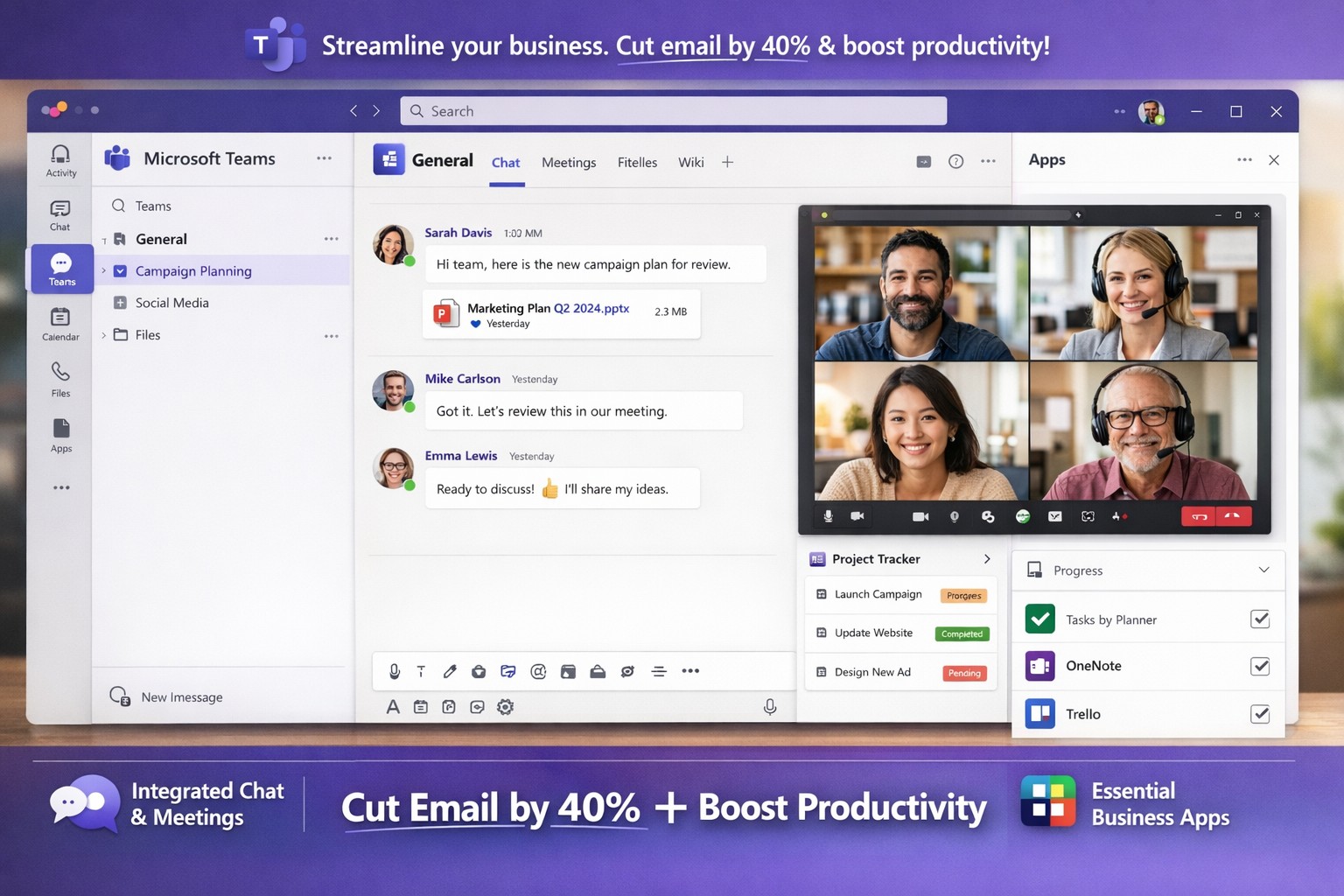
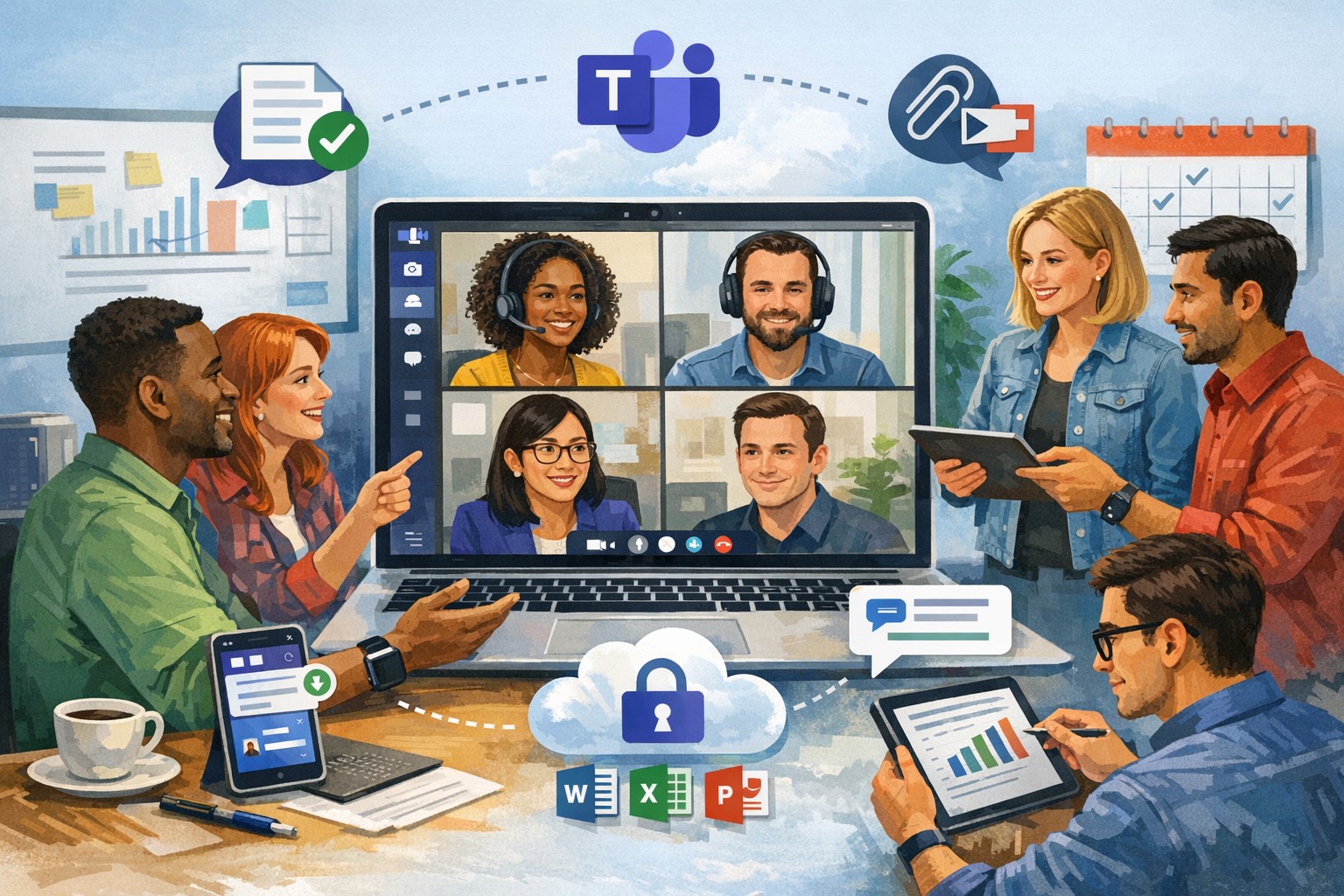
Microsoft Teams interface helping business owners streamline communication, collaboration, and workflows seamlessly.
You’re juggling endless tasks while keeping your team aligned amid remote and hybrid work. Microsoft Teams streamlines communication, collaboration, and workflows into one secure platform, slashing email overload and boosting productivity by up to 40% for similar clients.
Key Benefits for Business Owners
Microsoft Teams integrates chat, video meetings, file sharing, and project tools, ideal for accounting firms tracking audits, healthcare providers ensuring HIPAA compliance, or charities managing donor campaigns. It supports real-time co-editing via OneDrive/SharePoint, channels for department-specific discussions, and 1,000+ app integrations like Salesforce or Zoom. This setup reduces silos, enables secure guest access for clients, and scales with growth without heavy IT overhead.
Practical Implementation Steps
Follow these actionable steps with your IT department for a smooth rollout.
Assess Needs and Licenses: Audit current Microsoft 365 licenses (most include Teams) or select SMB plans like Teams Essentials. Define teams/channels by department (e.g., “Accounting-Audits”, “Healthcare-PatientBilling”).
Prepare Network and Governance: Optimize bandwidth for video; use Teams Admin Center to set policies on guest access, app approvals, and data retention. Enable MFA and compliance for regulated industries.
Install and Configure: Deploy desktop/mobile apps and web access. Create naming conventions (e.g., [Project-Client-YYYY]) for SEO-like internal search. Integrate tools via Power Automate for workflows.
Train and Pilot: Run a one-department pilot with hands-on sessions. Use AI recaps and polls to track adoption; gather feedback via Forms.
Monitor and Optimize: Leverage analytics for usage; automate backups and provide ongoing support to hit ROI in weeks.
FAQs: Client Inquiries Answered
How secure is Teams for sensitive data like patient records or financials? Teams offers enterprise-grade encryption, DLP policies, and audit logs compliant with HIPAA/GDPR. Admins control retention and eDiscovery.
What about user adoption—our team resists new tools? Pilot small, highlight wins like 30% less email time. Provide bite-sized training and champions; we’ve seen 90% uptake in 30 days.
Can it handle hybrid/remote teams across time zones? Yes—async channels, meeting recordings, and live captions keep everyone synced. Mobile access ensures productivity anywhere.
Does it integrate with our existing CRM or accounting software? Over 1,000 connectors (e.g., QuickBooks, Salesforce) plus custom Power Automate flows streamline ops without rip-and-replace.
What’s the cost for small businesses? Starts free/basic; Essentials at low per-user/monthly. Bundled in M365 Business plans scales affordably.
How Farmhouse Networking Helps
Farmhouse Networking, your Grants Pass-based IT experts since 2015, specializes in Microsoft 365/Teams deployments for accounting, healthcare, and charity sectors. We conduct custom audits, handle governance/IT setups, deliver SEO-optimized channel structures (e.g., keyword-rich for fast internal finds), staff training, and 24/7 monitoring—cutting deployment from months to weeks. Our proactive support ensures compliance, 40% productivity gains, and seamless scaling, as proven with local clients.
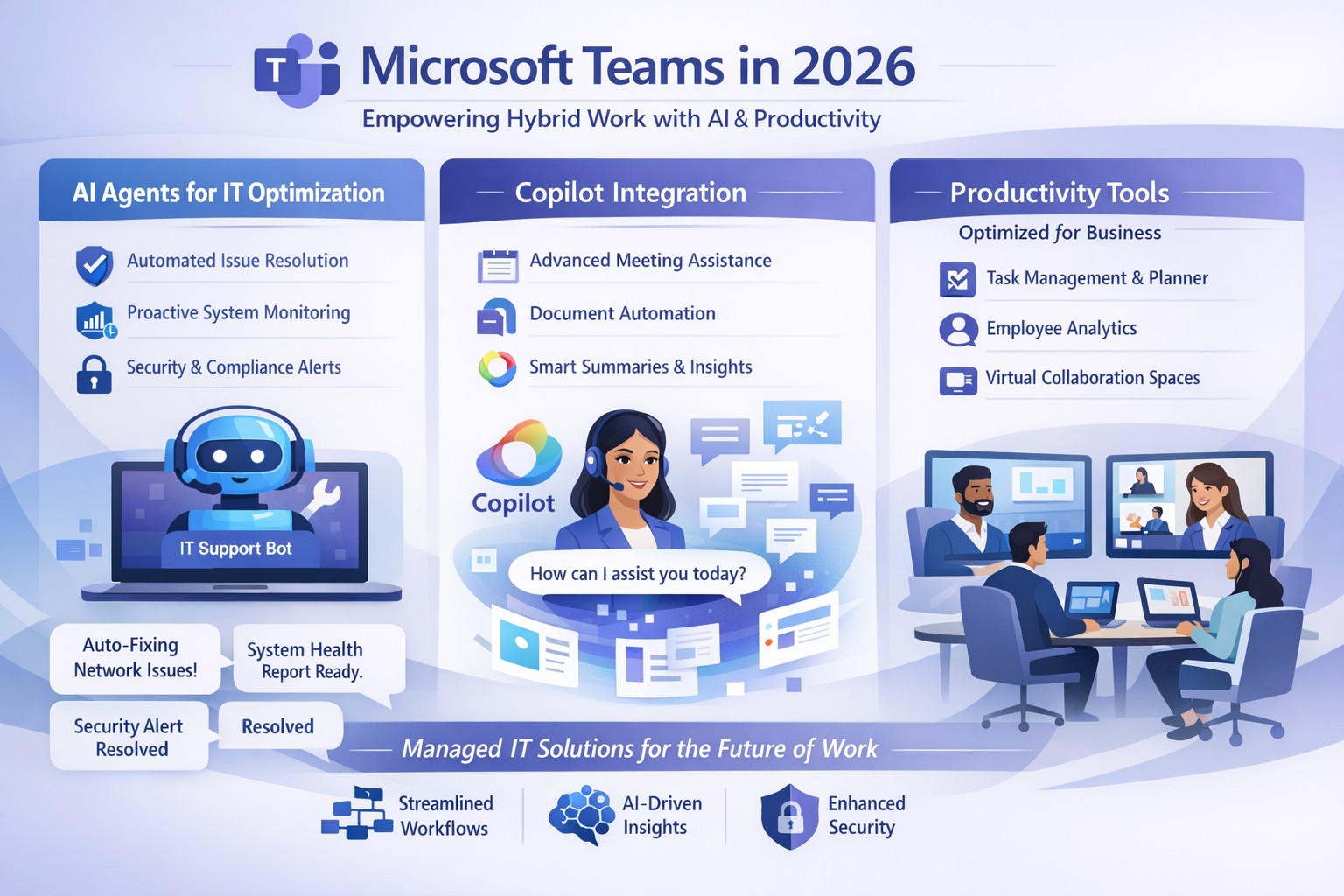
Microsoft Teams 2026 AI-powered features like intelligent agents and screen-aware Copilot transforming business collaboration.
Staying ahead of Microsoft Teams’ rapid evolution is critical for team productivity and competitive edge. 2026 brings AI-powered updates like intelligent agents, screen-aware Copilot, and smarter recaps that transform Teams from a chat tool into a strategic hub—directly impacting your bottom line through reduced meeting time and better decisions.
Key Future Features in Teams 2026
Microsoft Teams’ 2026 roadmap emphasizes AI integration via Copilot, making collaboration proactive. Highlights include AI agents joining meetings to answer questions and track agendas in real-time; Copilot analyzing shared screens for context-aware insights; enhanced chat summaries extracting decisions from threads; and meeting recaps auto-posting to SharePoint for searchable knowledge bases. Interactive annotations let all participants mark up shared content, boosting hybrid brainstorming. These features cut manual work by 30-50%, per early adopter reports, freeing teams for high-value tasks.
Practical Action Steps
Implement these steps with your IT department to leverage Teams’ future features.
Audit Current Setup: Review Teams licenses—upgrade to Microsoft 365 Copilot or Teams Premium for AI access. IT: Run Microsoft 365 admin center audit for usage gaps.
Enable AI Agents and Copilot: In Teams admin center, activate Copilot Studio for custom agents and screen analysis. Test in pilot meetings; train leaders via 15-minute sessions.
Optimize Meetings and Chats: Configure recap templates with visual references; set SharePoint auto-sync. IT: Deploy policies for resizable galleries and multilingual captions.
Secure and Scale: Apply external user trust badges; integrate with frontline tools. Monitor via analytics dashboard, targeting 20% productivity gains quarterly.
Train and Measure: Roll out via Viva Learning modules; track adoption with usage reports.
These steps ensure seamless rollout, minimizing disruption.
Client FAQs on Teams Future Features
Q: How do AI agents impact small business operations? A: Agents handle real-time summaries and nudges, saving 1-2 hours weekly per team on notes—ideal for lean operations without dedicated admins.
Q: What about security with screen analysis? A: Copilot processes data in your tenant with enterprise-grade encryption; admins control via sensitivity labels, compliant with GDPR and HIPAA.
Q: Will these features work for hybrid teams? A: Yes—interactive annotations and resizable views enhance remote participation; automatic language detection supports global clients.
Q: How much do upgrades cost? A: Copilot adds $30/user/month to E3/E5 plans; ROI comes from 25% faster decision-making, per Microsoft benchmarks.
Q: Can we customize recaps? A: Fully—preset templates or Copilot prompts tailor outputs to your workflows, integrating with SharePoint for persistence.
How Farmhouse Networking Helps
Farmhouse Networking specializes in managed IT for accounting, healthcare, and charity sectors, delivering Microsoft Teams optimization as your strategic partner. We handle full audits, Copilot deployments, custom AI agent builds, and compliance setups—reducing your IT overhead by 40%. Our experts integrate Teams with existing systems, train your staff, and monitor performance via proactive dashboards. For seamless adoption of 2026 features, we provide tailored roadmaps that drive organic growth and B2B conversions.
Ready to future-proof your Teams? Email support@farmhousenetworking.com today for a free consultation on boosting business efficiency.
Dutch startup Tony’s Chocolonely grew out of a journalist’s exposé of child slave labor in the cocoa industry and his dream of making the chocolate trade slavery-free. The Amsterdam-based company grew quickly, but its original collaboration apps didn’t support its international expansion or its work-life balance ideals. Teams enables Tony’s Chocolonely workers to communicate on a personal level with their colleagues in Europe, America, and Africa. Adding telephony capabilities makes it even more powerful, with everything available in one single interface.
Leverage Microsoft Teams collaboration features to streamline business operations and enhance team productivity.
You’re constantly seeking ways to streamline operations and keep your team connected. Microsoft Teams offers a powerful hub for collaboration, integrating chat, video calls, file sharing, and Microsoft 365 apps to cut email overload and drive productivity—used by over 500,000 organizations for seamless remote and hybrid work.
Key Benefits for Your Business
Microsoft Teams centralizes communication in one scalable platform, reducing tool sprawl and improving project visibility. Business leaders gain from features like real-time file co-authoring, Teams Phone for calls across devices, and advanced security that scales with growth. This setup minimizes context switching, letting employees focus on high-value tasks while IT maintains governance.
Practical Action Steps
Follow these steps with your IT department to implement Teams effectively.
Assess Needs and Sign Up: Review team size and remote work requirements. Start a free trial or purchase via Microsoft 365 Business plans (from $6/user/month). IT assigns licenses in the admin center.
Set Up Teams and Channels: Create teams by department or project (e.g., “Sales-Q1-Deals”). Use intuitive names with keywords like “client-onboarding” for easy search. IT configures permissions and integrates with Outlook/SharePoint.
Optimize for Search and Collaboration: Tag channels/files with keywords; write descriptions summarizing purpose (e.g., “Handle Q1 client queries and docs”). Enable versioning and co-editing in Word/Excel. IT runs an SEO-style audit to identify trending terms.
Train and Roll Out: Host onboarding sessions via Teams meetings. Customize with tabs for Planner or third-party apps. Monitor usage analytics in the admin center to refine adoption.
Secure and Scale: IT enables multi-factor authentication, data loss prevention, and guest access controls. Test external invites for client collaboration without downloads.
These steps typically take 1-2 weeks, yielding quick wins like 63-87% productivity gains reported by users.
Common Q&A for Business Owners
How secure is Teams for client collaborations? Teams uses enterprise-grade encryption, compliance with GDPR/HIPAA, and admin controls for external sharing—ideal for accounting/healthcare/charity sectors handling sensitive data.
Does Teams integrate with my existing tools? Yes, it syncs natively with Microsoft 365 (Outlook, OneDrive) and 1,000+ apps via the store, plus custom bots for workflows.
What’s the cost for small businesses? Business Basic starts free (limited); Essentials at $4/user/month includes meetings/files. Scale to Premium for AI features.
How do we handle large files or version control? SharePoint integration provides unlimited storage (1TB+/user), real-time co-editing, and version history to avoid duplicates.
Can non-employees join meetings? Guests join via browser without accounts; IT sets policies to protect data.
How Farmhouse Networking Can Help
Farmhouse Networking specializes in Microsoft deployments for accounting, healthcare, and charity clients. We conduct Teams audits, optimize SEO for internal search, migrate from legacy tools, and train staff—ensuring 100% adoption and ROI. Our custom strategies include branding your Teams portals, lead-gen bots, and 24/7 support to enhance client experience and organic traffic via integrated sites.
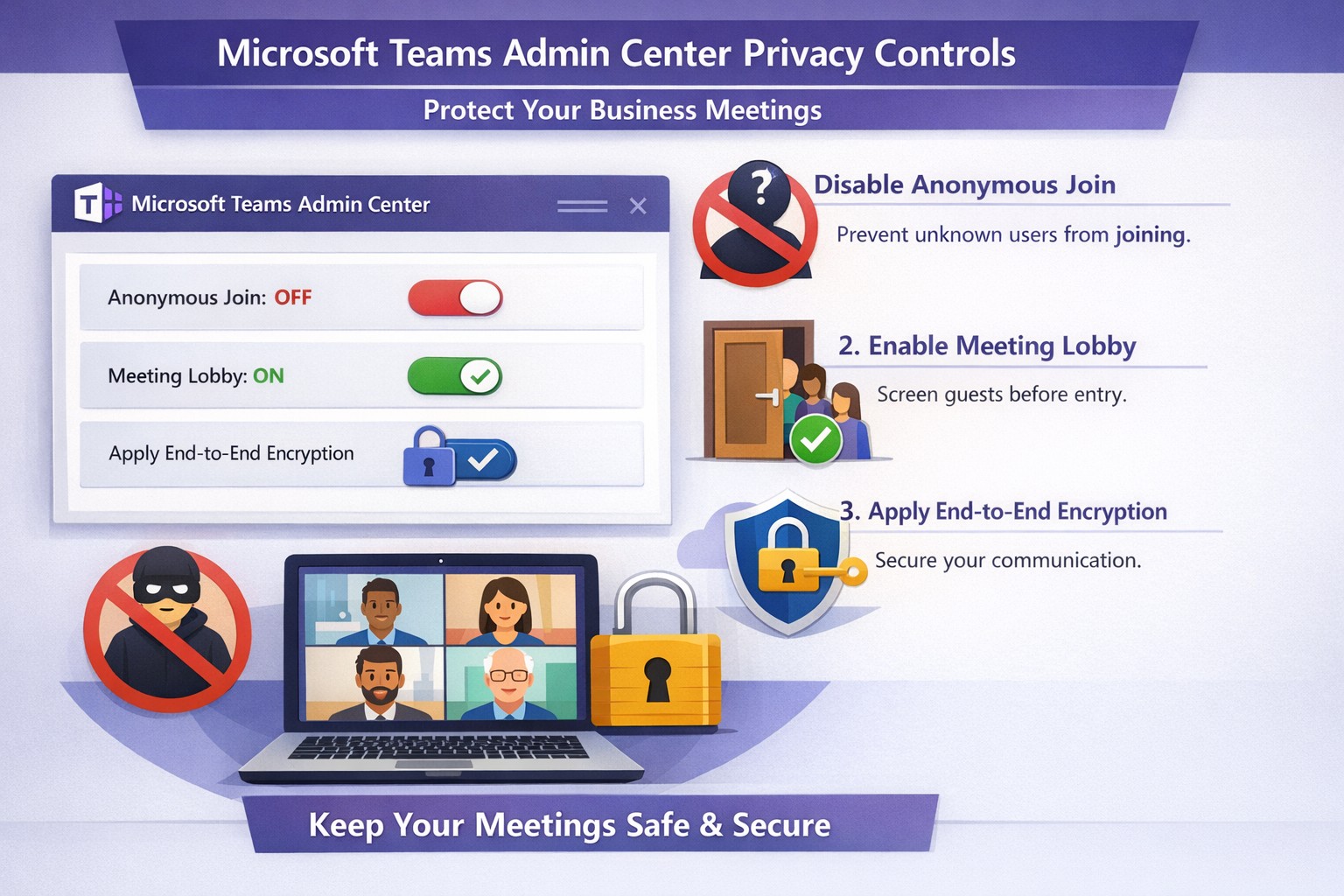
Configure Teams meeting privacy: Turn off anonymous access and activate lobby to protect business discussions.
Microsoft Teams meetings often involve sensitive discussions on finances, strategies, and client data—yet unauthorized access risks data leaks and disruptions. Implementing targeted privacy controls ensures secure collaboration without stifling productivity.
Key Privacy Risks in Teams Meetings
Teams meetings face threats like “zoombombing,” where anonymous users join via public links, and data exposure through screen shares or recordings. Microsoft reports that disabling anonymous join reduces unauthorized entries significantly. External bots and unverified guests compound these issues, especially in hybrid work setups common for accounting, healthcare, and charity sectors.
Practical Action Steps
Follow these steps with your IT department to lock down Teams privacy. Prioritize admin center changes for organization-wide impact.
Disable Anonymous Joins: In the Teams admin center (admin.teams.microsoft.com), navigate to Meetings > Meeting policies. Set “Anonymous users can join” to Off. This blocks uninvited participants and recording bots.
Enable Meeting Lobby: Require all external participants to wait in the lobby. Under Meeting settings > Participants, toggle “Who can bypass the lobby?” to organizers and presenters only. Manually approve entrants to verify identities.
Activate CAPTCHA Verification: For remaining external access, enable CAPTCHA for anonymous users. This adds a human-check layer without fully restricting guests.
Use End-to-End Encryption (E2EE): For confidential calls, enable E2EE in meeting options (requires Teams Premium). Only participants decrypt audio/video; Microsoft cannot access it.
Apply Watermarking and Sensitivity Labels: With Teams Premium, turn on watermarks displaying participant emails over shared screens/videos. Create sensitivity labels enforcing lobby waits, auto-recording, and chat restrictions.
Control Recordings and Transcripts: Disable auto-recording for non-sensitive meetings. Inform participants and store files securely in OneDrive with 60-day retention.
Educate Users: Train staff to check participant lists, avoid public screen shares, and deny unknowns. Use quiet, private spaces for calls.
Implement via admin center first, then test in a pilot meeting. These steps balance security with usability.
FAQ: Client Inquiries Answered
Q: Can external clients still join securely? A: Yes—lobby approval and CAPTCHA allow vetted guests while blocking randos. Federated domains enable seamless access for partners.
Q: What’s needed for advanced features like E2EE? A: Teams Premium (or E5 for labels). Basic encryption is always on for transit/rest, but Premium adds layers.
Q: How do I prevent screenshot leaks? A: Watermarks overlay user IDs on shared content, deterring unauthorized captures. Combine with “Do not forward” calendar labels.
Q: Are recordings private? A: Stored in organizer’s OneDrive; participants notified. Get explicit consent for sensitive sessions, especially in healthcare/charities.
Q: What about one-on-one vs. group calls? A: One-on-one calls offer full E2EE by default; groups need Premium for equivalent protection.
How Farmhouse Networking Helps
Farmhouse Networking specializes in B2B IT for accounting, healthcare, and charity firms. We audit your Teams setup, deploy these privacy configs, and integrate with compliance needs like HIPAA or nonprofit data rules. Our SEO-optimized websites and lead-gen strategies turn secure Teams into a client magnet—showcasing reliability drives conversions. Skip the hassle; we handle migrations, training, and 24/7 monitoring.
Call to Action
Ready to safeguard your Teams meetings and boost client trust? Email support@farmhousenetworking.com for a free privacy audit and custom strategy.
Secure your business discussions: Step-by-step private channels in Microsoft Teams.
Protecting sensitive discussions—like HR strategies, client deals, or financial plans—is critical in Microsoft Teams. Private channels let you segment conversations within a team, ensuring only invited members access chats, files, and tabs, boosting security without creating separate teams.
Step-by-Step Setup Guide
Follow these practical actions to create and manage private channels. Team owners or permitted members handle creation; involve your IT department for policy checks and permissions.
Open Microsoft Teams and navigate to the target team.
Click the three dots (…) next to the team name, then select Manage team > Channels tab.
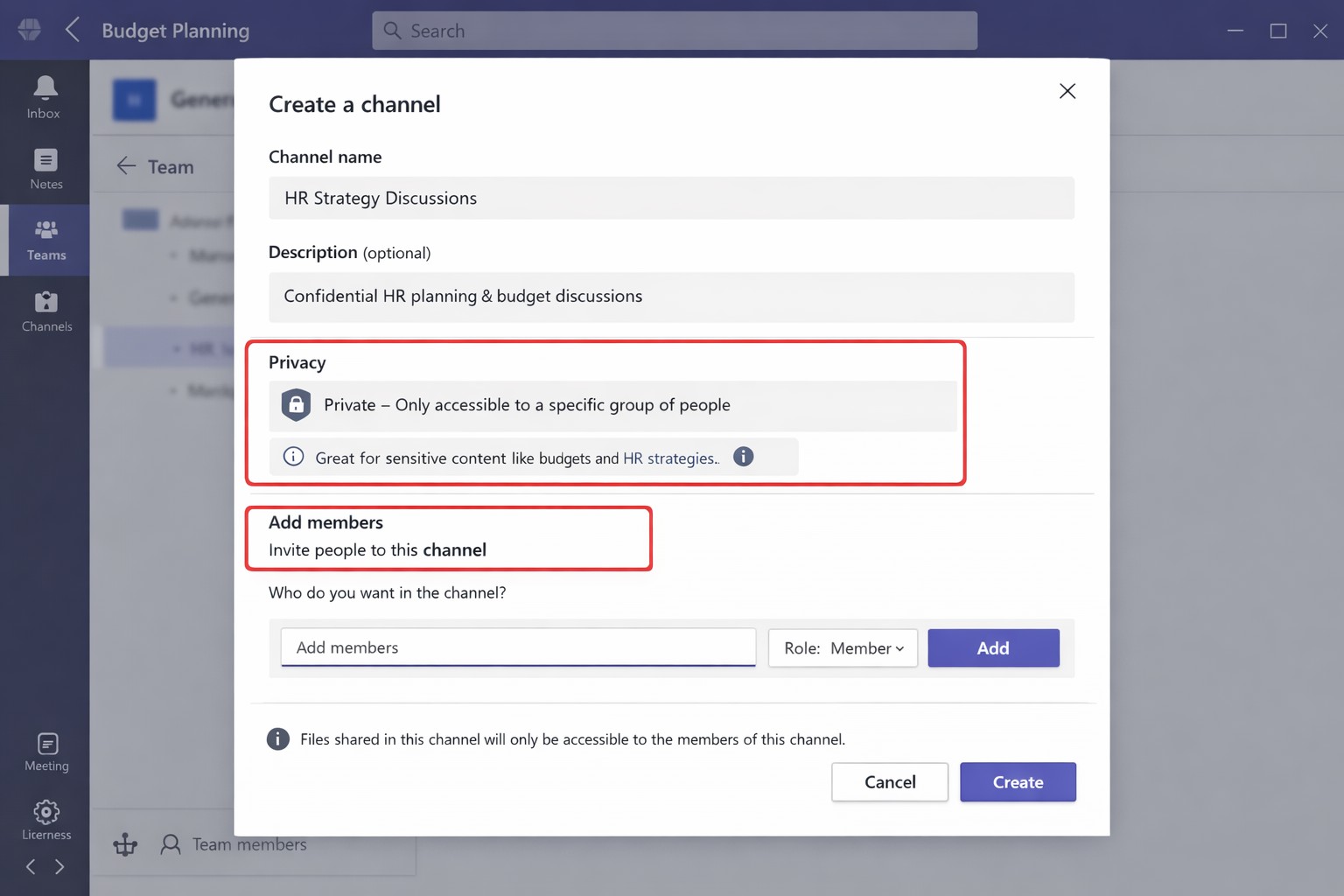
Click Add channel, enter a name (e.g., “Q1-Budget-Confidential”) and optional description.
Under Privacy, choose Private—this restricts access to added members only.
Click Add members to invite up to 250 people; set roles (owner/member) via Manage channel > Members tab.
Post-setup, use the channel for posts, file shares, and apps. Limit: 30 private channels per team lifetime; admins can restrict via Teams policies.
To delete or edit: Go to Manage channel > Settings for permissions, or remove via Members tab. IT should verify SharePoint site creation (auto-generated per channel) for compliance.
FAQs for Client Inquiries
Q: Who can create private channels? A: Team owners/members by default (guests cannot); admins control via policies in Teams admin center.
Q: What’s the difference from standard channels? A: Standard channels are visible to all team members; private ones require explicit invites, isolating content and files.
Q: Can I add external users? A: No, private channels are internal-only; use shared channels for guests/external collaborators.
Q: Do private channels impact storage or costs? A: Each gets a dedicated SharePoint site, counting toward limits; no extra licensing needed for core features.
Q: How do I audit access? A: Review Members tab; use Microsoft Purview for activity logs if enabled.
How Farmhouse Networking Helps
Farmhouse Networking specializes in tailored Microsoft 365 setups for accounting, healthcare, and charity sectors. We audit your Teams environment, implement governance policies (e.g., naming conventions, approval workflows), and train your team/IT on private channels to ensure HIPAA/GDPR compliance and seamless adoption.
Our SEO-optimized websites and lead-gen strategies drive organic traffic, converting visitors into B2B clients. We handle branding, custom integrations, and ongoing support to maximize ROI.
Ready to secure your Teams? Email support@farmhousenetworking.com for a free consultation on private channels and business growth. (Word count: 548)
And God will generously provide all you need. Then you will always have everything you need and plenty left over to share with others. As the Scriptures say,
“They share freely and give generously to the poor. Their good deeds will be remembered forever.”
For God is the one who provides seed for the farmer and then bread to eat. In the same way, he will provide and increase your resources and then produce a great harvest of generosity in you. - 2 Corinthians 9:8-10
We use cookies to ensure that we give you the best experience on our website. If you continue to use this site we will assume that you are happy with it.