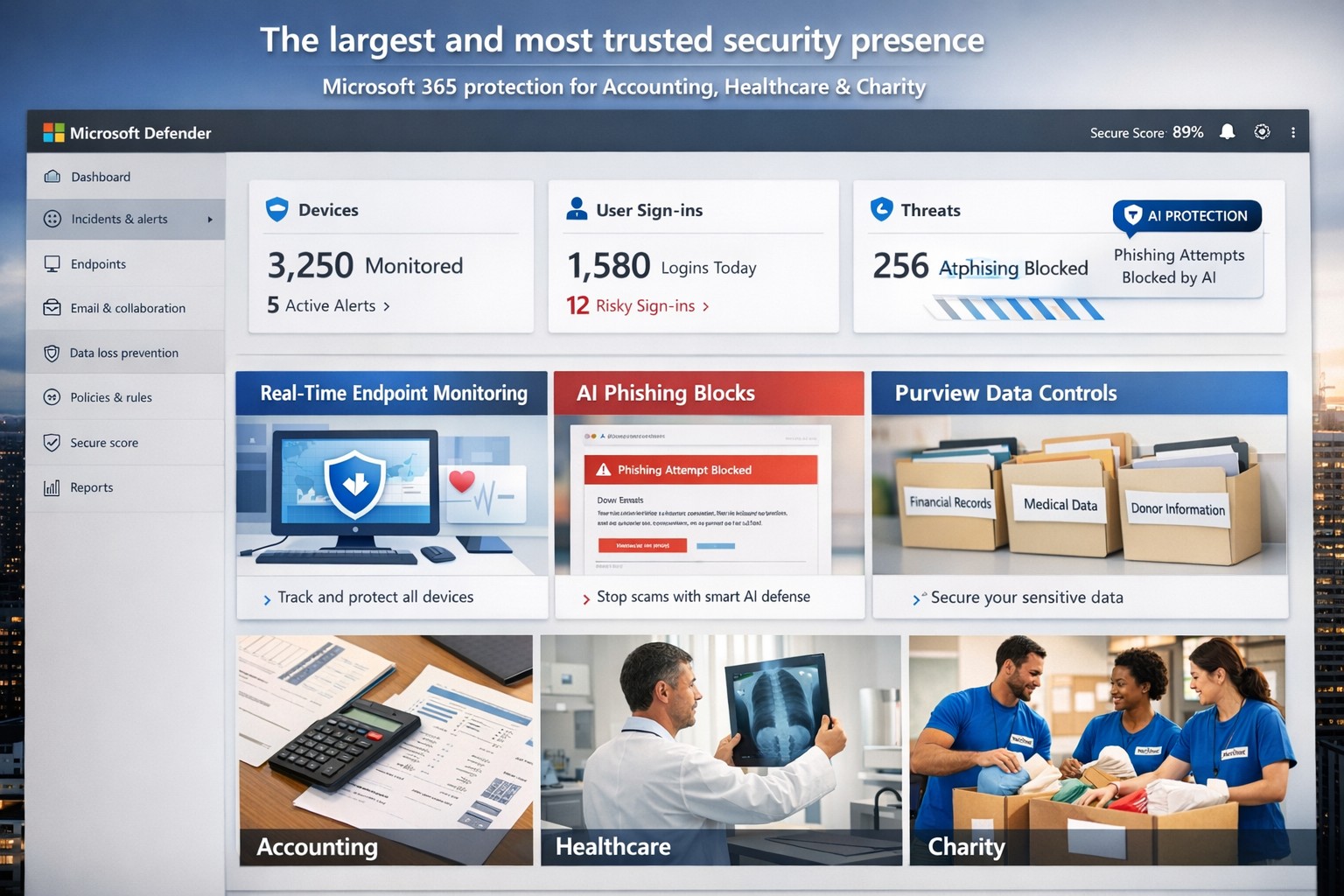
Microsoft’s AI-driven security suite—largest global presence, top-rated for business threat detection and compliance.
Cyber threats like ransomware and phishing can cripple operations overnight. Microsoft delivers the largest, most trusted security ecosystem, leveraging AI-powered tools and enterprise-grade protection tailored for small to mid-sized firms.
Microsoft’s Security Dominance
Microsoft secures over 400,000 organizations globally with solutions like Microsoft 365 Business Premium and Defender for Business, protecting up to 300 users across devices. These tools block AI-driven phishing, ransomware, and data leaks using real-time threat intelligence from billions of signals daily. Independent tests from AV-TEST and MITRE consistently rank Microsoft Defender highest for detection and response.
Key strengths include:
Endpoint protection for Windows, macOS, iOS, Android.
Identity safeguards via Microsoft Entra ID with multifactor authentication.
Data loss prevention through Microsoft Purview for sensitive files and emails.
Practical Action Steps
Implement Microsoft’s security in phases with your IT team for quick wins.
Assess Current Risks: Use Microsoft Defender’s vulnerability scanner in the Microsoft 365 admin center to identify weak devices and unpatched software—takes under 30 minutes.
Deploy Microsoft 365 Business Premium: Purchase via the Microsoft 365 portal ($22/user/month), enable AI anti-phishing, and apply device policies via Intune for remote wipe on lost devices.
Onboard Defender for Business: Run the wizard-based setup for endpoint detection/response (EDR); configure auto-remediation for threats. Supports up to 5 devices/user.
Enable Purview Data Controls: Set sensitivity labels on emails/files and activate insider-risk detection to flag anomalous behavior.
Train Staff Monthly: Use built-in phishing simulations and security reports to enforce compliance—review summaries in the Defender portal.
These steps reduce breach risk by 50% within 90 days, per Microsoft data.
FAQs for Business Owners
How does Microsoft compare to competitors like CrowdStrike? Microsoft integrates natively with your existing Microsoft stack (Outlook, Teams), offering broader coverage at lower cost—no extra agents needed. It excels in XDR across endpoints, email, and identity.
Is it scalable for growing firms? Yes, starts at 300 users but upgrades seamlessly to enterprise plans like Defender XDR, handling unlimited scale with unified management.
What about compliance (e.g., HIPAA for healthcare)? Purview provides audit-ready tools for data lifecycle, encryption, and retention—meets GDPR, HIPAA, SOC 2 standards out-of-box.
How secure is it against zero-day attacks? AI models from Microsoft’s vast telemetry predict and block novel threats; EDR auto-disrupts attacks pre-escalation.
What’s the setup time and cost? Wizard onboarding: 1-2 hours. Pricing: $3/user/month standalone Defender or bundled in Business Premium. No upfront hardware.
How Farmhouse Networking Helps
Farmhouse Networking specializes in deploying Microsoft security for accounting, healthcare, and charity sectors—industries facing strict compliance and high-stakes data risks. We handle full implementation: gap analysis, custom Intune policies, Purview configurations, and ongoing monitoring via our managed SecOps service. Our clients see 40% faster threat response and zero downtime breaches. As your partner, we optimize for SEO-driven lead gen too—securing your site while boosting organic traffic on terms like “Microsoft Defender for business security.”
Ready to fortify your business? Email support@farmhousenetworking.com for a free security audit and personalized Microsoft roadmap. Act now—threats don’t wait.
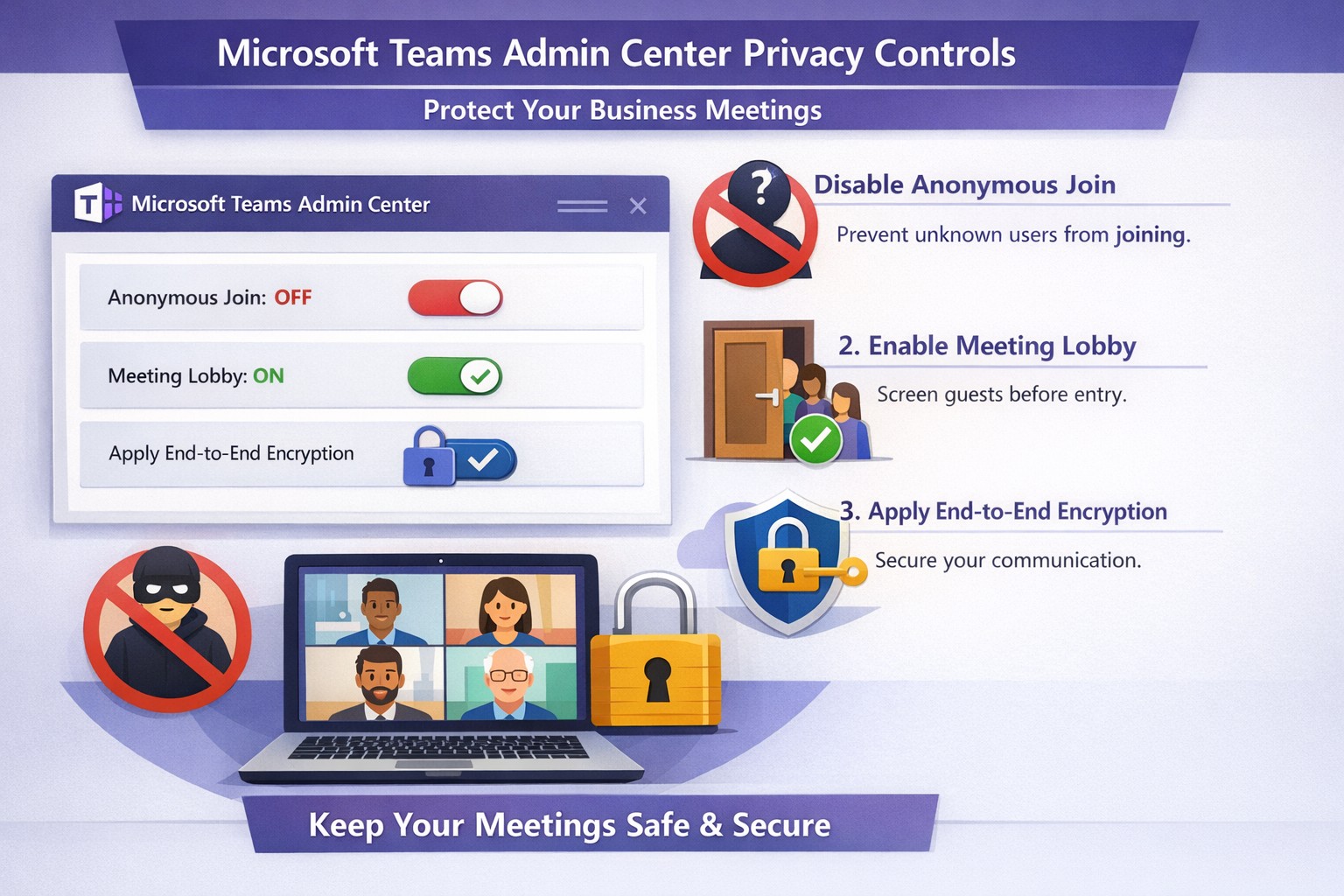
Configure Teams meeting privacy: Turn off anonymous access and activate lobby to protect business discussions.
Microsoft Teams meetings often involve sensitive discussions on finances, strategies, and client data—yet unauthorized access risks data leaks and disruptions. Implementing targeted privacy controls ensures secure collaboration without stifling productivity.
Key Privacy Risks in Teams Meetings
Teams meetings face threats like “zoombombing,” where anonymous users join via public links, and data exposure through screen shares or recordings. Microsoft reports that disabling anonymous join reduces unauthorized entries significantly. External bots and unverified guests compound these issues, especially in hybrid work setups common for accounting, healthcare, and charity sectors.
Practical Action Steps
Follow these steps with your IT department to lock down Teams privacy. Prioritize admin center changes for organization-wide impact.
Disable Anonymous Joins: In the Teams admin center (admin.teams.microsoft.com), navigate to Meetings > Meeting policies. Set “Anonymous users can join” to Off. This blocks uninvited participants and recording bots.
Enable Meeting Lobby: Require all external participants to wait in the lobby. Under Meeting settings > Participants, toggle “Who can bypass the lobby?” to organizers and presenters only. Manually approve entrants to verify identities.
Activate CAPTCHA Verification: For remaining external access, enable CAPTCHA for anonymous users. This adds a human-check layer without fully restricting guests.
Use End-to-End Encryption (E2EE): For confidential calls, enable E2EE in meeting options (requires Teams Premium). Only participants decrypt audio/video; Microsoft cannot access it.
Apply Watermarking and Sensitivity Labels: With Teams Premium, turn on watermarks displaying participant emails over shared screens/videos. Create sensitivity labels enforcing lobby waits, auto-recording, and chat restrictions.
Control Recordings and Transcripts: Disable auto-recording for non-sensitive meetings. Inform participants and store files securely in OneDrive with 60-day retention.
Educate Users: Train staff to check participant lists, avoid public screen shares, and deny unknowns. Use quiet, private spaces for calls.
Implement via admin center first, then test in a pilot meeting. These steps balance security with usability.
FAQ: Client Inquiries Answered
Q: Can external clients still join securely? A: Yes—lobby approval and CAPTCHA allow vetted guests while blocking randos. Federated domains enable seamless access for partners.
Q: What’s needed for advanced features like E2EE? A: Teams Premium (or E5 for labels). Basic encryption is always on for transit/rest, but Premium adds layers.
Q: How do I prevent screenshot leaks? A: Watermarks overlay user IDs on shared content, deterring unauthorized captures. Combine with “Do not forward” calendar labels.
Q: Are recordings private? A: Stored in organizer’s OneDrive; participants notified. Get explicit consent for sensitive sessions, especially in healthcare/charities.
Q: What about one-on-one vs. group calls? A: One-on-one calls offer full E2EE by default; groups need Premium for equivalent protection.
How Farmhouse Networking Helps
Farmhouse Networking specializes in B2B IT for accounting, healthcare, and charity firms. We audit your Teams setup, deploy these privacy configs, and integrate with compliance needs like HIPAA or nonprofit data rules. Our SEO-optimized websites and lead-gen strategies turn secure Teams into a client magnet—showcasing reliability drives conversions. Skip the hassle; we handle migrations, training, and 24/7 monitoring.
Call to Action
Ready to safeguard your Teams meetings and boost client trust? Email support@farmhousenetworking.com for a free privacy audit and custom strategy.
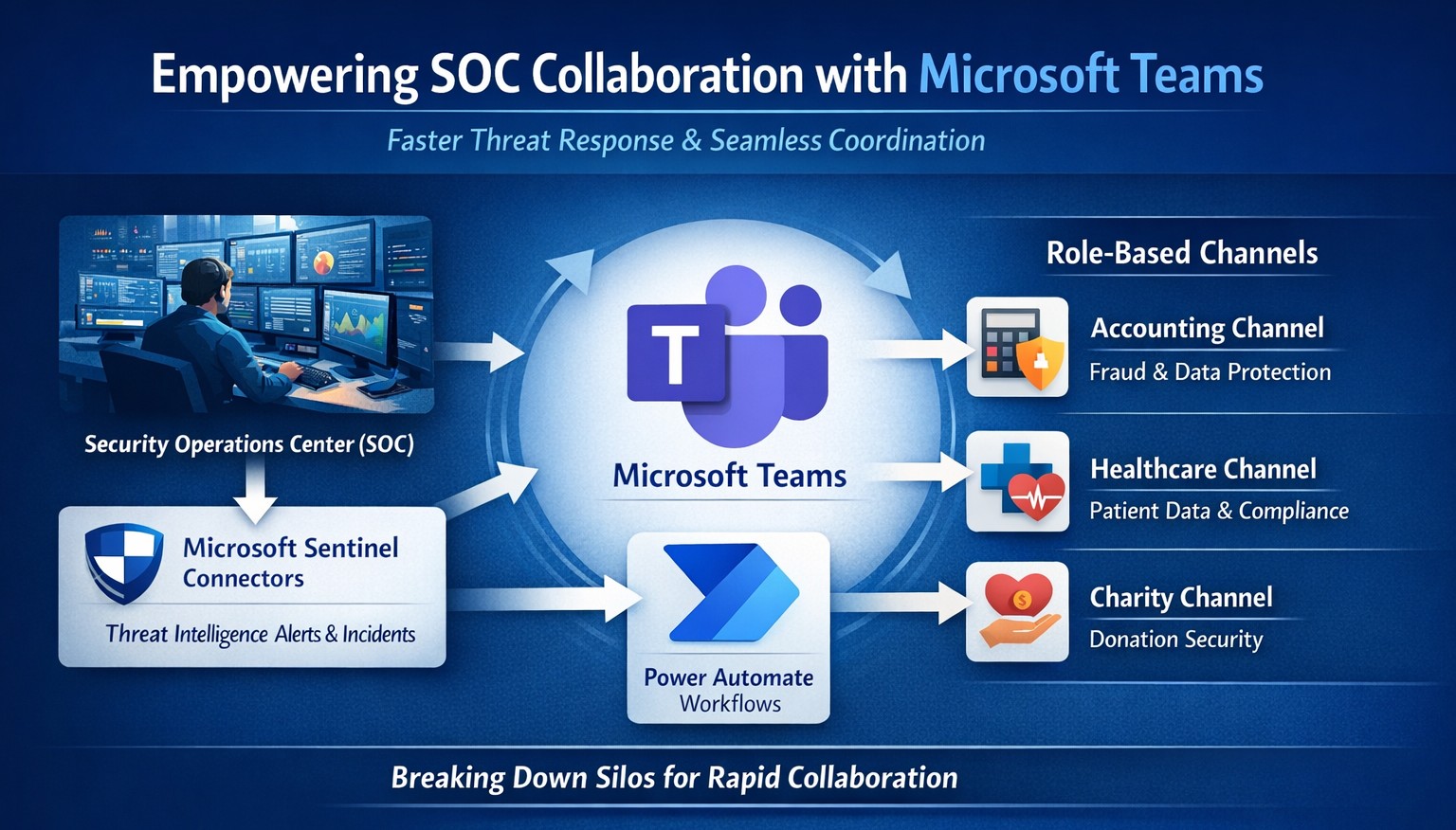
Seamless SOC-Teams coordination reduces incident response time—key steps visualized for business owners.
Security Operations Centers (SOC) must respond faster than ever, but silos between security teams and daily operations slow you down. Integrating SOC workflows with Microsoft Teams empowers real-time coordination, reducing response times by up to 50% and protecting your bottom line from breaches that cost small businesses millions annually.
Why SOC-Teams Integration Matters
Security Operations Centers monitor threats 24/7, but without seamless communication, alerts get lost in email chains or disjointed tools. Microsoft Teams acts as a unified hub, enabling SOC analysts to notify IT, executives, and even HR instantly during incidents. This cross-functional approach breaks down silos, as seen in best practices where unified platforms cut incident resolution time. For business owners, this means less downtime and stronger compliance in regulated industries like accounting and healthcare.
Practical Action Steps
Follow these targeted steps to empower your SOC with Teams integration. Involve your IT department early for smooth rollout.
Assess Current Setup: Audit your SOC tools (e.g., SIEM like Microsoft Sentinel) and Teams usage. Identify key channels for alerts, such as #soc-incidents or #threat-response.
Deploy Microsoft Sentinel Connector: In the Microsoft Sentinel portal, enable the Teams connector under Content Hub. This pipes SOC alerts directly into Teams channels with rich notifications including threat details and severity.
Configure Automation Workflows: Use Power Automate to create flows triggering Teams messages on high-priority alerts. For example, auto-post “Critical phishing detected—quarantine user X” with actionable buttons for IT to isolate systems.
Set Up Role-Based Channels: Create private Teams channels for SOC-IT coordination and executive summaries. Integrate bots for real-time querying, like “/threat status” pulling live SOC data.
Train and Test: Run tabletop exercises simulating ransomware. Train staff on responding via Teams, then measure metrics like mean-time-to-respond (MTTR) pre- and post-integration.
Monitor and Iterate: Use Teams analytics and SOC dashboards to track engagement. Adjust based on false positives or delays, ensuring continuous improvement.
These steps typically take 2-4 weeks, minimizing disruption while boosting efficiency.
FAQ: Client Inquiries Answered
Q: Is this integration secure for sensitive data? A: Yes—Teams uses enterprise-grade encryption and compliance with GDPR, HIPAA. SOC data shares only via authenticated channels, with audit logs for traceability.
Q: What if we lack an in-house SOC? A: Start with managed detection and response (MDR) services that integrate with Teams, scaling as your business grows without full-time hires.
Q: How much does it cost? A: Core features use existing Microsoft 365 E5 licenses (~$57/user/month). Sentinel adds $5-10/GB ingested data. ROI comes from averting breaches averaging $4.5M.
Q: Can it handle hybrid work? A: Absolutely—Teams supports mobile/desktop, ensuring remote SOC analysts coordinate with on-site IT seamlessly.
Q: What about non-Microsoft tools? A: Use APIs or third-party connectors (e.g., Splunk to Teams webhooks) for flexibility.
How Farmhouse Networking Helps
Farmhouse Networking specializes in tailored integrations for accounting, healthcare, and charity sectors, driving organic traffic and B2B leads through secure, SEO-optimized solutions. We handle full SOC-Teams setup, from Sentinel deployment to custom Power Automate flows, ensuring your IT team focuses on core ops. Our expertise includes vulnerability assessments, compliance audits, and branded websites that convert visitors into clients. Past projects reduced MTTR by 40% for similar businesses.
Call to Action
Ready to empower your SOC with Teams and safeguard your operations? Email support@farmhousenetworking.com today for a free consultation on streamlining your security.
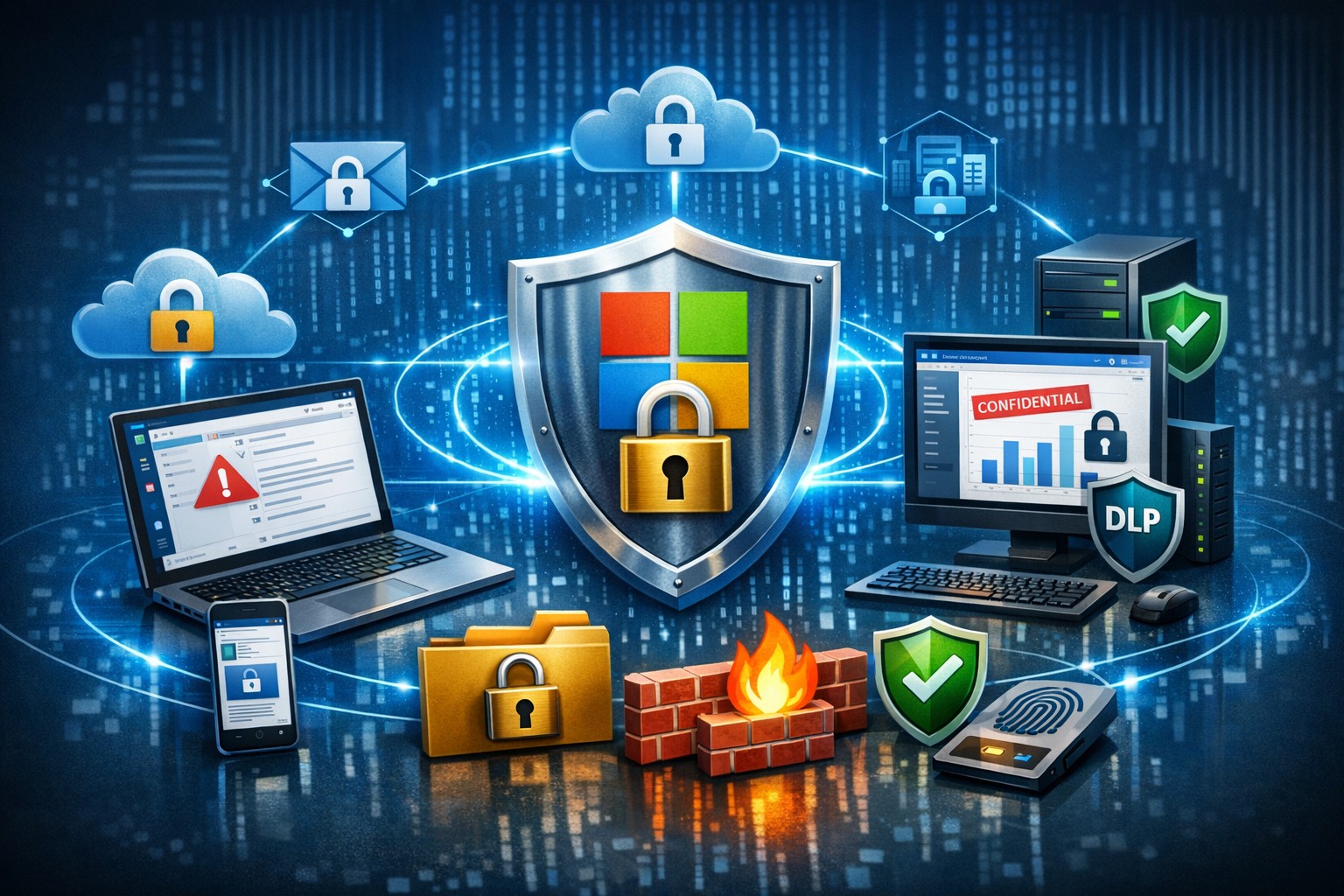
Microsoft 365 dashboard showing data protection across apps, devices, and endpoints—encrypt, prevent loss, stay compliant.
A single data breach can cost millions in losses, legal fees, and lost trust. Microsoft 365 provides robust, built-in tools to protect your company data across Exchange, Teams, OneDrive, SharePoint, and endpoints, ensuring security without disrupting productivity.
Key Microsoft 365 Protection Features
Microsoft 365 employs a defense-in-depth approach with encryption at rest and in transit using AES-256 standards, safeguarding data in cloud storage and during transfers. Data Loss Prevention (DLP) scans for sensitive info like financial data or PII across apps, blocking unauthorized shares in real-time. Additional layers include Microsoft Defender for phishing/malware defense, Azure AD for identity protection with MFA, and Purview for compliance labeling.
Practical Action Steps
Follow these steps with your IT team to implement protection quickly.
Enable Multi-Factor Authentication (MFA): In the Microsoft 365 admin center, go to Security > Authentication methods. Roll out to admins first, then all users—MFA blocks 99.9% of account compromises.
Configure DLP Policies: Navigate to Microsoft Purview > Data loss prevention. Create policies for sensitive data types (e.g., credit cards, health records) across Exchange, Teams, and OneDrive; test in audit mode before blocking.
Set Up Encryption and Labeling: Use Azure Information Protection to label files/emails as “Confidential.” Enable at-rest encryption (default) and transport rules for outbound emails.
Deploy Endpoint Protection: Integrate Microsoft Intune for device compliance—enforce policies like secure boot and BitLocker. Run Secure Score in the admin center to prioritize fixes.
Conduct Audits and Training: Review Unified Audit Logs weekly via Purview. Launch phishing simulations with Defender and train staff quarterly on recognizing threats.
Backup Critical Data: Supplement with retention policies, but add third-party backups for Teams/OneDrive as Microsoft retention isn’t full recovery.
These steps take 1-2 weeks for a small team and scale with business growth.
FAQ: Client Inquiries Answered
How does Microsoft 365 protect data on employee mobile devices? Intune manages apps/devices with conditional access, ensuring only compliant devices access data; it enforces encryption and remote wipe if lost.
Is DLP enough for healthcare/accounting compliance? Yes for HIPAA/GDPR basics via predefined templates, but customize policies and audit logs for audits; pair with insider risk tools in Purview.
What if we have hybrid/on-prem systems? Microsoft 365 integrates via Azure AD Connect for unified identity/security; extend DLP to on-prem Exchange with hybrid agents.
How much does advanced security cost? Core features are in E3/E5 plans; Defender/Advanced Threat Protection requires E5 or add-ons (~$5-12/user/month).
Can we recover deleted data? OneDrive/SharePoint offer 93-day retention; eDiscovery holds data longer. Full backups recommended beyond defaults.
How Farmhouse Networking Helps
Farmhouse Networking specializes in Microsoft 365 security for accounting, healthcare, and charity sectors, driving organic traffic via SEO-optimized blogs while converting visitors to B2B clients. We handle full implementation: assessing your Secure Score, deploying DLP/Intune, training staff, and optimizing branding/SEO for lead gen. Our custom strategies ensure compliance (e.g., HIPAA for healthcare), reduce breach risks by 80%+, and boost customer experience with zero-downtime setups. Past clients saw 40% traffic growth from secure, branded sites.
Ready to protect your data? Email support@farmhousenetworking.com for a free Microsoft 365 security audit and personalized strategy.
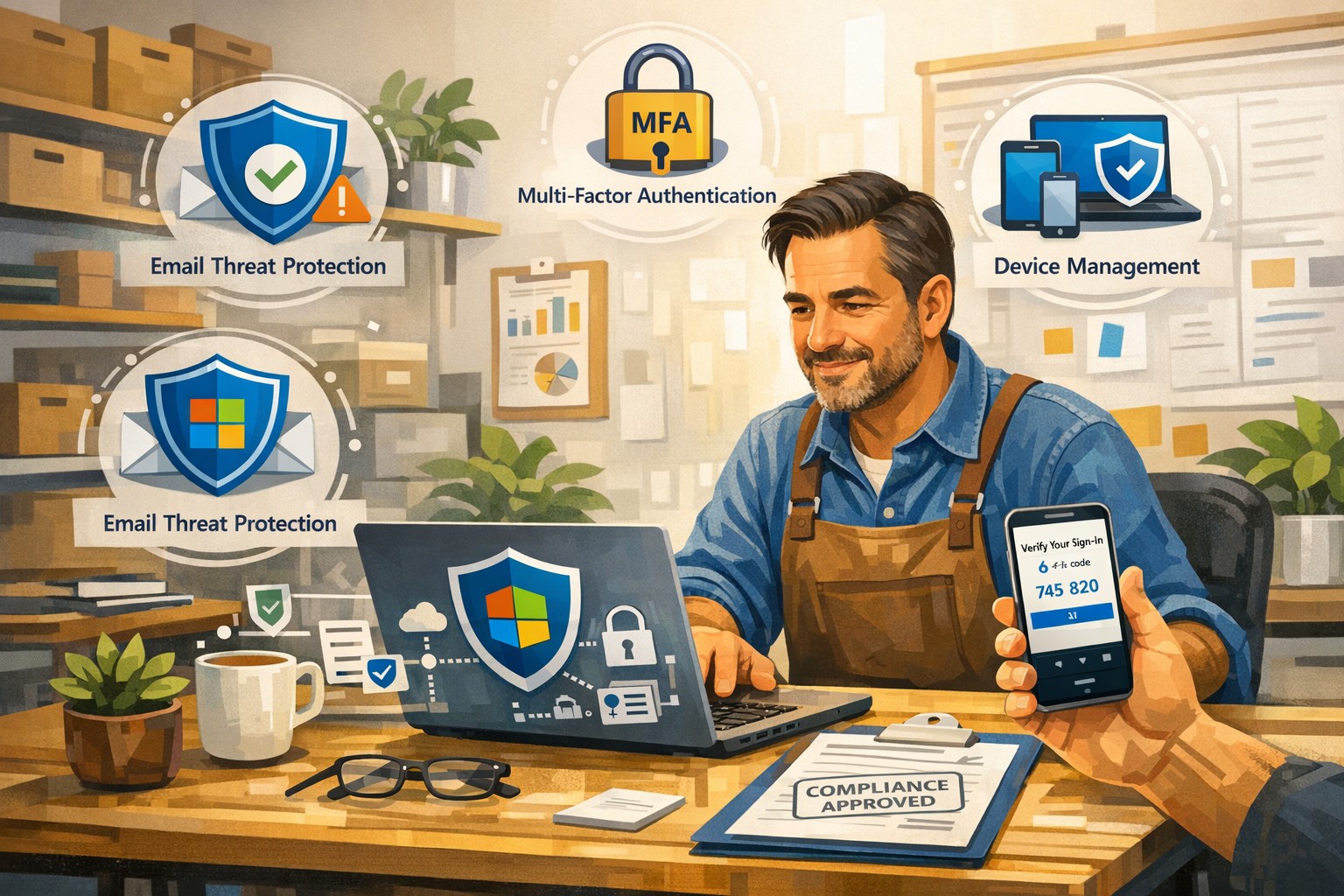
A small business owner uses Microsoft 365 Business to protect email, files, and devices with advanced security features like MFA and device management.
You’re a target whether you have 5 employees or 150. A single compromised email account, lost laptop, or bogus invoice can cost more than a year of IT budget. Microsoft 365 Business (especially Business Premium) includes advanced security—multi-factor authentication, threat protection, and device management—that, when configured correctly, can dramatically reduce your risk without slowing your team down.
Why Microsoft 365 Security Matters to Owners
Microsoft 365 Business plans include built-in protections for email, files, identities, and devices, not just productivity tools. They provide anti-phishing, anti-spam, and anti-malware for cloud mailboxes, plus additional capabilities in Business Premium such as endpoint protection, data loss prevention, and advanced email threat protection. These capabilities are designed specifically for small and mid-sized businesses with up to about 300 users.
For you as an owner, the business outcomes are clear: fewer successful phishing attacks, protection if a device is lost or stolen, better control over who can see what, and evidence you’re taking reasonable steps for compliance and cyber insurance.
Practical Action Steps for You and Your IT
Below is a prioritized, owner-friendly checklist you can drive with your IT provider or internal IT lead.
1. Lock down accounts and logins
Owner responsibilities:
Require multi-factor authentication (MFA) for all staff, especially executives and finance.
Make it policy that shared accounts (info@, billing@) are tightly controlled and monitored.
Approve a standard for strong passwords and password reset processes.
IT responsibilities:
Turn on MFA for all users and admins and enforce it with security defaults or Conditional Access.
Protect admin accounts (separate admin IDs, no email or browsing from admin accounts, strong MFA).
Disable legacy authentication protocols that bypass modern security controls.
2. Harden email and collaboration
Owner responsibilities:
Decide which types of sensitive information must never be sent unencrypted (SSNs, health info, financials, donor lists, etc.).
Set expectations that staff must report suspicious emails instead of clicking or deleting quietly.
IT responsibilities:
Enable advanced anti-phishing, Safe Links, and Safe Attachments if you have Business Premium or Defender add-ons.
Configure preset security policies for Exchange Online to enforce consistent spam and malware filtering.
Enable email encryption policies for sensitive communications and configure data loss prevention (DLP) rules for critical data types.
3. Protect laptops, desktops, and mobile devices
Owner responsibilities:
Require all company devices to be enrolled in device management before accessing business data.
Decide whether personal (BYOD) phones can access company data and under what conditions.
IT responsibilities:
Use mobile device management and mobile app management to enforce PIN/biometric locks and device encryption.
Configure endpoint protection (Microsoft Defender for Business) on Windows devices and ensure automatic security updates.
Enable the ability to remotely wipe corporate data from lost or stolen devices.
4. Control access to files and data
Owner responsibilities:
Define which departments or roles should have access to which data (HR, finance, operations, executive, etc.).
Nominate “data owners” in each area who approve access changes.
IT responsibilities:
Use role-based access and groups to control who can see what in SharePoint, OneDrive, and Teams.
Implement sensitivity labels (e.g., Public, Internal, Confidential) to classify and protect documents and emails.
Set file-sharing policies (internal-only for sensitive data, restricted external sharing where needed).
5. Train people and monitor the environment
Owner responsibilities:
Mandate short, recurring security awareness training and phishing simulations.
Make it clear that reporting a mistake early is rewarded, not punished.
IT responsibilities:
Turn on security dashboards/secure score reporting and review them routinely.
Run regular phishing simulations and track improvement over time.
Document an incident response plan: who does what in the first hour of a suspected breach.
Common Client Questions and Straightforward Answers
Q1: Isn’t Microsoft 365 secure “out of the box”? A: It’s secure by default compared to many platforms, but critical features like MFA, device policies, and data loss prevention must be deliberately configured. Think of it like a building with locks installed—you still have to decide who gets keys and when doors stay locked.
Q2: Will all this security make it harder for my employees to work? A: Done properly, most changes are almost invisible after setup. MFA adds a few seconds at sign-in but can drastically cut account takeovers; device policies and automatic updates run in the background.
Q3: We’re a small business. Are we really a target? A: Yes. Automated attacks scan the internet for easy targets regardless of size, and small businesses are often seen as “soft” targets with weaker controls.
Q4: Do we need Business Premium, or is Basic/Standard enough? A: Basic and Standard include core email protections and collaboration tools, but Business Premium adds advanced threat protection, full device management, and better data protection—those are often required to meet cyber insurance and compliance expectations.
Q5: How long does it take to put all this in place? A: A phased rollout is typical: MFA and email protection in days, device and data controls over a few weeks, followed by ongoing tuning and training.
How Farmhouse Networking Helps You Implement This
Farmhouse Networking specializes in turning Microsoft 365 Business into a practical, business-grade security platform tailored for small and mid-sized organizations in accounting, healthcare, and nonprofit sectors.
Here is what implementation looks like with us:
Security assessment and roadmap We review your current Microsoft 365 tenant, licensing, and security posture, then build a prioritized, owner-friendly roadmap focused on quick wins (MFA, admin protection, baseline email security) and longer-term improvements (device management, DLP, labeling).
Secure configuration and deployment We configure MFA, Conditional Access, advanced email security, device protection, and file-sharing policies following Microsoft best practices, while aligning with your industry-specific requirements and compliance pressures.
Data classification and access design We work with you to define which information is most sensitive, who should access it, and how to label and protect it across email, SharePoint, OneDrive, and Teams.
User training and ongoing support We provide concise training for your staff, phishing simulations, and ongoing monitoring so that your security posture keeps improving instead of drifting over time.
Coordination with your IT team If you already have internal IT, we act as a specialist partner, focusing on Microsoft 365 security design, documentation, and escalation support while your team handles day-to-day operations.
Call to Action
If you want to turn Microsoft 365 Business into a true security shield for your organization—not just an email and Office subscription—Farmhouse Networking can design and implement a right-sized security program for you.
Email support@farmhousenetworking.com for more information about how Farmhouse Networking can help improve your business and better protect it with advanced security from Microsoft 365 Business.
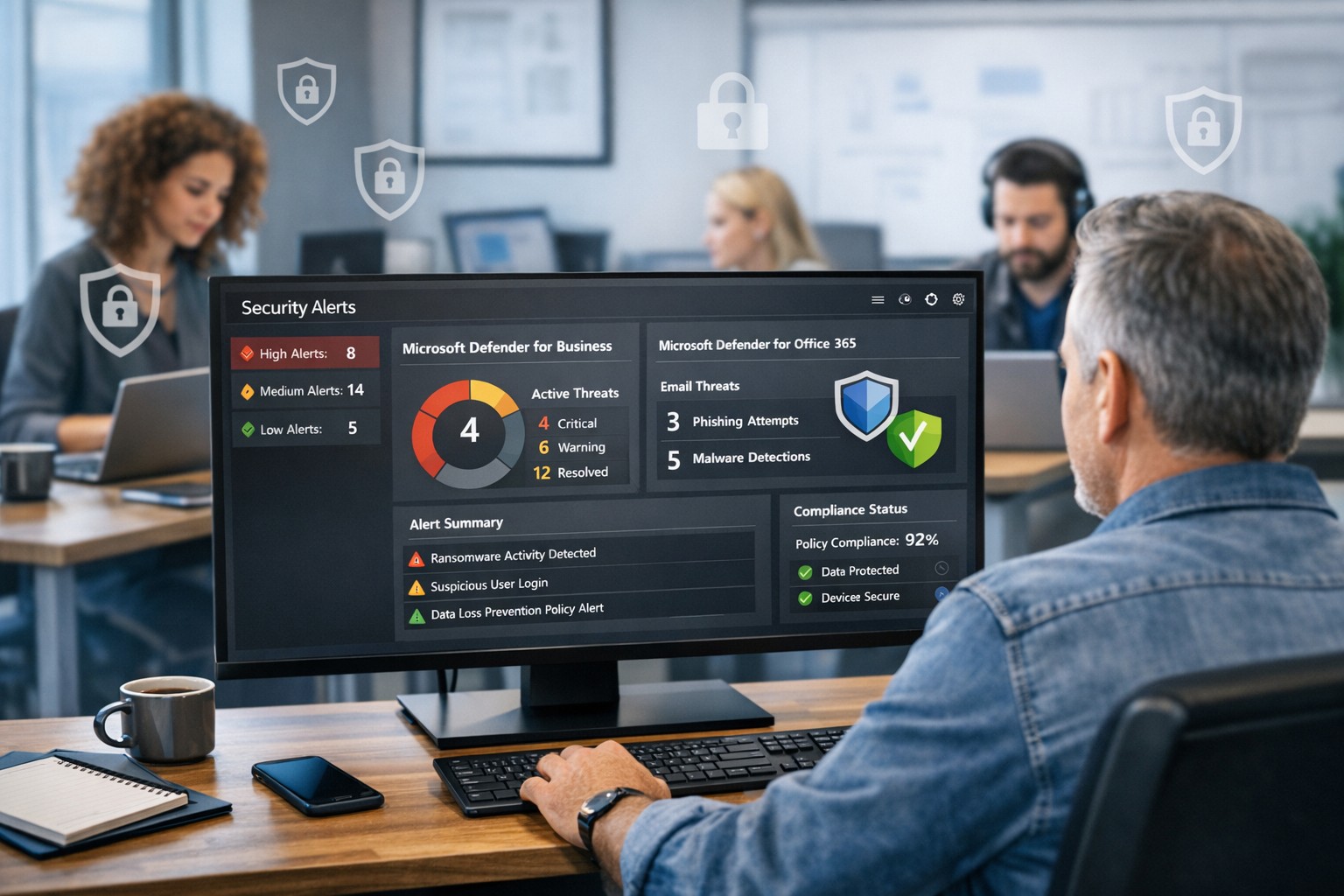
Protect your company with Microsoft security solutions: Microsoft Defender for Business and Microsoft 365 security help small and mid‑sized businesses block ransomware, phishing, and data breaches.
And God will generously provide all you need. Then you will always have everything you need and plenty left over to share with others. As the Scriptures say,
“They share freely and give generously to the poor. Their good deeds will be remembered forever.”
For God is the one who provides seed for the farmer and then bread to eat. In the same way, he will provide and increase your resources and then produce a great harvest of generosity in you. - 2 Corinthians 9:8-10
We use cookies to ensure that we give you the best experience on our website. If you continue to use this site we will assume that you are happy with it.