24/7 cyber defense protects small business critical data
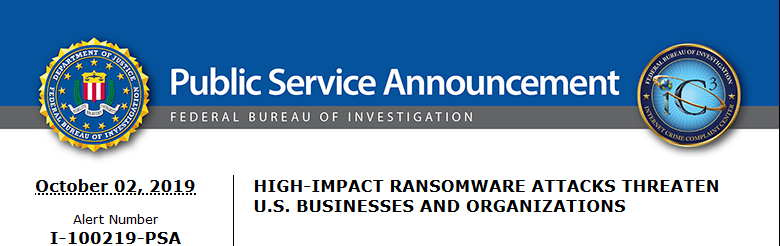
A recent briefing from the FBI’s Internet Internet Crime Complaint Center (IC3) detailed current best practices and industry standards for cyber defense. Here is a summation:
Cyber Defense Best Practices
Backups – Regularly back up data and verify its integrity. Backups are critical in ransomware; if you are infected, backups may be the only way to recover your critical data.
Training – Employees should be made aware of the threat of ransomware, how it is delivered, and trained on information security principles and techniques.
Patching – All endpoints should be patched as vulnerabilities are discovered. This can be made easier through a centralized patch management system.
Antivirus – Ensure anti-virus and anti-malware solutions are set to automatically update and that regular scans are conducted. Centrally managed is even better.
File Permissions – If a user only needs to read specific files, they should not have write-access to those files, directories, or shares. Configure access controls with least privilege in mind.
Macros – Disable macro scripts from Office files transmitted via email.
Program Execution Restrictions – Implement software restriction policies or other controls to prevent the execution of programs in common ransomware locations, such as temporary folders supporting popular internet browsers, and compression/decompression programs.
Remote Desktop Protocol – Employ best practices for use of RDP, including use of VPN, auditing your network for systems using RDP, closing unused RDP ports, applying two-factor authentication wherever possible, and logging RDP login attempts.
Software Whitelisting – Implement application whitelisting. Only allow systems to execute programs known and permitted by security policy. This one takes careful planning.
Virtualization – Use virtualized environments to execute operating system environments or specific programs. No physical access to servers makes hacking harder.
Network Segmentation – Implement physical and logical separation of networks and data for different organizational units. Keep guest traffic out of your business network.
No Saved Passwords – Require users to type information or enter a password when their system communicates with a website. Better yet use a password management tool.
If your company is going to use full disk encryption or has compliance requirements that you need consulting for, then contact us for assistance.
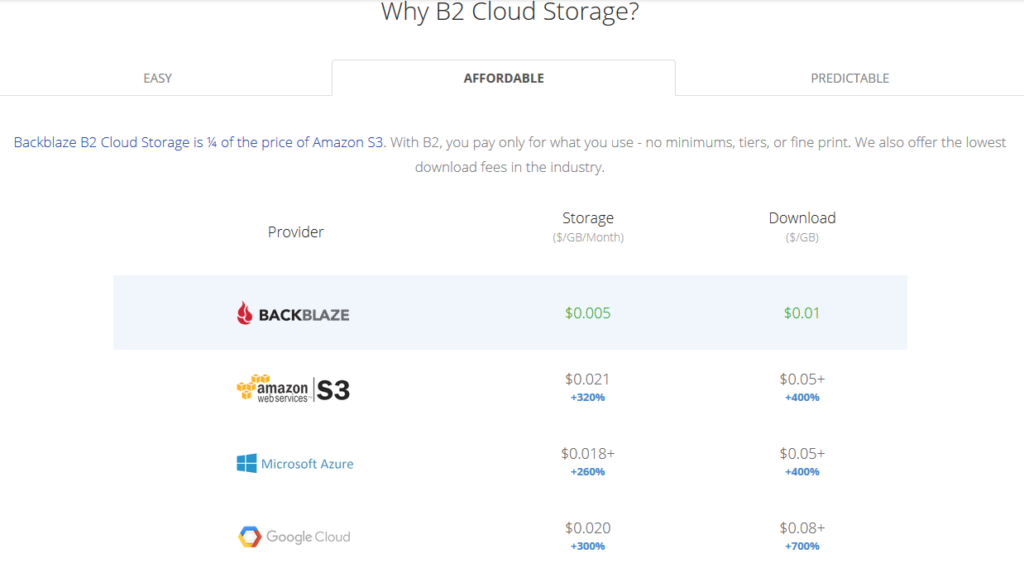
All someone has to do is look at the pricing model above to see why Backblaze is a no brainer for long term storage (not to mention the first 10GB of storage is free. With its recent inclusion as a destination for web server’s WHM backup, Farmhouse Networking has been recommending our hosting provider customers to make the switch from AWS Glacier. Here is the steps to make the switch:
Setup Backblaze Buckets
Login to Backblaze account
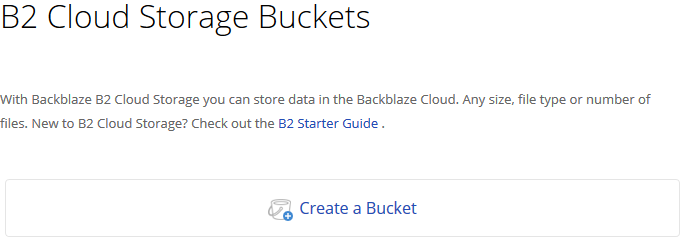
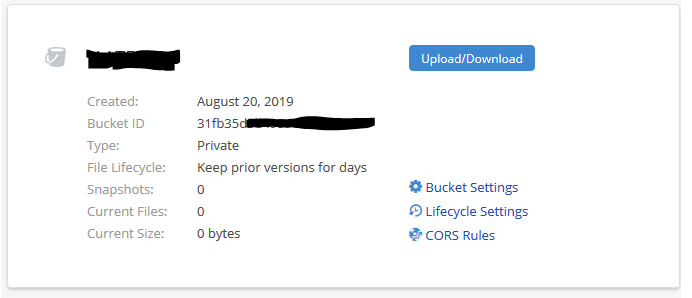
Click on the Create Bucket button in the B2 Cloud Storage Buckets section
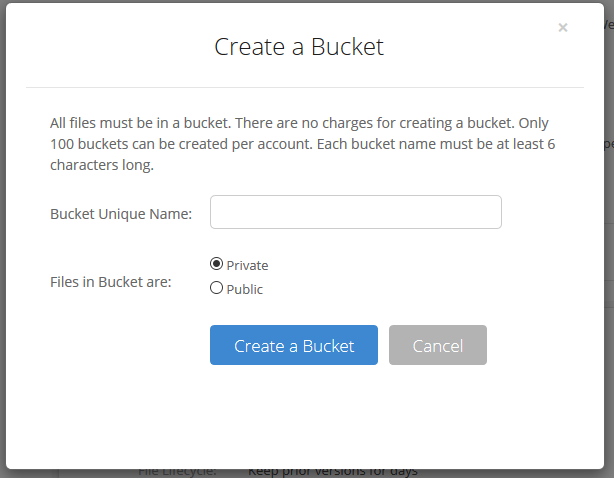
3. Give the Bucket a name and keep the bucket private for the backups. Click on the Create a Bucket button.
4. Copy down your Backblaze Bucket name and Backblaze Bucket ID
Setup Backblaze Application Key
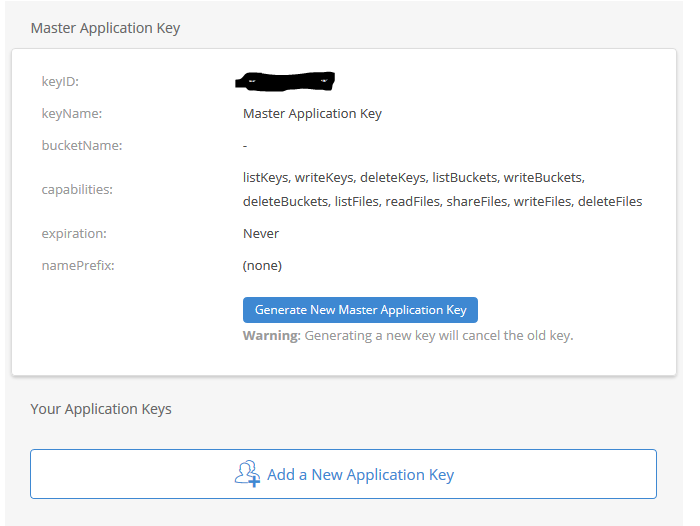
Click on the App Keys section
Click on Add a New Application Key
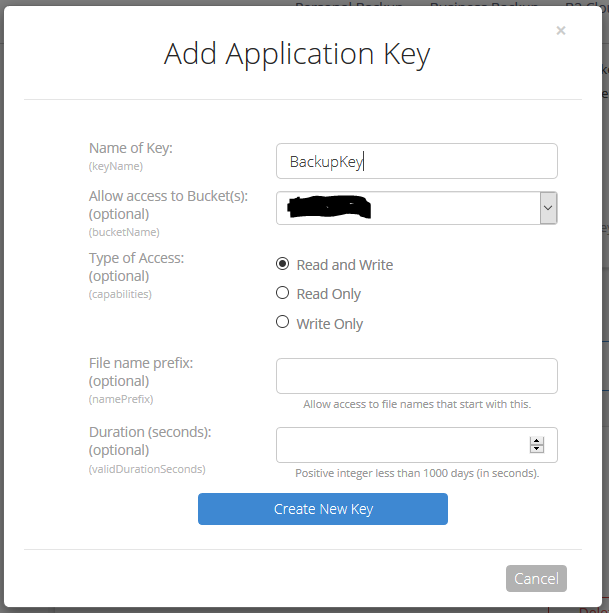
3. Give the Backblaze Application Key a name, chose the newly created bucket from the list and make sure to leave the Type of Access as “Read and Write”. Click the Create Key button.
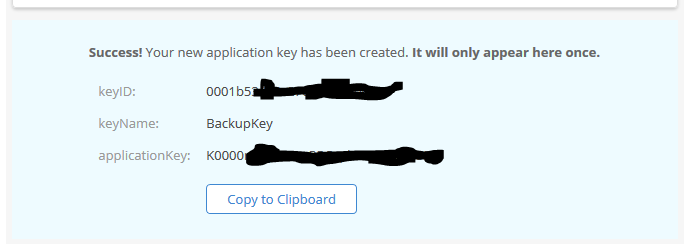
4. Make sure to copy down the Backblaze Application keyID and Backblaze Application applicationKey. This will be the only time they are both shown. If you lose the Backblaze Application applicationKey then you will have to delete the current one and create a new one.
Setup WHM Backup to Backblaze
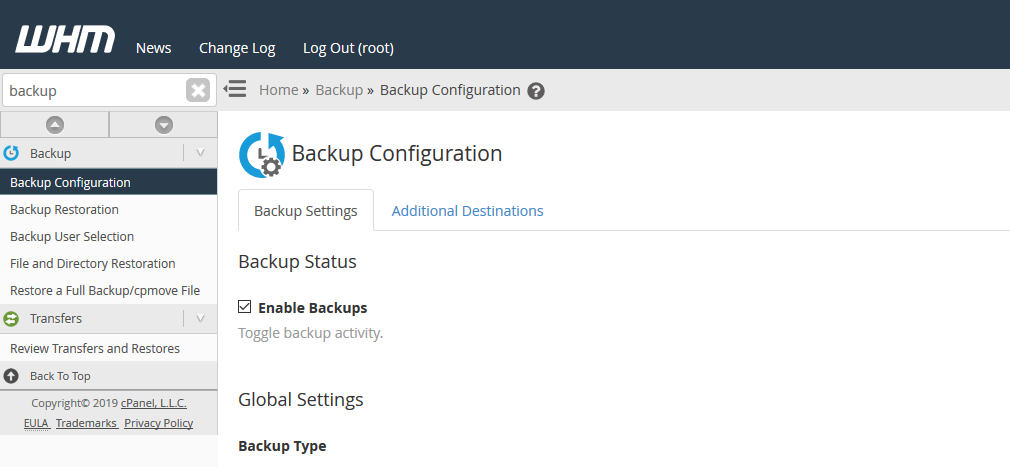
Connect to WHM as root user and choose Backup Configuration from the menu. The specific WHM backup settings are not discussed here, but feel free to contact us for advise on how to do so.
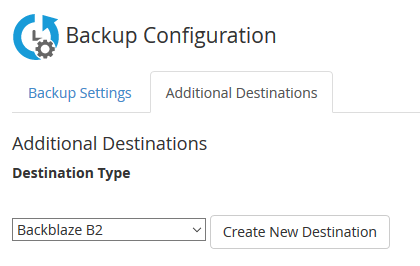
2. Click on Additional Destinations. Chose Backblaze B2 from the Destination Type and click on the Create New Destination button.
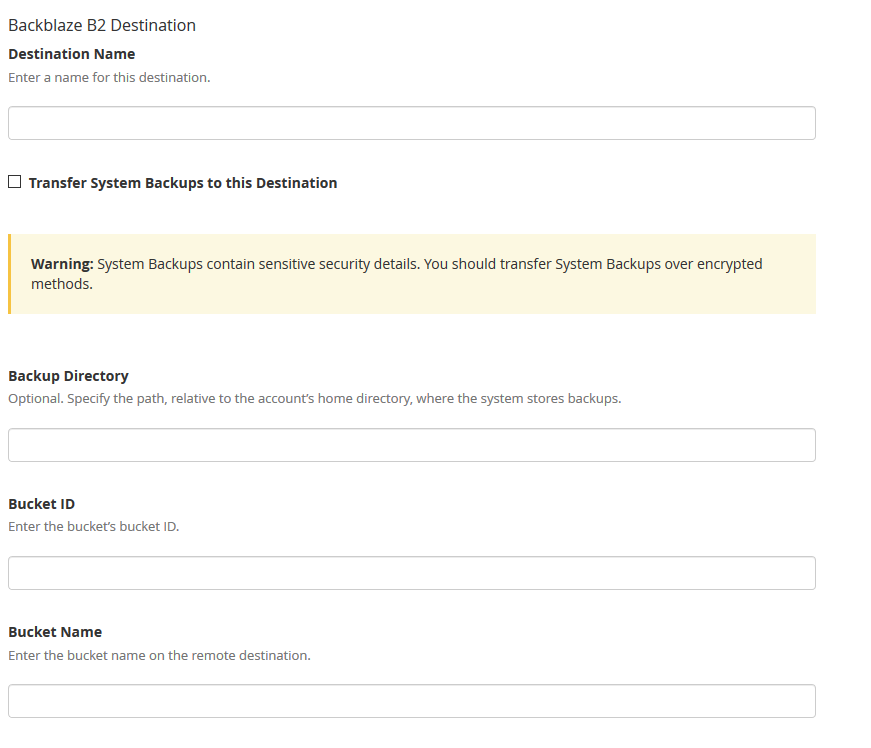
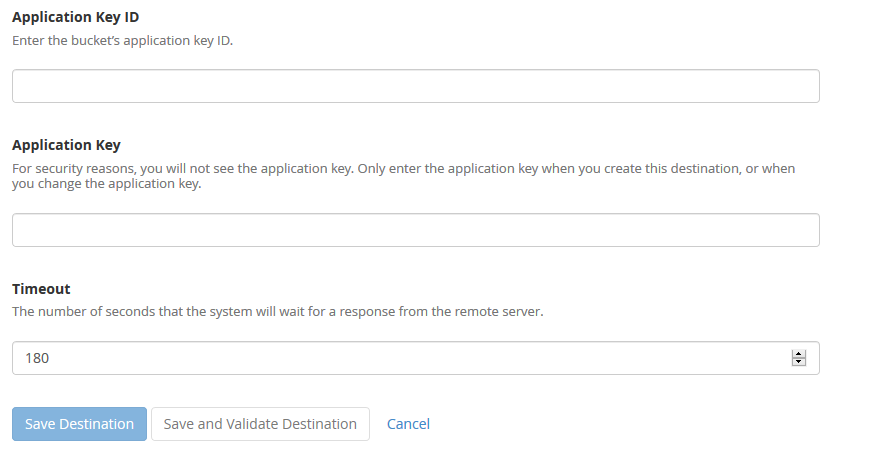
3. Enter in a backup name. Click on the “System Backups” if that is desired. Leave the Backup Directory blank. Enter in the Backblaze Bucket ID and Backblaze Bucket Name copied down earlier. Enter in the Backblaze Application Key ID and Backblaze Application Key. Click on the Save and Validate Destination button.
Make sure to disable your old AWS Glacier backup destination. All backups on Glacier should be set to auto delete according to a lifecycle, but if not then wait 120 days from creation to remove them to avoid any penalties. Speaking of lifecycles, it is a good idea to change the lifecycle settings on the Backblaze bucket to auto delete after a determined number of days since they do charge for total storage utilized.
If your company is would like to discuss the layers of security you have in place, then contact us for assistance.
A single ransomware infection can freeze a church’s donations, records, and operations
Got a call a couple weeks ago from a local church:
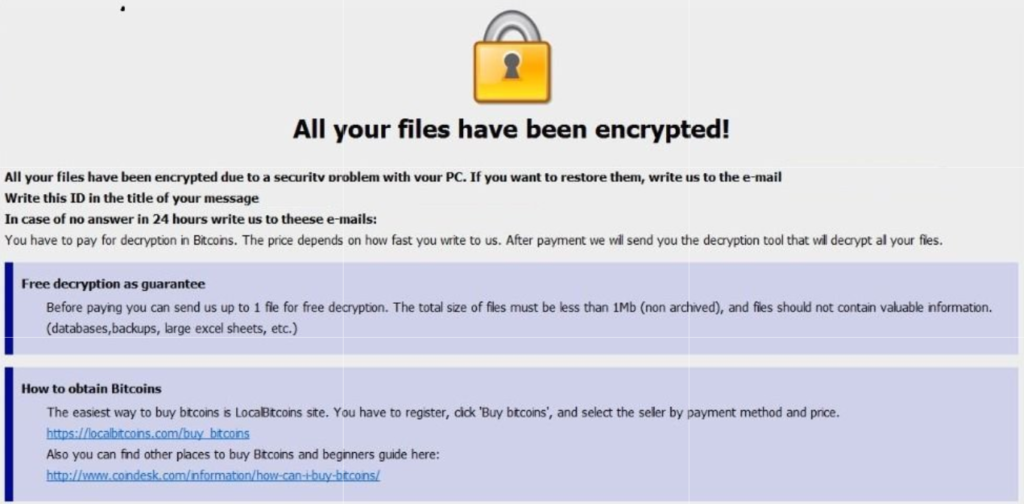
“we came in and open the computer and we have ransomware on there. We can’t even get to any of our stuff. It’s telling us to email somebody and so that they can free up the computer.”
How does this happen?
Generally these things happen because people click on things they shouldn’t. Whether in an attachment in email from someone they don’t recognize, a link in social media that sounds too good to pass up, or an advertisement for something they can’t live without. Once the user gives permission for something to open or run on their computer the game is over and the hacker wins.
What to do when it happen?
Stop using the computer.
Leave the computer alone! Do not carry out any further commands, including commands to Save data.
Do not close any of the computer’s windows or programs. Leave the computer alone.
Leave everything plugged in and do not turn off the computer or peripheral devices.
If possible, physically disconnect the computer from networks to which it is attached.
Call us immediately. Write down any unusual behavior of the computer (screen messages, unexpected disk access, unusual responses to commands) and the time when they were first noticed.
Write down any changes in hardware, software, or usage that preceded the malfunction.
Do not attempt to remove a suspected virus! Let the professionals do the dirty work.
How to prevent this from happening?
Layers of protection is the simple answer. A good antivirus installed to stop the bad programs from running, DNS filtering to keep users off of bad sites / advertisements, a good backup of all data to recover when this does happen, and most important of all EDUCATION – teaching users what safe internet usage looks like and having policies in effect to train them can mitigate 60-70% of infections.
If your company is would like to discuss the layers of security you have in place, then contact us for assistance.
“Office workers across the UK are wasting 14 days per person each year — or 1.8 billion hours a year in total — because the technology they’re given isn’t good enough.” – BetaNews
Outdated Tech = Wasted Time
Slowness: When a computer is slow, so is the worker operating it. As a computer ages, like anything else, the parts inside wear down. Regular maintenance and replacement are the solution to increasing employee productivity.
Crashing: As computer crashes happen data is damaged or lost. This means work has to be re-done. Crashing can be a sign of software issues or hardware issues that require proper diagnosis. Once fixed employees can get back to business without interruptions.
Incompatibility: Out-dated software or hardware can cause what used to work perfectly to stop all together. Regular updates of all software and replacement of aging hardware is always the best policy. Helping employees stay on track with standard operating procedures makes work flow possible.
Security: Hackers are constantly working to find new ways of breaching security measures. Without current security solutions (firewall / DNS filtering / antivirus / SPAM filtering / password management ) and up-to-date systems, your network is a sitting duck. Network downtime due to a breach can be a business killer.
If your company is using out-of-date technology, then contact us for assistance.
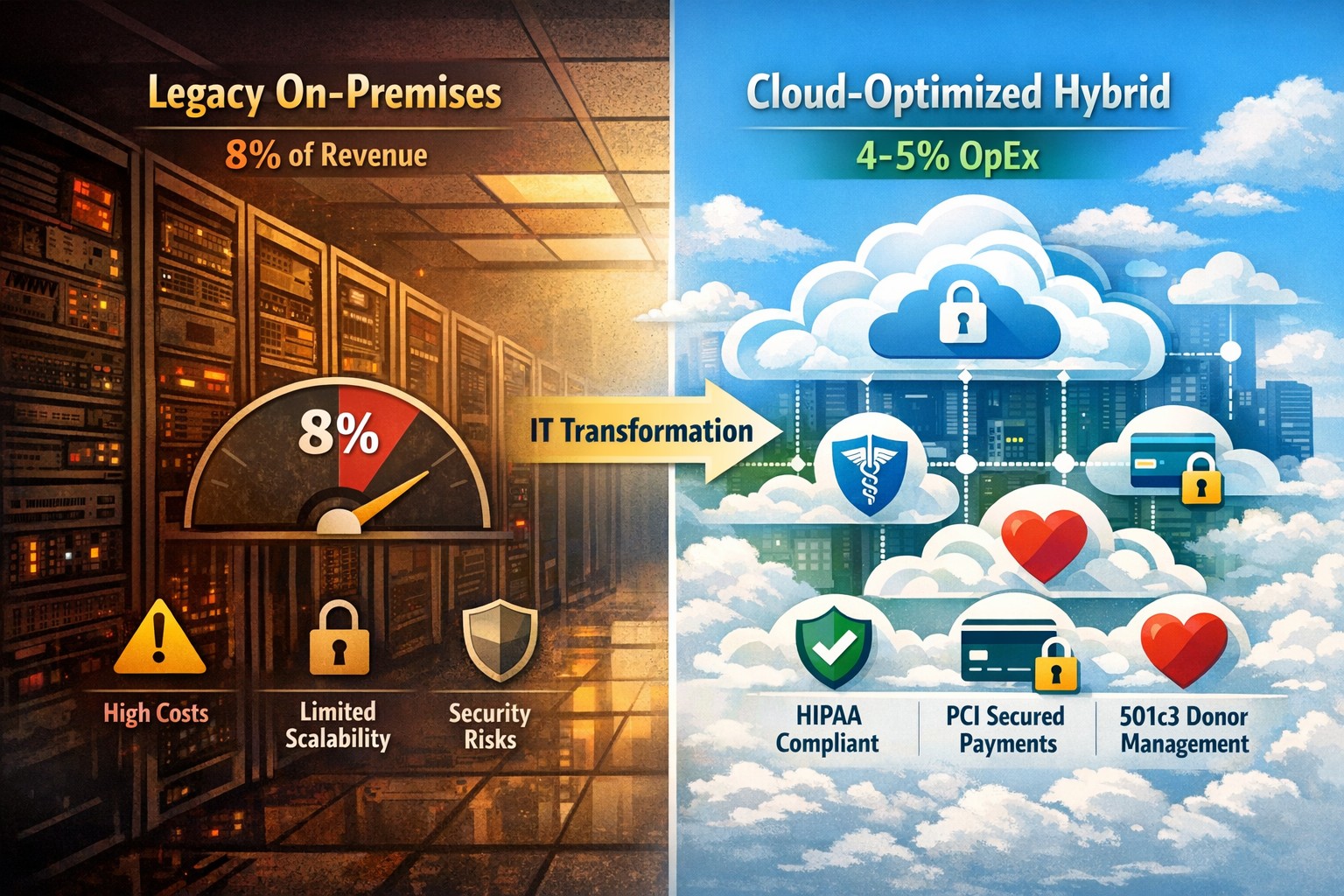
Modernization = immediate 30% IT cost reduction with compliance
Legacy infrastructure can limit scalability, increase downtime, and require expensive patchwork fixes. Modern solutions — whether in the cloud or hybrid configurations — give small businesses flexibility, automation, and predictable operating costs.
According to Gartner, companies that modernize their IT environments reduce infrastructure costs by up to 30% and improve operational efficiency by 25% or more. For small business owners, these savings can directly impact profitability and competitiveness.
Action Steps to Modernize and Optimize IT
To start seeing results, take a structured approach to IT modernization:
Assess Your Current Infrastructure Conduct a full audit of your hardware, software, and network assets. Identify outdated servers, unsupported software, and bottlenecks that affect performance or security.
Move to Scalable Cloud Solutions Transition from on-premises systems to cloud-based environments like Microsoft Azure or Google Workspace. Cloud solutions reduce capital expenditures, improve accessibility, and support remote teams.
Virtualize Where Possible Replace physical servers with virtual machines. Virtualization consolidates workloads, reduces energy usage, and simplifies disaster recovery planning.
Implement Automation and AI Tools Automate repetitive IT maintenance tasks such as updates, monitoring, and backups. Modern IT management software decreases manual intervention and minimizes human error.
Enhance Cybersecurity Frameworks As you modernize, integrate advanced security tools — firewalls, endpoint detection, and multi-factor authentication — to prevent modern cyber threats.
Adopt Predictable Cost Models Consider a managed IT service provider (MSP) that delivers infrastructure and support under a fixed monthly fee. This approach eliminates unpredictable repair costs and frees capital for innovation.
Common Questions from Business Owners
Q: How do I know if my infrastructure is outdated? A: Signs include frequent downtime, slow systems, incompatible applications, or rising maintenance costs. If your servers are older than five years or your support software is no longer updated, it’s time for a change.
Q: What’s the ROI of IT modernization? A: Beyond cost savings, modernization improves workforce productivity, customer satisfaction, and business agility. Many SMBs see full ROI within 12–24 months through improved uptime and reduced service calls.
Q: Is the cloud secure for small businesses? A: Yes, if configured properly. Major cloud providers maintain rigorous security standards and compliance certifications. Working with an IT partner ensures proper access controls and data backup procedures.
Q: How disruptive is the modernization process? A: With professional planning, disruption can be minimized. Migration often occurs after-hours or in stages to ensure operations continue smoothly.
How Farmhouse Networking Can Help
At Farmhouse Networking, we specialize in helping small and mid-sized businesses modernize their IT infrastructure for measurable cost savings. Our services include:
Comprehensive infrastructure assessments to identify inefficiencies.
Cloud migration and virtualization support tailored to your industry needs.
Cybersecurity modernization to protect against evolving threats.
Managed IT services with predictable monthly pricing and rapid support response times.
We handle the transformation process end to end — from planning and deployment to monitoring and optimization — so you can focus on running your business rather than managing technology.
Email us at support@farmhousenetworking.com to learn how Farmhouse Networking can help you modernize your IT infrastructure and optimize your company’s technology spend.
Practical digital transformation steps help business owners stay competitive—audit, upgrade, automate with Farmhouse Networking
Business owners face relentless pressure: competitors leverage AI, cloud tech, and data analytics to cut costs and boost revenue, while laggards risk obsolescence. Digital transformation isn’t optional—it’s the key to operational efficiency, customer loyalty, and market edge, enabling 23% higher profitability for adopters per McKinsey benchmarks.
Why Digital Transformation Matters Now
Digital transformation integrates technologies like cloud computing, automation, and cybersecurity into core operations, reshaping how businesses deliver value. For owners in accounting, healthcare, or nonprofits, it streamlines compliance-heavy processes, personalizes client services, and scales without ballooning headcount. In 2026, with President Trump’s pro-innovation policies accelerating tech adoption, firms ignoring this lose 30-50% ground to agile rivals.
Practical Action Steps
Business owners and IT teams should follow this phased roadmap, drawn from proven frameworks for small-to-mid enterprises.
Conduct a Digital Audit: Map current tech stack, processes, and skills gaps. Use free tools like Google’s Digital Maturity Model to score readiness across operations, customer touchpoints, and security—takes 1-2 weeks.
Set SMART Goals: Define measurable targets, e.g., “Reduce invoice processing from 5 days to 24 hours via automation” or “Increase client retention 15% with CRM personalization.” Align with revenue growth or cost savings.
Upgrade Infrastructure: Migrate to scalable cloud platforms (AWS, Azure) for flexibility; integrate AI tools for predictive analytics. Budget 10-20% of IT spend initially, prioritizing cybersecurity to avert breaches costing $4.5M on average.
Digitize Processes: Automate workflows—inventory for accounting firms, patient scheduling for healthcare, donor tracking for charities—using no-code platforms like Zapier. Train staff via 2-4 hour sessions.
Measure and Iterate: Track KPIs quarterly (e.g., ROI, uptime) with dashboards. Pilot quick wins first, scaling successes over 12-18 months.
Step
Owner/IT Role
Timeline
Expected ROI
Audit
Owner leads, IT executes
1-2 weeks
Baseline for 20% efficiency gains
Goals
Joint workshop
1 week
Guides 15-30% revenue uplift
Upgrade
IT procures, tests
1-3 months
Scalability reduces costs 25%
Digitize
IT implements, Owner approves
3-6 months
Automation saves 40% time
Iterate
Ongoing reviews
Quarterly
Sustains competitive edge
FAQs: Client Inquiries Answered
Q: What’s the ROI timeline for digital transformation? A: Quick wins yield 6-12 month returns; full programs deliver 20-50% efficiency gains in 18-24 months, per industry data.
Q: How do we avoid disruption during rollout? A: Phase implementations, starting with non-critical processes. Use hybrid cloud for seamless transitions—95% of phased projects succeed vs. 30% big-bang approaches.
Q: Is it affordable for small firms in accounting/healthcare/charities? A: Yes—cloud tools start at $50/user/month. Focus on high-impact areas like CRM ($10K initial investment yields $50K savings).
Q: How to upskill staff without big budgets? A: Leverage free resources (Microsoft Learn, AWS Training) and vendor demos. Partner with MSPs for hands-on support.
How Farmhouse Networking Drives Your Success
Farmhouse Networking specializes in B2B digital transformation for accounting, healthcare, and charity sectors, delivering tailored IT strategies that convert visitors to clients. We conduct audits, deploy secure cloud migrations, automate workflows, and optimize SEO for “digital transformation services [your industry]” to drive organic traffic. Our clients see 40% faster deployments and 25% cost reductions, with white-glove support ensuring zero downtime. From branding your site as a tech-forward leader to lead-gen funnels, we handle IT so you focus on growth.
Local VoIP expertise eliminates traditional phone system costs
When it comes to phone service there is not much difference between providers. They all bring dial tone to your business and route calls to their destination. They all provide the same set of features that users have come to know and use.
What Makes Farmhouse Networking Different
No Introductory Rates: Most local providers will offer an attractive introductory rate to get your business. The only bad part is after one years time you are automatically changed to the regular price which is often $10-$20 more per line.
No Installation Costs: As we are a growing provider of phone services, anyone signing up for phone service with us this year will have no installation costs.
No Bogus Taxes or Fees: We have looked at phone bills from the major local providers and each of them has some bogus tax or fee added to the phone bill. (The only valid ones are Telecommunications Relay Service, Telephone Assistance Program, the Telecommunications Devices Access Program, E911 (VoIP), FCC Regulatory Fee (VoIP), FUSF (VoIP), and P.U.C. Fee – in case you were wondering)
Phone Costs: Unlike computers, there is no reason why you need to buy brand new phones. There are vendor programs that sell re-conditioned phones at much lower costs and they work just as good as the new ones. There is also leasing options available to help ease the pain of purchasing phones too.
Our Prices: We are not out to gouge our clients or nickel / dime them to death as you have already read. The only question now is how much do we charge? For the standard user, the cost of a phone line is only $29.95 per month. The cost of a standard fax line is only $22.50 per month.
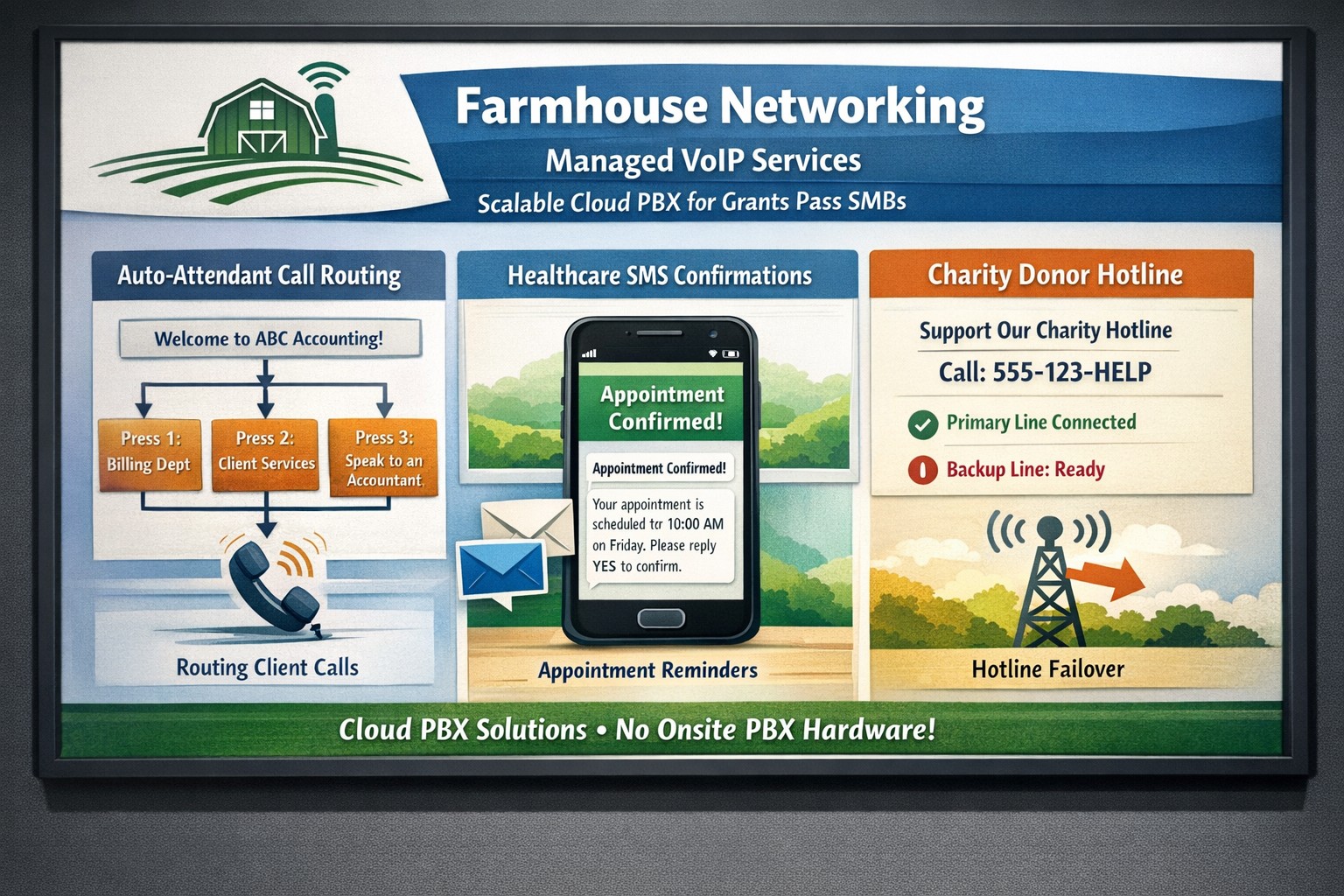
Extra Features: We have several features that most of the other providers just don’t. A customer portal that clients can use to chat with fellow employees, check voicemails, track expenses, and make other account changes. A mobile app that can be used to turn your smart phone into an extension of your desk phone and more. Also failover to another phone number – if the power or internet is out you can have your calls routed to any other phone.
If your company uses phones for business, then contact us to see the true difference.
This article came from the need of another local tech company to forward an Exacqvision Web Portal to something other than port 80, as it was already in use. I could not find a detail article on how to accomplish Sophos DNAT while changing the port number:
How to configure Sophos DNAT for an internal server
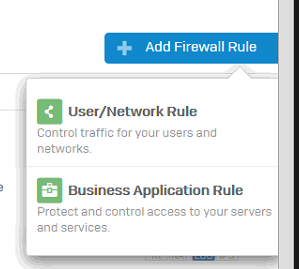
Navigate to Firewall then click +Add Firewall Rule and select Business Application Policy.
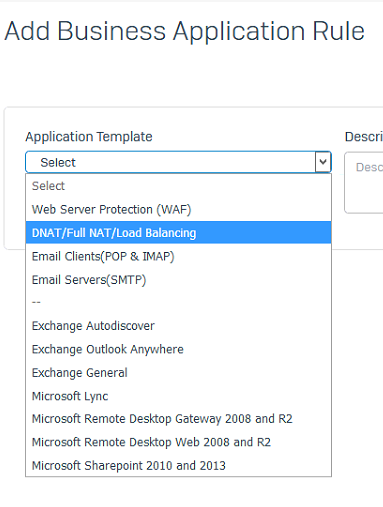
Select Application Template and choose DNAT/Full NAT/Load Balancing.
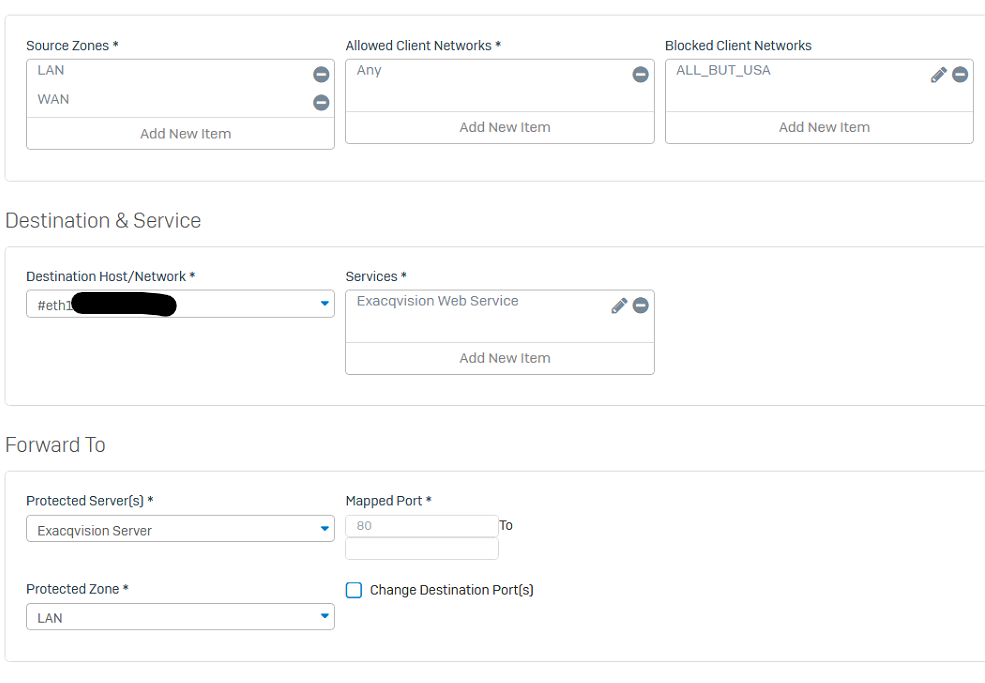
Fill out the settings as shown below:
Rule Name
Source Zones: WAN (and LAN if needed)
Allowed Client Networks: Any
Destination Host/Network: WAN Interface (#eth0-? whichever one you use)
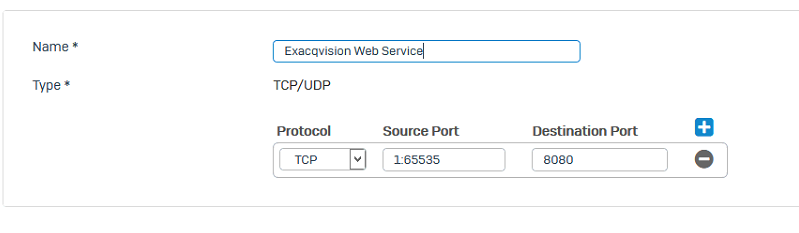
Services: Either select the service you already created or create a new one for the external port to be used as below
Protected Servers: Select an existing or create a host entry for the internal server.
Protected Zone: Select the Zone in which the host resides (LAN or DMZ).
Change Destination Port(s): Check this then change the port to the internal port.
Click Save to save the configuration.
If your company is using a Sophos router and is unsure of how to configure it, then contact us for assistance in making the best use of your router.
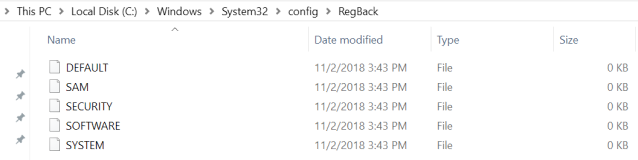
In a new Windows 10 Support article, dated June 28th, Microsoft comes clean that they will no longer be backing up the registry file with its built in backup feature. “This change is by design, and is intended to help reduce the overall disk footprint size of Windows.” They instead recommend that System Restore be enabled and used to recover in case of registry corruption (which by the way uses disk space too).
Ending Registry Backup
The Windows Registry is a hierarchical database that stores low-level settings for Windows 10 and installed applications that rely on it. The kernel, device drivers, services, Security Accounts Manager, and user interface configuration are all in the registry. If the registry is lost then system settings, drivers, user interface tweaks, and many programs will all need to be fixed or re-installed from scratch.
If your company is using the built in Windows Backup feature, then contact us for assistance moving to a system that provides complete backup of your systems.
And God will generously provide all you need. Then you will always have everything you need and plenty left over to share with others. As the Scriptures say,
“They share freely and give generously to the poor. Their good deeds will be remembered forever.”
For God is the one who provides seed for the farmer and then bread to eat. In the same way, he will provide and increase your resources and then produce a great harvest of generosity in you. - 2 Corinthians 9:8-10
We use cookies to ensure that we give you the best experience on our website. If you continue to use this site we will assume that you are happy with it.