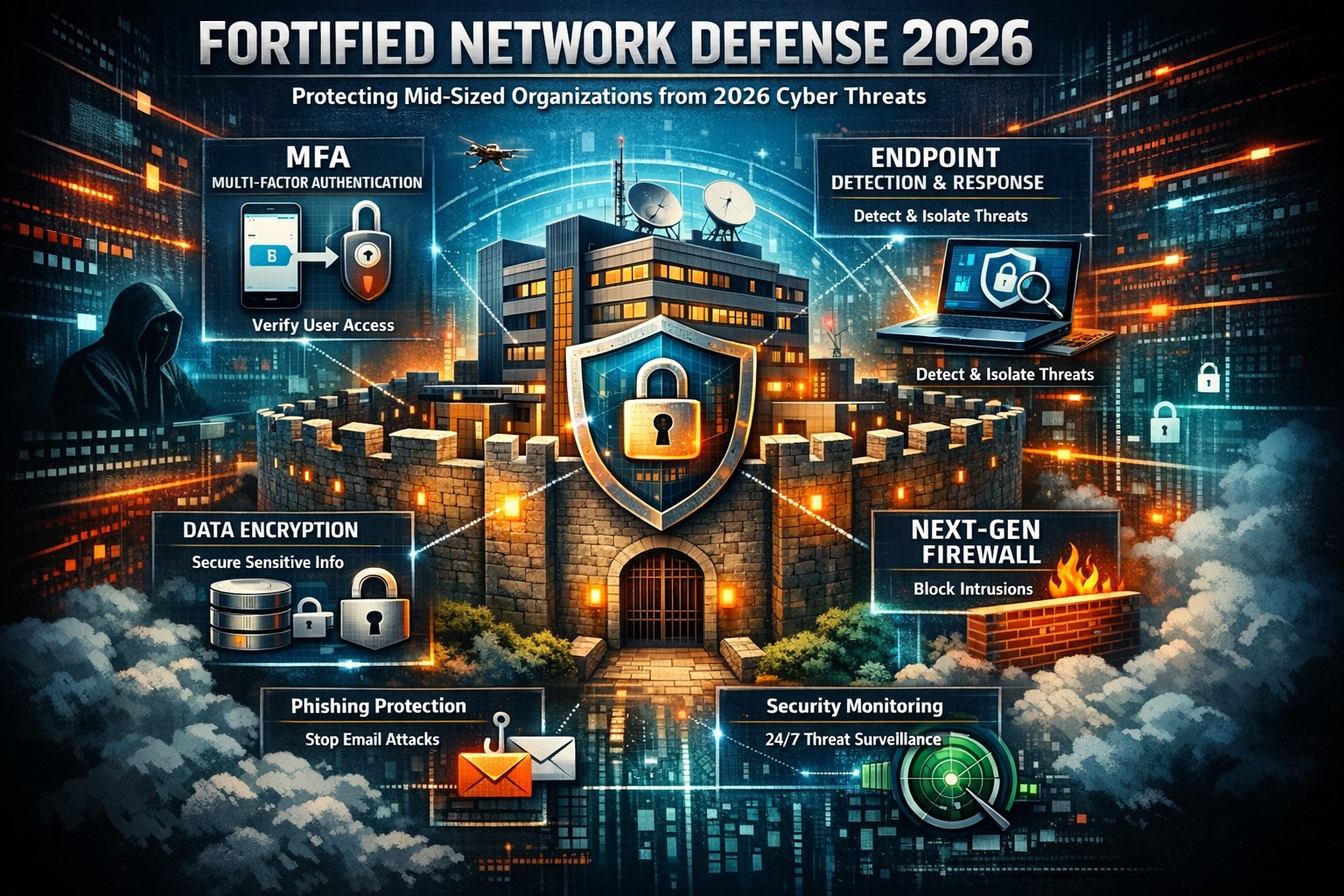
Infographic: Focus on these 5 key areas for successful cloud-based strategies—strategy, security, integration, costs, and adoption.
Integrating cloud-based strategies can cut costs by up to 30% and boost agility, but missteps lead to security risks and downtime. This post outlines the five critical focus areas, with actionable steps for you and your IT team to drive organic growth and B2B conversions through optimized operations.
Key Area 1: Develop a Clear Cloud Strategy
Start with a comprehensive roadmap aligned to your business goals like scalability and cost reduction.
Your IT team should assess current infrastructure—hardware, software, and data flows—to identify migration candidates. Action steps: Conduct a one-week audit of workloads, define KPIs (e.g., 20% cost savings), and choose hybrid/multi-cloud models for flexibility.
This prevents incompatible tech stacks, ensuring smooth transitions. Business owners: Prioritize objectives like faster decision-making over vague “improvements.”
Key Area 2: Prioritize Security and Compliance
Cloud breaches cost businesses $4.45 million on average; secure from day one.
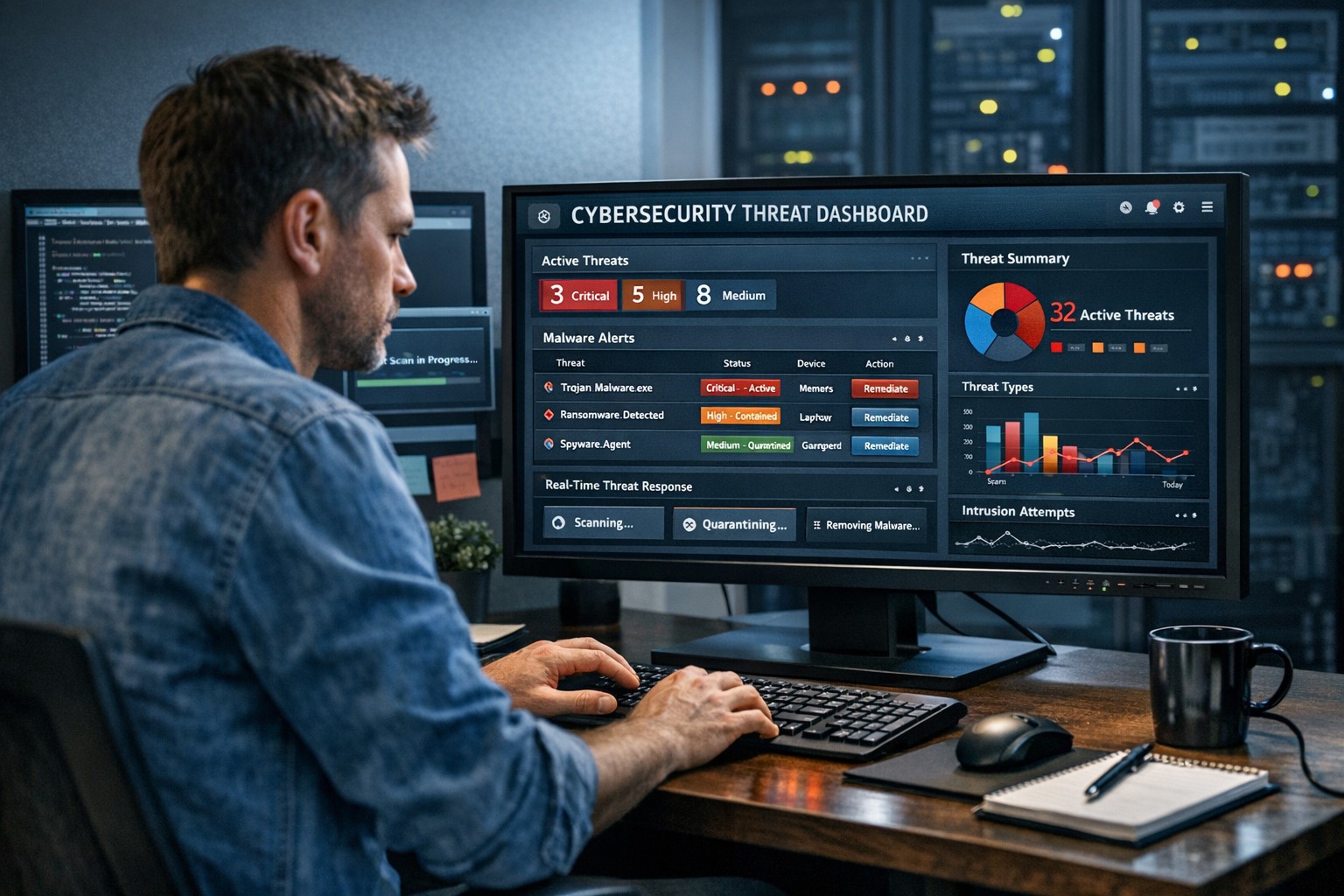
Practical steps: Implement zero-trust access, encrypt data in transit/rest, and select providers compliant with HIPAA or SOC 2 for accounting/healthcare/charity sectors. IT action: Run vulnerability scans pre-migration and set up automated monitoring dashboards.
Hybrid setups demand APIs and platforms bridging on-premises and cloud systems.
Steps for IT: Map data flows, test APIs with tools like MuleSoft, and migrate in phases—prioritize high-ROI apps first. Expect 15-20% efficiency gains from unified systems.
Business owners: Involve department heads in planning to avoid silos.
Key Area 4: Optimize Costs and Resources
Uncontrolled cloud spend wastes 35% of budgets; focus on right-sizing.
Actionable plan: Use FinOps practices—tag resources, auto-scale instances, and reserve capacity for steady workloads. IT: Monitor with native tools (e.g., AWS Cost Explorer) weekly; aim for 25% savings Year 1.
Owners: Tie budgets to ROI metrics for accountability.
Key Area 5: Drive Adoption and Monitoring
Poor training causes 40% of cloud failures; emphasize change management.
Steps: Train staff via workshops, define roles (e.g., cloud champions), and deploy KPIs for uptime (>99.9%) and usage. IT: Set real-time alerts and quarterly reviews.
Foster cross-team collaboration for sustained value.
Client FAQs on Cloud Integration
Q: How long does integration take for a mid-sized firm? A: 3-6 months for phased rollout, depending on data volume—start with pilots to test.
Q: What if we have legacy systems? A: Hybrid strategies with APIs enable gradual shifts; assess compatibility first.
Q: How do we measure ROI? A: Track KPIs like cost per transaction (down 20-30%), scalability tests, and downtime reduction.
Q: Is cloud secure for sensitive sectors like healthcare? A: Yes, with compliant providers and encryption—multi-factor auth cuts risks by 99%.
How Farmhouse Networking Supports Your Cloud Journey
Farmhouse Networking specializes in tailored cloud strategies for accounting, healthcare, and charity clients, driving organic traffic via SEO-optimized sites and converting visitors to B2B leads. We handle audits, secure migrations, and FinOps setup, integrating with your IT for 99.9% uptime. Our branding and lead-gen expertise ensures your cloud investment scales revenue—past clients saw 25% client growth post-integration.
Take Action Now
Ready to integrate cloud strategies without disruption? Email support@farmhousenetworking.com for a free assessment on streamlining your operations.
The Secretary of State actually sent out an email alert concerning fraudulent activity. Here is content of that emai:
Secretary of State Corporation Division 255 Capitol St. NE, Suite 151 Salem OR 97310 sos.oregon.gov/Business Contact: Corporation.Division@oregon.gov | 503-986-2200
New Business Spam Alert!
Newly-formed Oregon businesses have received a solicitation from OR Certificate Services offering a Certificate of Standing/Existence for $77.25. Many businesses do not need this certificate. Those that do may obtain one directly from Secretary of State for $10.
This solicitation may appear to be from a government agency, but it is not.
You may wish to request a refund if you were misled by this solicitation. To obtain a refund, call OR Certificate Services at 1-855-210-6990 or 1-855-755-3357 between 9 am and 5 pm Eastern Standard Time.
Check our Business Alerts Page
Spammers and scammers targeting businesses are numerous and relentless. We want you to stay abreast of how these schemes can negatively affect your business, so we post details of each scam on our Business Alerts page. Check the page before you respond to suspicious mail.
If you believe you’ve been the victim of a business scam, please contact us at Corporation.Division@oregon.gov or call 503-986-2200.
Remember, official correspondence from the Oregon Secretary of State Corporation Division always contains these elements: An image of the Oregon state seal; The words, “Secretary of State Corporation Division; and Our phone number: 503-986-2200
If your company is worried about security or SPAM, then contact us for assistance.
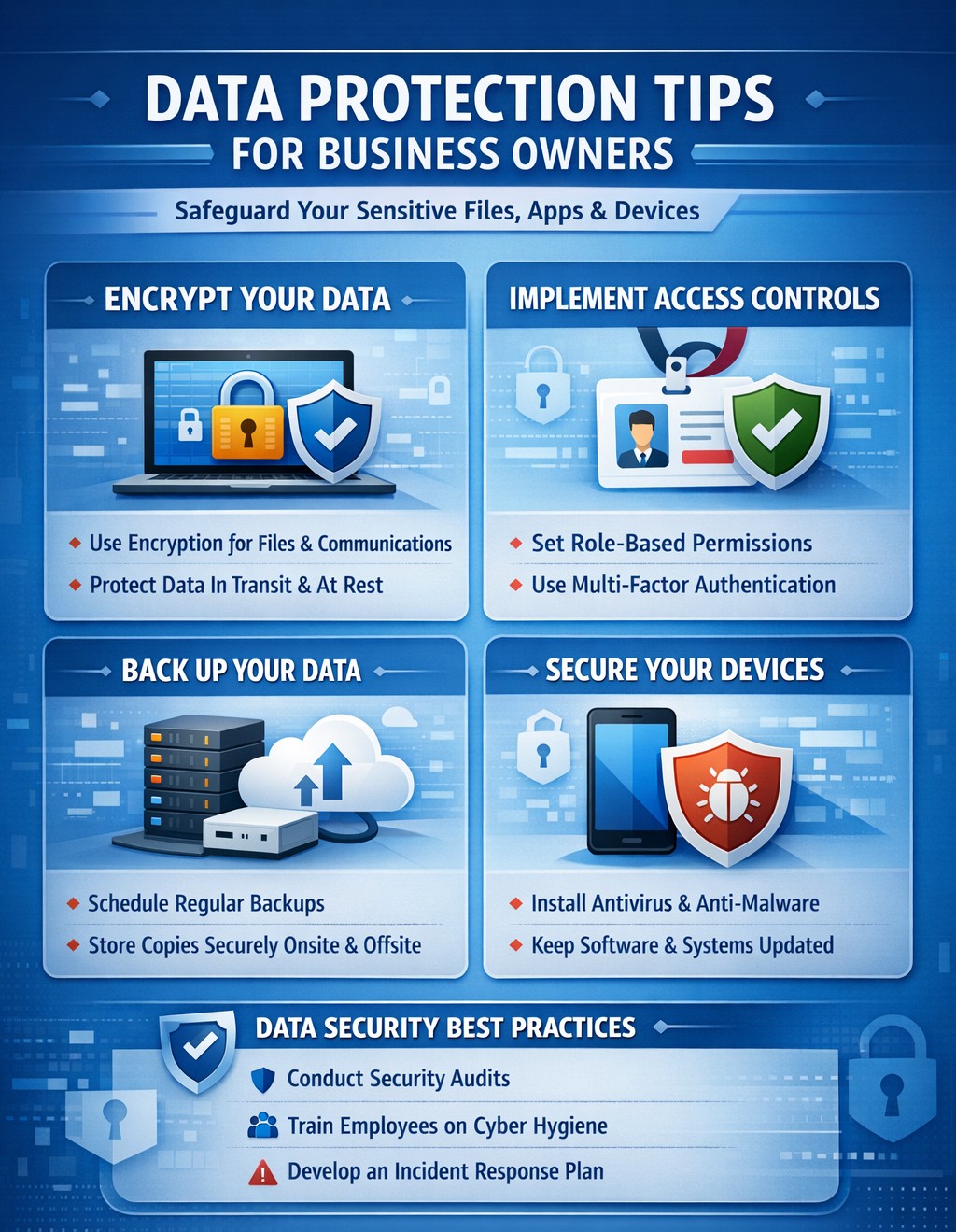
Strong cybersecurity practices protect your business from costly mistakes and data loss.
Your focus is growth, customers, and operations—not fending off invisible cyber threats. Yet common cybersecurity mistakes expose 43% of small businesses to attacks annually, often leading to data loss, fines, or closure. This guide reveals the top pitfalls and gives you a clear action plan to safeguard your company.
Mistake #1: Weak Passwords and No Multi-Factor Authentication
Many owners reuse simple passwords like “password123” across accounts, making breaches easy. Hackers crack these in seconds, accessing emails, banking, and client data.
Action Steps:
Enforce 12+ character passwords with numbers, symbols, and letters via a manager like LastPass.
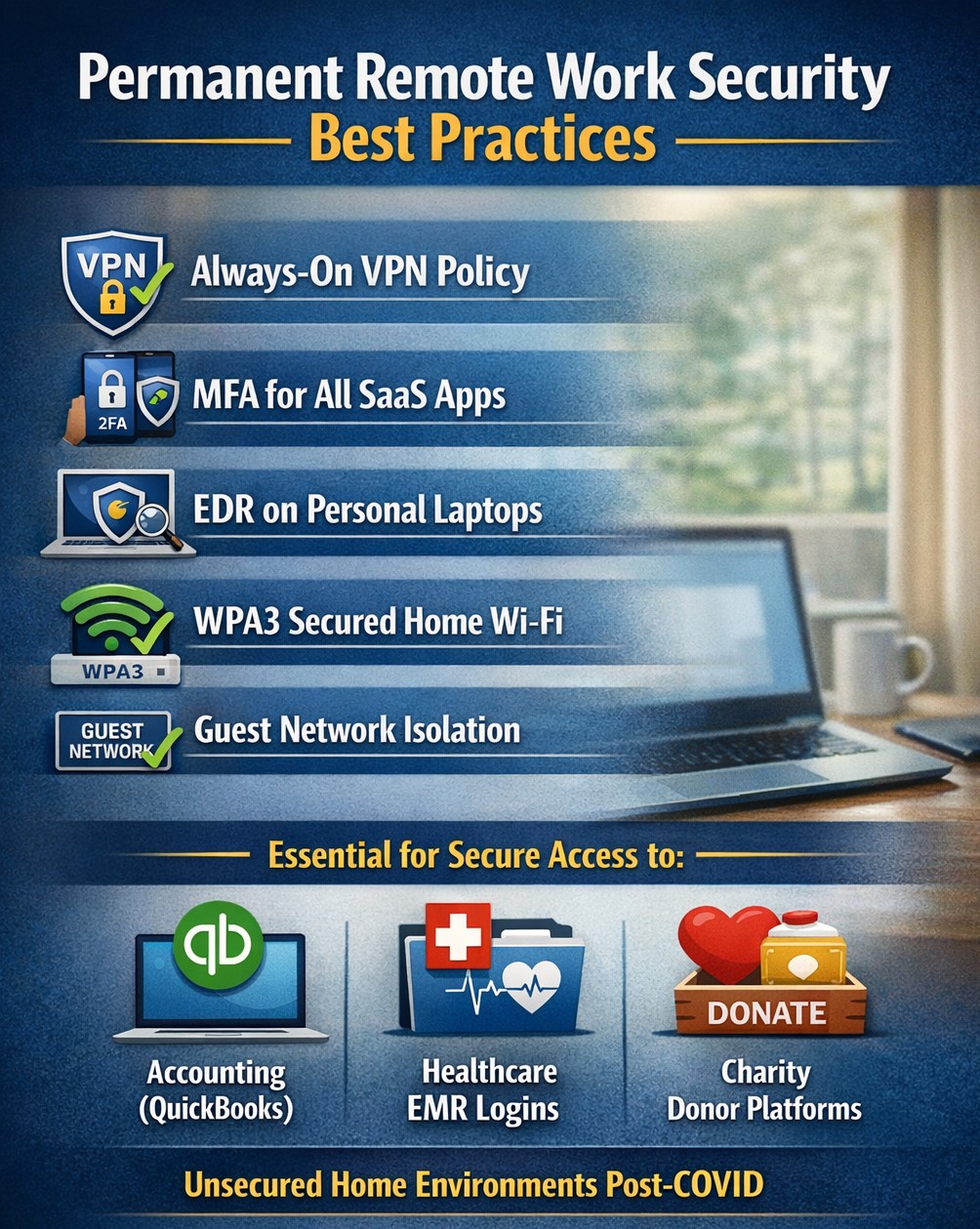
Enable multi-factor authentication (MFA) on all business tools—email, cloud storage, VPNs.
IT Task: Audit passwords quarterly; train staff via a 15-minute workshop.
Mistake #2: Skipping Employee Training
Phishing emails trick 90% of targets because staff click suspicious links without thinking. Untrained teams become your weakest link.
Action Steps:
Run monthly phishing simulations using free tools like Google’s Phishing Quiz.
Create a one-page policy: “Verify sender, hover before clicking, report suspicious emails.”
IT Task: Schedule 30-minute quarterly trainings; track completion rates.
Mistake #3: Unpatched Software and Outdated Systems
Running old Windows or unupdated apps leaves known vulnerabilities open—attackers exploit these daily.
Action Steps:
Enable auto-updates for all software, browsers, and OS.
Use a patch management tool like Ninite for bulk updates.
IT Task: Scan monthly with free tools like Nessus Essentials; prioritize critical patches.
Mistake #4: No Backup Strategy
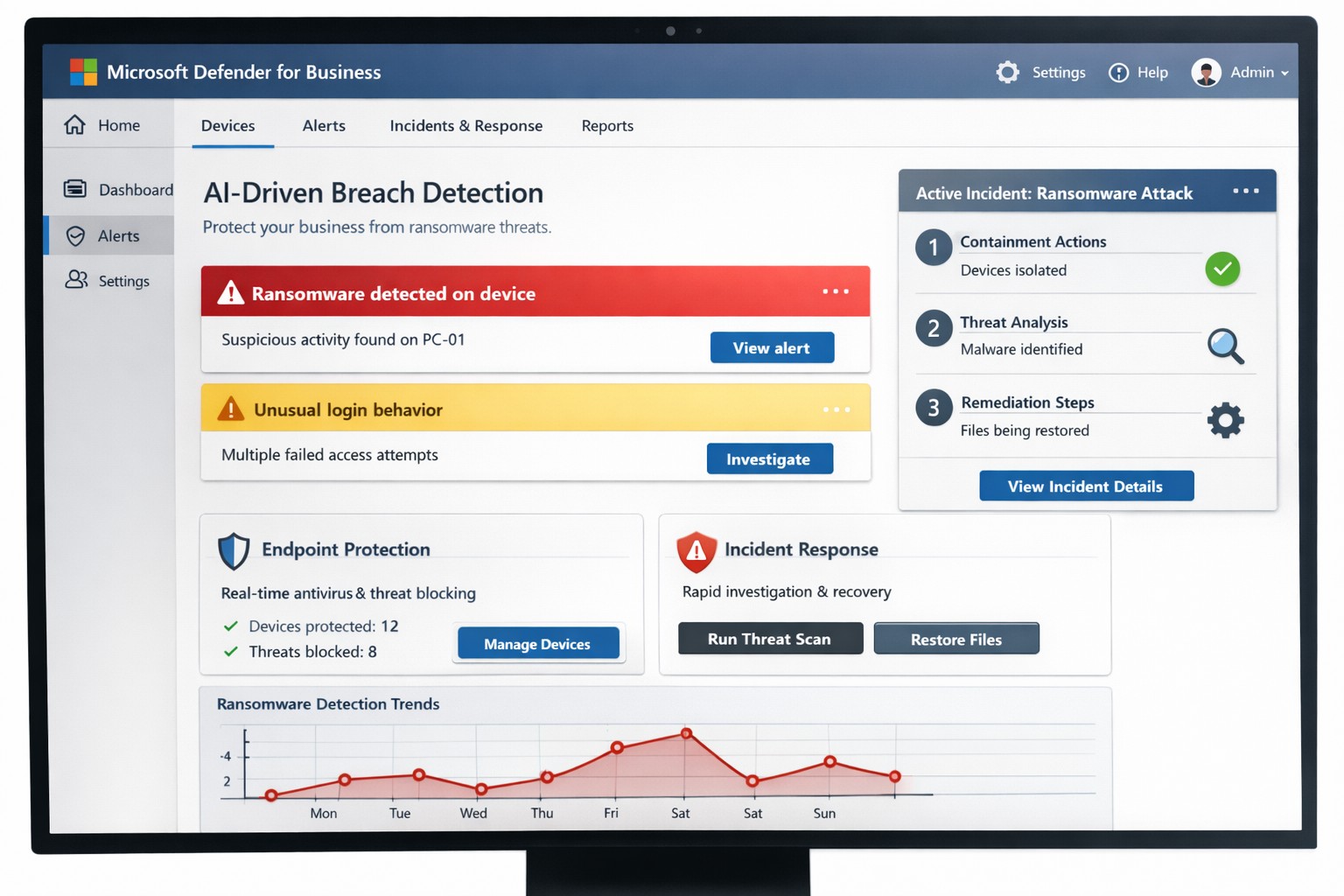
Ransomware locks files, demanding payment. Without backups, you’re forced to pay or lose everything.
IT Task: Automate daily backups to encrypted cloud like Backblaze.
Mistake #5: Ignoring Network Security
Open Wi-Fi or misconfigured firewalls let intruders roam freely, stealing data unnoticed.
Action Steps:
Switch to WPA3-encrypted Wi-Fi; segment guest networks.
Install a next-gen firewall (e.g., pfSense free version).
IT Task: Run network scans with Wireshark; block unused ports.
Mistake #6: Storing Unnecessary Data
Keeping old client files invites bigger breach impacts under laws like GDPR or CCPA.
Action Steps:
Inventory data: Delete anything over 2 years old unless required.
Use tools like Eraser for secure deletion.
IT Task: Implement retention policies in your CRM.
Mistake #7: No Incident Response Plan
When breached, panic delays response—average downtime costs $9K/minute.
Action Steps:
Draft a 1-page plan: Who to call, steps to isolate, notify authorities.
Test with a tabletop exercise yearly.
IT Task: Assign roles; store contacts securely.
Mistake
Risk Level
Quick Fix Priority
Weak Passwords
High
Immediate
No Training
High
1 Week
Unpatched Software
High
Ongoing
No Backups
Critical
1 Day
Poor Network Security
Medium
2 Weeks
Excess Data
Medium
1 Month
No Response Plan
High
1 Week
Q&A: Client Questions Answered
Q: How much does cybersecurity cost for a small business? A: Basic protections (MFA, training, backups) cost under $50/month. Advanced managed services start at $100/user—far less than a breach’s $25K average small business cost.
Q: What if I’m not tech-savvy? A: Start with free checklists from CISA.gov. Focus on people/processes over tools—80% of breaches are preventable without fancy tech.
Q: How do I know if we’re already compromised? A: Check for slow networks, unknown logins, or odd emails. Run free scans with Malwarebytes; monitor with Google Alerts for your domain.
Q: Ransomware hit—now what? A: Isolate devices, restore from backups, notify clients/law enforcement. Never pay— it funds more crime.
How Farmhouse Networking Helps
Farmhouse Networking specializes in cybersecurity for accounting, healthcare, and charity sectors. We conduct vulnerability audits, deploy automated protections, and train your team—reducing risk by 95% for clients. Our managed IT includes 24/7 monitoring, compliance setup (HIPAA/SOC2), and custom strategies that scale with your growth. No jargon, just results.
Archive emails forever without PST management or storage quotas
Have to admit that I get a ton of email. In fact I have received 30+GB over the almost five years Farmhouse Networking has been in business. I decided that it was time to archive some of the older messages and checked into what Office 365 has for options. Here is what I found:
“Unlimited” Archiving Office 365 now has what is called “auto-expanding archiving” that is now available for all users. The old archive feature only allowed 100GB of additional space for free, but the new system is different. Users who get close to the old limit then their account changes to the auto-expanding type and additional storage is added as needed. The new maximum is at 1TB of storage, which even at average maximum size per email (10MB) that is 100,000 emails. To put that in perspective that is one maximum size email per hour, eight hours per day, five days per week, for almost 42 years before email archives would be full.
If your company is gets a bunch of email and likes to save it all, then contact us for assistance.
Five key findings from 2018 compliance evolution: Harness RegTech and automation for proactive business compliance today.
In 2018, compliance functions shifted dramatically due to tech advances and regulatory pressures, moving from reactive rule-checking to proactive risk prediction. Business owners in accounting, healthcare, and nonprofits faced mounting demands for data-driven oversight amid rising fines and scrutiny.
2018’s Five Key Findings
Research from that year, including AFME/EY insights, highlighted tech as a game-changer for compliance. Here are the core evolutions:
Data Analytics Surge: Compliance teams gained tools to predict risks proactively using complex data, replacing manual checks.
Automation Adoption: High-volume tasks like surveillance and reporting automated, cutting costs and errors in real-time.
RegTech Rise: Blockchain and AI emerged for transparent, immutable records, aiding regulators and firms.
Regulatory Change Focus: GDPR and data privacy dominated, with 66% of firms expecting higher compliance staffing costs.
Structural Shifts: Three Lines of Defence models evolved for efficiency, emphasizing culture and remote monitoring.
These trends persist, amplified in 2026 by AI and cyber threats.
Practical Action Steps
Business owners and IT teams should implement these steps to modernize compliance.
Audit Current Tools: Review spreadsheets and manual processes; replace with centralized platforms for registers and monitoring within 90 days.
Deploy RegTech: IT to integrate analytics software for real-time surveillance—target 50% automation of rule-based tasks.
Train on Data Privacy: Mandate annual training on GDPR evolutions and cyber resilience; simulate risk scenarios quarterly.
Streamline Processes: Map end-to-end workflows (e.g., KYC onboarding) to eliminate handoffs; automate via API integrations.
Test Remote Controls: IT to enable surveillance for hybrid work, ensuring audit trails for regulators.
Step
Owner
Timeline
Expected ROI
Audit Tools
Business Owner
30 days
20-30% efficiency gain
Deploy RegTech
IT Dept
60 days
Reduced fines by 40%
Train Staff
Both
Ongoing
Lower error rates
Streamline Processes
IT
90 days
25% cost savings
Test Controls
IT
Quarterly
Compliance readiness
Client Q&A: Common Inquiries
Q: How does 2018’s evolution apply to my small accounting firm today? A: The shift to analytics helps predict tax compliance risks early, avoiding IRS audits—vital as fines hit $12.5M in similar cases.
Q: What if my healthcare practice lacks IT resources? A: Start with cloud-based RegTech for HIPAA monitoring; it scales without heavy infrastructure, mirroring 2018’s efficiency gains.
Q: How do nonprofits handle charity-specific regs like donor privacy? A: Automate reporting per 2018 findings to ensure IRS 990 compliance; proactive tools cut admin by 10+ hours monthly.
Q: Is RegTech secure for remote teams? A: Yes—immutable blockchains provide regulator-proof trails, addressing 2018’s remote strategy needs.
Q: What’s the ROI timeline? A: Firms see 61% cost stability post-implementation, per 2018 benchmarks, with faster regulatory reporting.
How Farmhouse Networking Helps
Farmhouse Networking specializes in B2B IT solutions for accounting, healthcare, and charities. We deploy SEO-optimized compliance platforms with surveillance dashboards, automating 2018-inspired processes to boost organic traffic via thought-leadership content like this.
Custom RegTech integration for real-time monitoring.
Branding and SEO to position your firm as compliant experts.
Lead gen via secure client portals, enhancing CX.
Our clients report 30% traffic growth and halved compliance costs.
As we work on finishing our 5th year in business, Farmhouse Networking continues to enhance its offering to our clients and improve the way we do business. Each one of these changes is carefully researched and painstakingly implemented to make sure that impact on end-user experience is minimally invasive. Here is a list of the major changes taking place now:
What Changes?
New Customer Documentation: We have been using a new document management system to securely store information about our clients networks, create standard operating procedures on how we specifically care for individual clients, and keep track of passwords for all the things that need securing. This will keep our staff and backup techs apprised of all our customers equipment and standard operating procedures so that things get done right.
New Maintenance Software: After much market research to improve our current system of auto-magically maintaining customers computers, we found something better. It took some negotiations with them but we got the price down to close to the same, so there will be no increase in price. Just better software to serve our customers with. We can now monitor more of the network and in a deeper way so that there is even less possibility of downtime due to computer issues.
New Employee: You read that right. Farmhouse Networking has officially contracted with our first employee. The work load has finally reached the point where occasional help from my family is just not enough. Peter deGreyt will start work on Monday, November 11th, 2019. He has previously worked for another local managed service provider and graduated from Southern Oregon University with a degree in business analytics. His first contact with many of you will likely be to input customer information into our new document management system.
If your company is interested in working with a company that takes IT seriously, then contact us for assistance.
Had the pleasure of helping a local company, that has expanded out to several nearby counties, keep in touch with everyone through video conferencing. They had been working from a laptop connected to a big screen TV for months, but were not able to get everyone in their new conference room into the frame. Farmhouse Networking recommended the Logitech Tap conference room system for them because they are using Microsoft Teams for their video conferencing as it is included with their Office 365 subscription.
What is Tap?
Tap is Logitech’s solution bundle to create an easy to use video conference room experience. It comes with
A large Logitech Meet-Up conference camera that has integrated speakers / microphone, ability to pan and zoom around the room automatically to whomever is speaking, and remote control for manual adjustments.
An Intel NUC (Next Unit of Computing) mini PC that is specifically programmed to function as the host for the meetings.
A Logitech Tap touch controller that makes creating and managing meetings a breeze. Meetings are setup, screens are shared, and conferences are controlled with just a touch.
All the mounting and cables that are needed to get the system connected.
If your company is looking to upgrade your conference room experience, then contact us for assistance.
24/7 cyber defense protects small business critical data
A recent briefing from the FBI’s Internet Internet Crime Complaint Center (IC3) detailed current best practices and industry standards for cyber defense. Here is a summation:
Cyber Defense Best Practices
Backups – Regularly back up data and verify its integrity. Backups are critical in ransomware; if you are infected, backups may be the only way to recover your critical data.
Training – Employees should be made aware of the threat of ransomware, how it is delivered, and trained on information security principles and techniques.
Patching – All endpoints should be patched as vulnerabilities are discovered. This can be made easier through a centralized patch management system.
Antivirus – Ensure anti-virus and anti-malware solutions are set to automatically update and that regular scans are conducted. Centrally managed is even better.
File Permissions – If a user only needs to read specific files, they should not have write-access to those files, directories, or shares. Configure access controls with least privilege in mind.
Macros – Disable macro scripts from Office files transmitted via email.
Program Execution Restrictions – Implement software restriction policies or other controls to prevent the execution of programs in common ransomware locations, such as temporary folders supporting popular internet browsers, and compression/decompression programs.
Remote Desktop Protocol – Employ best practices for use of RDP, including use of VPN, auditing your network for systems using RDP, closing unused RDP ports, applying two-factor authentication wherever possible, and logging RDP login attempts.
Software Whitelisting – Implement application whitelisting. Only allow systems to execute programs known and permitted by security policy. This one takes careful planning.
Virtualization – Use virtualized environments to execute operating system environments or specific programs. No physical access to servers makes hacking harder.
Network Segmentation – Implement physical and logical separation of networks and data for different organizational units. Keep guest traffic out of your business network.
No Saved Passwords – Require users to type information or enter a password when their system communicates with a website. Better yet use a password management tool.
If your company is going to use full disk encryption or has compliance requirements that you need consulting for, then contact us for assistance.
All someone has to do is look at the pricing model above to see why Backblaze is a no brainer for long term storage (not to mention the first 10GB of storage is free. With its recent inclusion as a destination for web server’s WHM backup, Farmhouse Networking has been recommending our hosting provider customers to make the switch from AWS Glacier. Here is the steps to make the switch:
Setup Backblaze Buckets
Login to Backblaze account
Click on the Create Bucket button in the B2 Cloud Storage Buckets section
3. Give the Bucket a name and keep the bucket private for the backups. Click on the Create a Bucket button.
4. Copy down your Backblaze Bucket name and Backblaze Bucket ID
Setup Backblaze Application Key
Click on the App Keys section
Click on Add a New Application Key
3. Give the Backblaze Application Key a name, chose the newly created bucket from the list and make sure to leave the Type of Access as “Read and Write”. Click the Create Key button.
4. Make sure to copy down the Backblaze Application keyID and Backblaze Application applicationKey. This will be the only time they are both shown. If you lose the Backblaze Application applicationKey then you will have to delete the current one and create a new one.
Setup WHM Backup to Backblaze
Connect to WHM as root user and choose Backup Configuration from the menu. The specific WHM backup settings are not discussed here, but feel free to contact us for advise on how to do so.
2. Click on Additional Destinations. Chose Backblaze B2 from the Destination Type and click on the Create New Destination button.
3. Enter in a backup name. Click on the “System Backups” if that is desired. Leave the Backup Directory blank. Enter in the Backblaze Bucket ID and Backblaze Bucket Name copied down earlier. Enter in the Backblaze Application Key ID and Backblaze Application Key. Click on the Save and Validate Destination button.
Make sure to disable your old AWS Glacier backup destination. All backups on Glacier should be set to auto delete according to a lifecycle, but if not then wait 120 days from creation to remove them to avoid any penalties. Speaking of lifecycles, it is a good idea to change the lifecycle settings on the Backblaze bucket to auto delete after a determined number of days since they do charge for total storage utilized.
If your company is would like to discuss the layers of security you have in place, then contact us for assistance.
A single ransomware infection can freeze a church’s donations, records, and operations
Got a call a couple weeks ago from a local church:
“we came in and open the computer and we have ransomware on there. We can’t even get to any of our stuff. It’s telling us to email somebody and so that they can free up the computer.”
How does this happen?
Generally these things happen because people click on things they shouldn’t. Whether in an attachment in email from someone they don’t recognize, a link in social media that sounds too good to pass up, or an advertisement for something they can’t live without. Once the user gives permission for something to open or run on their computer the game is over and the hacker wins.
What to do when it happen?
Stop using the computer.
Leave the computer alone! Do not carry out any further commands, including commands to Save data.
Do not close any of the computer’s windows or programs. Leave the computer alone.
Leave everything plugged in and do not turn off the computer or peripheral devices.
If possible, physically disconnect the computer from networks to which it is attached.
Call us immediately. Write down any unusual behavior of the computer (screen messages, unexpected disk access, unusual responses to commands) and the time when they were first noticed.
Write down any changes in hardware, software, or usage that preceded the malfunction.
Do not attempt to remove a suspected virus! Let the professionals do the dirty work.
How to prevent this from happening?
Layers of protection is the simple answer. A good antivirus installed to stop the bad programs from running, DNS filtering to keep users off of bad sites / advertisements, a good backup of all data to recover when this does happen, and most important of all EDUCATION – teaching users what safe internet usage looks like and having policies in effect to train them can mitigate 60-70% of infections.
If your company is would like to discuss the layers of security you have in place, then contact us for assistance.
And God will generously provide all you need. Then you will always have everything you need and plenty left over to share with others. As the Scriptures say,
“They share freely and give generously to the poor. Their good deeds will be remembered forever.”
For God is the one who provides seed for the farmer and then bread to eat. In the same way, he will provide and increase your resources and then produce a great harvest of generosity in you. - 2 Corinthians 9:8-10
We use cookies to ensure that we give you the best experience on our website. If you continue to use this site we will assume that you are happy with it.