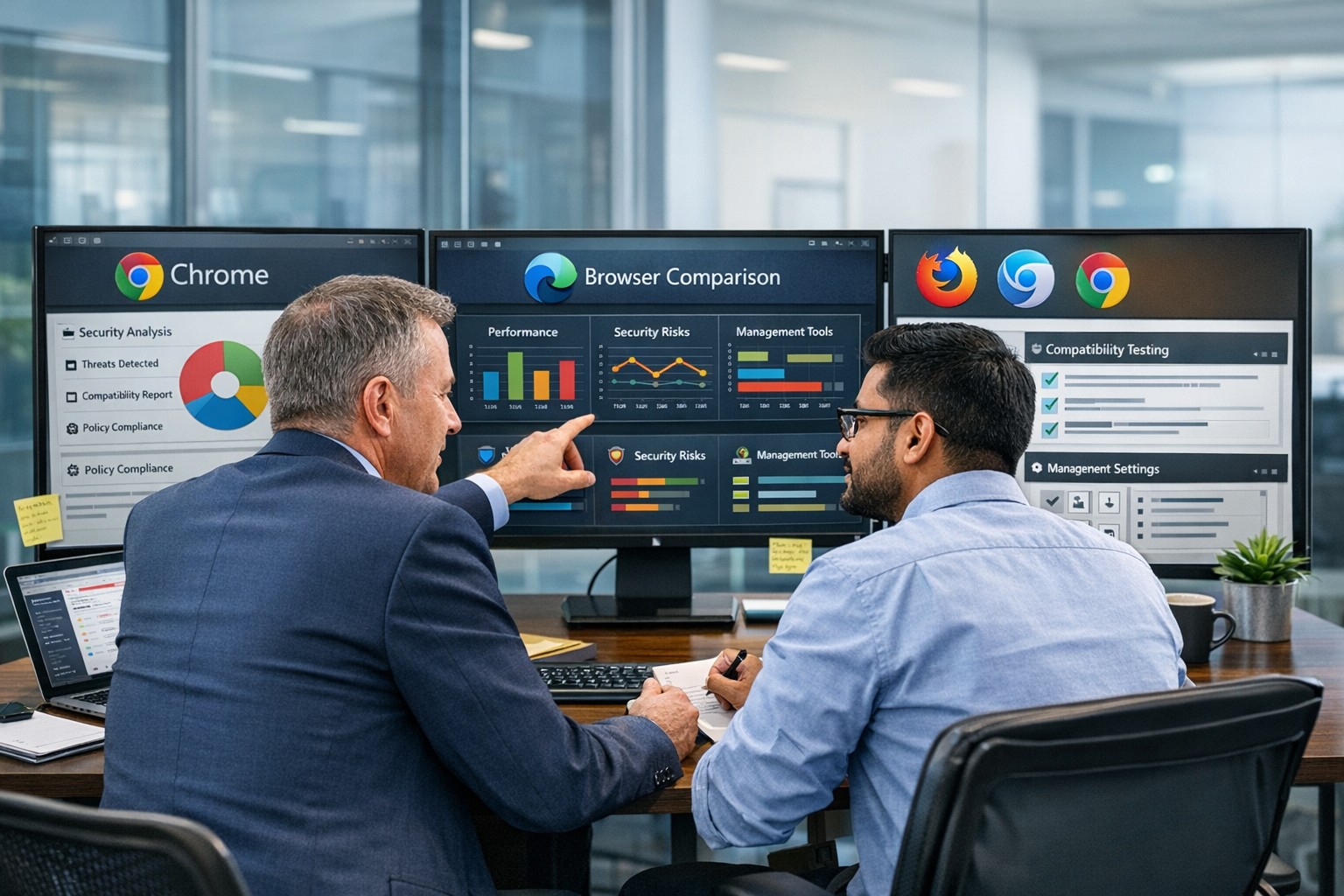
“What’s the best browser?” sounds like a simple IT question, but it’s really a strategic decision about security, productivity, and supportability. The right answer is not one perfect browser for everyone, but a deliberate choice based on your tools, risk profile, and how your team actually works.
Why “Best Browser” Is the Wrong Question
Instead of asking “Which browser is best?”, it’s more useful to ask “Which browser is best for our stack and our security model?” Key factors include:
-
Existing ecosystem:
-
Microsoft 365 / Windows-centric shops often gain the most from Microsoft Edge because of tight integration and management tooling.
-
Google Workspace organizations often benefit from Chrome’s deep integration and extension ecosystem.
-
Security and compliance:
-
Enterprise features like centralized policy management, password monitoring, tracking protection, and secure profiles are now standard expectations, not bonuses.
-
Hardware and performance:
-
Older workstations may perform better with leaner browsers like Firefox or optimized Chromium-based builds.
In practice, most modern businesses standardize on one primary browser, with one backup for special use cases (e.g., legacy apps).
Practical Action Steps for Owners and IT
Here’s a concrete, owner-level plan you can hand to your IT team.
-
Define your browser strategy in plain language
-
Decide: “We will standardize on Browser X, with Browser Y as backup for legacy/edge cases.”
-
Align that choice with your core platform (Microsoft 365 vs Google Workspace vs mixed).
-
Inventory your current reality
-
Ask IT to audit:
-
Which browsers are currently installed
-
Which line-of-business apps require specific browsers (including any that still need “Internet Explorer mode”)
-
Add-ons and extensions in use, especially anything touching passwords or sensitive data.
-
Evaluate security and management capabilities
Have IT compare your candidate browsers on:
-
Centralized management (policies, remote configuration, update control)
-
Integration with your identity system (Microsoft Entra ID / Azure AD, Google accounts, etc.)
-
Built-in protections (tracking protection, phishing/malware blocking, password leak monitoring)
-
Standardize and lock down
-
Roll out your chosen browser with:
-
Default security policies (no unknown extensions, enforced updates, safe browsing settings)
-
Preconfigured favorites/portals for key business apps
-
Profile separation (e.g., work profile vs personal) where supported
-
Remove or deprecate unused/unsupported browsers to reduce attack surface.
-
Optimize for productivity
-
Have IT:
-
Pre-load extensions that actually improve work (password managers, SSO helpers, approved collaboration tools).
-
Configure PDF handling, “new tab” layouts, and default search engines to match how your team works.
-
Train your staff
-
Short, focused training on:
-
Which browser to use for what
-
How to spot dangerous extensions and phishing warnings
-
How to use profiles or sign-in correctly for business accounts
-
Review annually
-
At least once a year, have IT re-check: security features, management capabilities, and compatibility with your evolving app stack.
Common Client Questions (with Owner-Friendly Answers)
Q1: Why can’t staff just use whatever browser they like?
A: Uncontrolled browser choice complicates security, support, and compliance. Standardizing gives IT one set of policies, one update path, and a predictable user experience to support.
Q2: Is Chrome always the safest choice because it’s popular?
A: Chrome is powerful and widely used, but popularity doesn’t automatically mean “safest.” Enterprise security depends more on how the browser is managed, what ecosystem you’re in, and which controls are enforced.
Q3: We’re a Microsoft 365 shop. Should we switch to Edge?
A: Edge often makes sense in a Microsoft-first environment because it integrates tightly with Windows, Microsoft 365, and endpoint management tools, and even supports Internet Explorer mode for legacy apps.
Q4: We use Google Workspace. Do we have to use Chrome?
A: You don’t have to, but Chrome typically delivers the smoothest experience and strongest management story in a Google-centric stack. Other browsers can work, but may lack some admin or integration capabilities.
Q5: Is it okay to run multiple browsers?
A: Yes—but with intent. Many businesses standardize on one browser for daily work and keep a second, controlled browser for specialized or legacy applications, with clear rules about when to use each.
How Farmhouse Networking Can Help
Farmhouse Networking can guide you from “random browser chaos” to a secure, documented browser strategy that matches your infrastructure and risk profile.
Here’s how we support owners and their IT teams:
-
Browser strategy & selection
-
Analyze your environment (Windows vs macOS, Microsoft 365 vs Google Workspace, on-prem vs cloud apps) and recommend a primary and secondary browser strategy.
-
Hardened configuration & deployment
-
Design and implement secure, centrally managed browser configurations: policies, extensions, update channels, and integration with your identity and endpoint management tools.
-
Legacy and line-of-business app support
-
Identify applications that require specific engines or “IE mode” and ensure they are handled cleanly without weakening the overall security posture.
-
Staff training and documentation
-
Create simple, branded “Which browser do I use?” guides and short trainings so your team knows exactly what to do, reducing tickets and confusion.
-
Ongoing monitoring and review
-
Periodic checkups to adjust policies as browsers evolve, new threats emerge, or your stack changes.
If you’re ready to turn browser choice from an ad-hoc habit into a secure, productive standard for your business, Farmhouse Networking can lead the process and support your IT team end to end. Email support@farmhousenetworking.com for more information about how Farmhouse Networking can help improve your business.