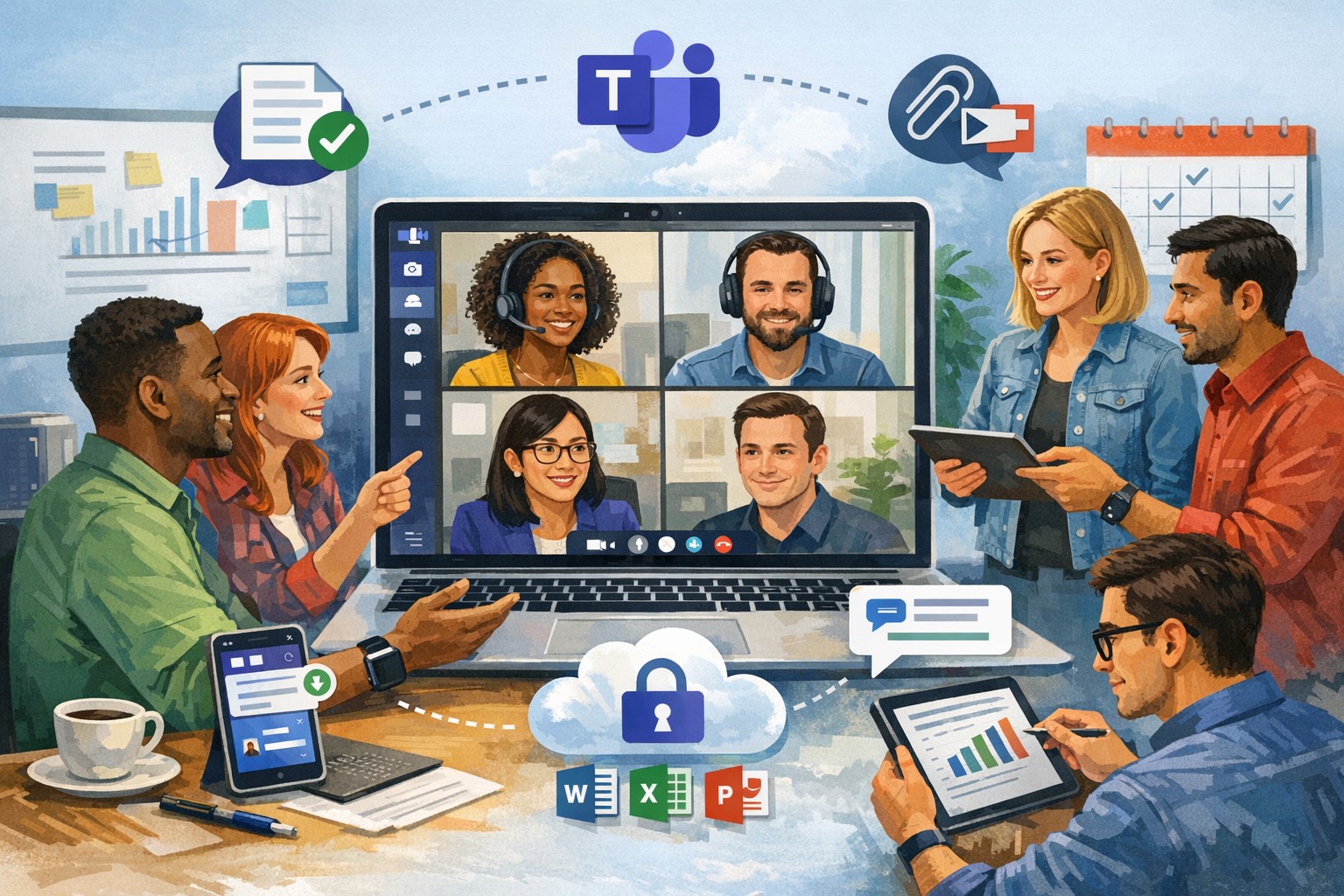
Dutch startup Tony’s Chocolonely grew out of a journalist’s exposé of child slave labor in the cocoa industry and his dream of making the chocolate trade slavery-free. The Amsterdam-based company grew quickly, but its original collaboration apps didn’t support its international expansion or its work-life balance ideals. Teams enables Tony’s Chocolonely workers to communicate on a personal level with their colleagues in Europe, America, and Africa. Adding telephony capabilities makes it even more powerful, with everything available in one single interface.
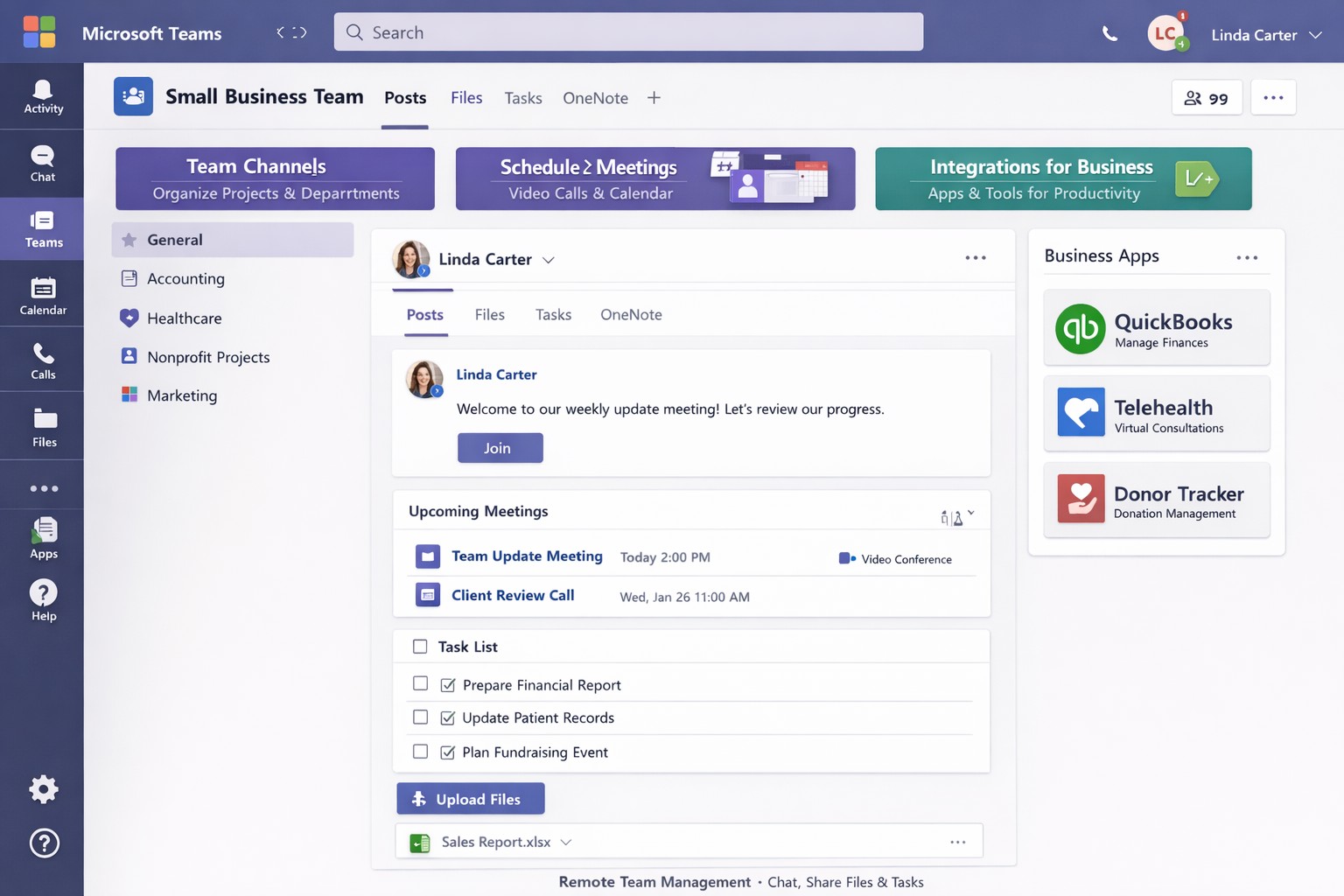
Leverage Microsoft Teams collaboration features to streamline business operations and enhance team productivity.
You’re constantly seeking ways to streamline operations and keep your team connected. Microsoft Teams offers a powerful hub for collaboration, integrating chat, video calls, file sharing, and Microsoft 365 apps to cut email overload and drive productivity—used by over 500,000 organizations for seamless remote and hybrid work.
Key Benefits for Your Business
Microsoft Teams centralizes communication in one scalable platform, reducing tool sprawl and improving project visibility. Business leaders gain from features like real-time file co-authoring, Teams Phone for calls across devices, and advanced security that scales with growth. This setup minimizes context switching, letting employees focus on high-value tasks while IT maintains governance.
Practical Action Steps
Follow these steps with your IT department to implement Teams effectively.
Assess Needs and Sign Up: Review team size and remote work requirements. Start a free trial or purchase via Microsoft 365 Business plans (from $6/user/month). IT assigns licenses in the admin center.
Set Up Teams and Channels: Create teams by department or project (e.g., “Sales-Q1-Deals”). Use intuitive names with keywords like “client-onboarding” for easy search. IT configures permissions and integrates with Outlook/SharePoint.
Optimize for Search and Collaboration: Tag channels/files with keywords; write descriptions summarizing purpose (e.g., “Handle Q1 client queries and docs”). Enable versioning and co-editing in Word/Excel. IT runs an SEO-style audit to identify trending terms.
Train and Roll Out: Host onboarding sessions via Teams meetings. Customize with tabs for Planner or third-party apps. Monitor usage analytics in the admin center to refine adoption.
Secure and Scale: IT enables multi-factor authentication, data loss prevention, and guest access controls. Test external invites for client collaboration without downloads.
These steps typically take 1-2 weeks, yielding quick wins like 63-87% productivity gains reported by users.
Common Q&A for Business Owners
How secure is Teams for client collaborations? Teams uses enterprise-grade encryption, compliance with GDPR/HIPAA, and admin controls for external sharing—ideal for accounting/healthcare/charity sectors handling sensitive data.
Does Teams integrate with my existing tools? Yes, it syncs natively with Microsoft 365 (Outlook, OneDrive) and 1,000+ apps via the store, plus custom bots for workflows.
What’s the cost for small businesses? Business Basic starts free (limited); Essentials at $4/user/month includes meetings/files. Scale to Premium for AI features.
How do we handle large files or version control? SharePoint integration provides unlimited storage (1TB+/user), real-time co-editing, and version history to avoid duplicates.
Can non-employees join meetings? Guests join via browser without accounts; IT sets policies to protect data.
How Farmhouse Networking Can Help
Farmhouse Networking specializes in Microsoft deployments for accounting, healthcare, and charity clients. We conduct Teams audits, optimize SEO for internal search, migrate from legacy tools, and train staff—ensuring 100% adoption and ROI. Our custom strategies include branding your Teams portals, lead-gen bots, and 24/7 support to enhance client experience and organic traffic via integrated sites.
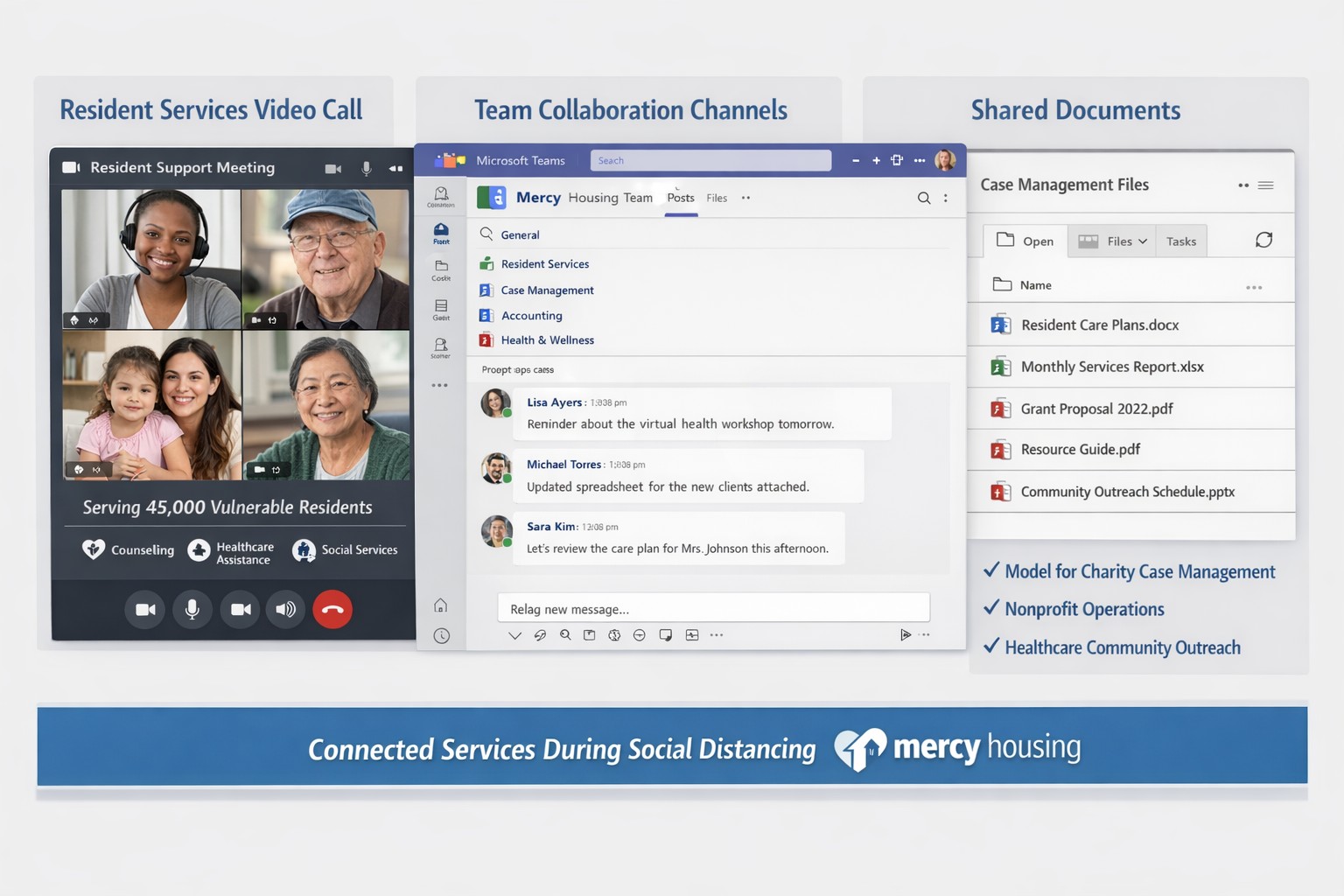
Teams enables Mercy Housing’s safe remote resident support during pandemic
When the pandemic ushered in a new reality of social distancing, Mercy Housing was able to continue supporting the residents and communities it serves while keeping everyone safe using Microsoft Teams. This customer story video outlines when COVID-19 created a tremendous need for a tool that can maintain personal connection, Teams has allowed the company to maintain reaching residents and serving its communities, growing the business while working remotely, all while supporting highly secure environments for remote work.
Reliable retail routers powering WFH for B2B professionals
This blog post is more about the use of retail routers at the office than at home, just to make that clear from the beginning. We would also recommend non-retail routers at home, but that is not feasible for everyone.
What is a retail router?
This is a phrase I am coining to describe any router that is generally available from your local retailers like Staples, Walmart, etc or delivered as part of the internet service from your local provider. They include brand names like ASUS, D-Link, Linksys, and Netgear. They range in price from $30 for the extreme low end to $450 for a gaming router. These routers are built for home and small office networks that have very few users or devices connected at any given time. They may include some features that sound “business-like” such as Virtual Private Network (VPN), Stateful Packet Inspection (SPI), VLAN, and Quality of Service (QoS) – remember though that these are also only able to support a minimum number of users and devices connected at any given time. If you try to use a retail router to run your business network then you will find that performance will be severely degraded and these features will not work as advertised.
There is also the issue of security. These routers are rarely if ever updated even when new vulnerabilities are found. This makes them ineligible for PCI or HIPAA compliance situations.
Is there a non-retail router?
So what to do about this situation? Time to call your trusted IT services provider who will be able to get you a non-retail router, but that begs the question – what is a non-retail router?
These routers are built by network professionals who design the hardware to perform under the pressures of the office environment and to handle the work from home remote workload. These routers include brands like Cisco, Juniper, Ubiquiti, and Araknis. They range in price from $150 for an office of up to 5 people to $10,000 for a high traffic company with hundreds of users. These routers handle VPN, SPI, VLAN, QoS, and many other services all at once with ease. Security is baked into these routers with the best ones having the ability to be managed from the cloud. They provide consistent access to all connected users and devices at all times. Your trusted IT services provider will work with you to “right size” the router to your business needs.
If your company is going to have full time work from home employees and is concerned about their ability to perform, then contact us for assistance.
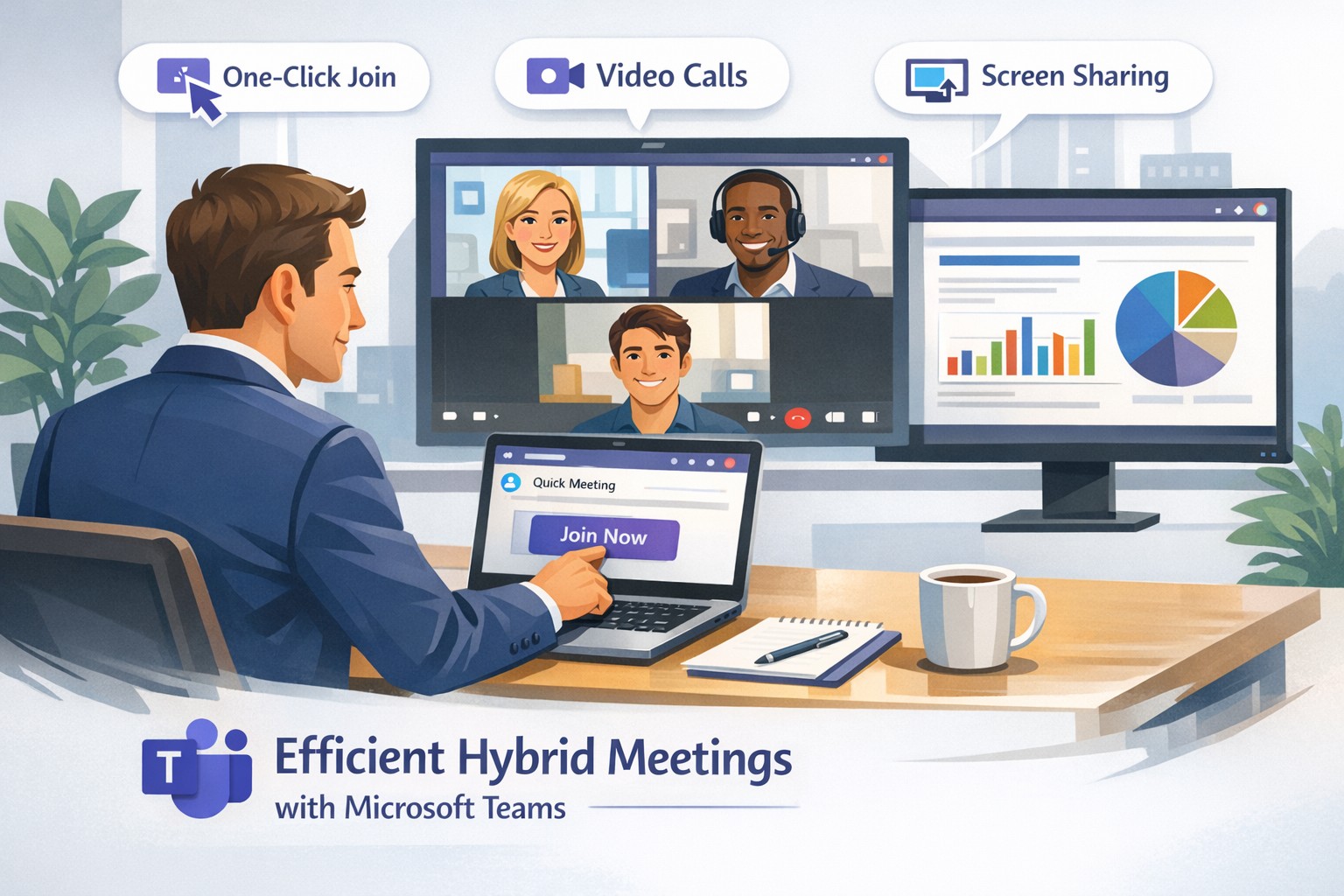
Launch secure, instant Microsoft Teams remote meetings to empower your business team’s hybrid collaboration.
Remote work demands seamless collaboration, and Microsoft Teams delivers instant meetings that keep your business agile without complex setups. As a business owner, you can empower your team to connect securely from anywhere, boosting productivity in hybrid environments.
Why Teams for Instant Meetings
Microsoft Teams stands out for remote work with features like one-click meeting joins, HD video conferencing, screen sharing, and recording—ideal for quick client calls or team huddles. Business owners benefit from its integration with Microsoft 365, unifying chat, files, and calendars to cut app-switching time. Security features, including end-to-end encryption and guest access controls, protect sensitive discussions.
Step-by-Step Setup Actions
Follow these practical steps for your IT department and team to launch instant meetings fast.
Sign Up and License: Purchase Microsoft Teams via Microsoft 365 Business plans (Essentials or Premium). IT admins assign licenses in the Microsoft 365 admin center.
Install the App: Download Teams desktop/mobile apps or use web version. IT pushes via Intune for managed devices.
Create a Team/Channel: In Teams, select “Teams” > “Create team” for your department. Add channels for projects.
Schedule or Start Instant Meeting: Click “Calendar” > “Meet now” for ad-hoc sessions, or schedule via Outlook integration. Share the link instantly.
Configure Policies: IT sets meeting policies in Teams admin center—enable recording, live captions, and Together mode for engagement.
Test and Train: Run a pilot meeting; use breakout rooms and noise suppression. Share quick-start guides with staff.
These steps take under 30 minutes for basics, scaling securely for 1,000+ attendees.
FAQs for Business Owners
How secure are instant Teams meetings for client discussions? Teams uses AES-256 encryption and compliance with GDPR/HIPAA. External guests join via links without accounts, with role-based access.
Can non-Microsoft users join instantly? Yes—share a browser link; no app or plugin needed. Guests enter their name and join in seconds.
What if internet fails during a meeting? Dial-in audio options and network strength indicators ensure continuity. Live captions aid accessibility.
How does Teams handle large remote teams? Supports up to 10,000 in broadcasts, with features like Front Row for hybrid rooms and meeting recaps for absentees.
Does it integrate with my existing tools? Seamlessly with Outlook, OneNote, and 1,000+ third-party apps via tabs/bots.
How Farmhouse Networking Helps
Farmhouse Networking specializes in Microsoft Teams deployments for accounting, healthcare, and charity sectors, ensuring SEO-optimized setups that drive B2B leads. We handle licensing audits, custom policy configs, and training to minimize downtime—tailored for compliance-heavy industries. Our lead generation strategies integrate Teams with your site for instant demos, enhancing customer experience. Past clients saw 40% faster meeting ramps and organic traffic gains via branded content hubs.
Call to Action
Ready to streamline remote meetings and scale your business? Email support@farmhousenetworking.com for a free Teams optimization audit.
Streamline your business with Microsoft Teams—chat, video, and tasks in one secure platform.
You’re juggling remote teams, client calls, and endless emails. Microsoft Teams cuts through the chaos, combining chat, video meetings, video conferencing, file sharing, and task management into one secure platform—boosting productivity without added costs if you have Microsoft 365.
Core Features for Your Business
Microsoft Teams is Microsoft’s hub for teamwork, included in most Microsoft 365 plans. It supports unlimited group meetings up to 30 hours, 10 GB cloud storage per user, unlimited chat, and data encryption for calls and files.
Key benefits include intelligent recaps for catching up on meetings, Power Automate for task automation, and integration with Outlook, OneDrive, and frontline tools like Shifts. Small businesses gain from guest access for clients and 300-participant meetings, reducing email overload.
Practical Action Steps
Follow these steps with your IT department to deploy Teams effectively.
Assess Licensing: Check your Microsoft 365 subscriptions—Teams is often included. Upgrade to Teams Essentials ($4/user/month) for standalone use or Premium for AI features like Copilot.
IT Setup: Assign global admins in the Microsoft 365 admin center. Enable Teams via the Teams admin center, configure policies for meetings and external access, and set up single sign-on (SSO).
Team Creation: Business owner creates teams by department (e.g., Sales, Accounting). IT adds users, channels for projects, and apps like Planner for tasks.
Training Rollout: Mandate 1-2 hour sessions using built-in guides or integrated learning. Test with a pilot group for chat, calls, and file sharing.
Go Live and Monitor: Launch company-wide, track usage via analytics in Teams admin center, and enforce naming conventions for channels.
These steps take 1-2 weeks, minimizing downtime.
FAQ: Client Inquiries Answered
Q: Is Teams secure for client data? A: Yes—end-to-end encryption covers meetings, chats, and files. Guest access allows secure external sharing without full licenses.
Q: How does Teams handle hybrid work? A: Features like Teams Rooms for in-office setups, mobile access, and Together Mode make it ideal for mixed teams. Shifts schedules frontline staff.
Q: What’s the cost for small businesses? A: Free with Microsoft 365 Business Basic ($6/user/month). Essentials adds standalone options at low cost; Premium enhances with AI.
Q: Can we integrate custom apps? A: Over 250 apps available, plus Power Automate for workflows. Custom bots possible via developer tools.
Q: How to avoid adoption issues? A: Start with quick wins like chat over email. Use in-app training and engagement nudges for 80%+ usage in weeks.
How Farmhouse Networking Helps
Farmhouse Networking specializes in Microsoft deployments for accounting, healthcare, and charity sectors. We handle full Teams setup: licensing audits, custom policies for HIPAA/GDPR compliance, migration from Zoom/Slack, and branded onboarding training.
Our SEO-optimized websites integrate Teams calendars for lead-gen, plus analytics to track ROI—driving 30-50% productivity gains. We target B2B clients like yours via organic content on “Teams for accountants” or “Teams healthcare compliance.”
Call to Action
Ready to streamline your operations? Email support@farmhousenetworking.com for a free Teams assessment tailored to your business. Transform collaboration today.
Recently had to convert Cisco 3700 AP from Controller managed to Autonomous when I client separated from their parent company and bought out the IT equipment (that was a very costly mistake – if converting from corporate to small business invest in business grade IT equipment as it is much cheaper, by thousands of dollars). I researched online and found several posts about using the “archive sw-download” method on the AP, but those didn’t work with the TAR file that I was downloading from Cisco. I found another means of doing this by resetting the AP to factory defaults which allowed me to login via the console port and switching to manual boot.
Reset AP to Default
Remove power from the AP
Hold down the MODE button
Plug back in power
Wait 30 seconds then release the MODE button
Configure AP to Manual Boot
You should now be able to login with the “enable” command using the password Cisco
Type in the following command:
debug capwap con cli
conf t
boot manual
reload
Use TFTP to update firmware
Download / Install a TFTP server software of your choice.
Move Firmware TAR file into server directory
Once the AP finishes the manual boot process the prompt with be ap:
Type in the following commands:
set IP_ADDR <IP Address on same subnet as TFTP server>
set NETMASK <Subnet Mask on same subnet at TFTP server>
set DEFAULT_ROUTER <IP Address of default gateway>
ether_init
tftp_init
tar -xtract tftp://<IP Address of TFTP Server>/<Name of firmware TAR file> flash:
use “dir flash:” and cd to find directory name and firmware file name, then issue the last commands:
set BOOT flash:/<Directory name>/<File name>
boot
The AP will reboot with the new firmware and be ready to access a new configuration. This method works great as long as the TFTP extraction of the TAR file completes successfully.
If you need any help gaining access to your Cisco network gear or with configuring your Cisco equipment, then contact us for support.
Understanding the six types of remote workers helps business owners create effective IT strategies for secure and productive remote teams.
Remote and hybrid work are here to stay. The challenge for business owners isn’t just keeping people connected — it’s understanding how different types of remote employees work best and what they need to succeed. Each worker type has unique technology, communication, and security requirements. Knowing these differences allows you to design a smart remote work strategy that boosts productivity, security, and morale.
The Six Types of Remote Workers and What They Need
1. The Independent Expert
These are the self-driven specialists who know their craft and value flexibility. They dislike micromanagement and prefer getting results on their own terms. How to support them: Ensure secure system access through a VPN and cloud-based tools. Automate routine updates to reduce interruptions, and provide strong endpoint protection to guard data while they work independently.
2. The Collaborative Communicator
This group thrives on constant interaction and quick collaboration. They drive team culture and creativity but can feel isolated when technology fails. How to support them: Use reliable communication tools like Slack, Microsoft Teams, or Zoom — and make sure your network bandwidth and security policies support uninterrupted real-time collaboration. Encourage scheduled check-ins to keep morale high and information flowing.
3. The Road Warrior
Always on the move, these employees rely on mobile devices and public networks. Field service reps, consultants, or remote managers often fall into this category. How to support them: Implement mobile device management (MDM) software, enforce two-factor authentication, and train employees on safe Wi-Fi practices. Cloud-based storage with encryption protects their data while ensuring accessibility from anywhere.
4. The Structured Performer
These workers thrive on order and clarity. They rely on defined rules, timelines, and expectations to perform well remotely. How to support them: Standardize communication and file-sharing tools, and document IT policies. Use dashboards and project management platforms like Trello or Asana to maintain structured workflows and consistent accountability.
5. The Emerging Remote Starter
New to remote work, these employees often need extra guidance, consistent access to IT resources, and reassurance that help is available when technology inevitably fails. How to support them: Provide onboarding sessions covering remote setup, company security protocols, and common troubleshooting steps. Make sure they have access to your IT helpdesk for instant support and schedule regular one-on-one check-ins as they get comfortable with their new environment.
6. The Hybrid Connector
They split time between office and home, juggling two environments with different setups. Seamless syncing is critical to maintain efficiency. How to support them: Standardize software, data access, and authentication across both locations. Unified communication systems and synchronized hardware (like docking stations and remote desktops) ensure their transition between workspaces is frictionless.
Practical Steps for Business Owners and IT Teams
Supporting these different worker types doesn’t require six distinct systems. Instead, focus on building a flexible IT framework that adapts to everyone’s needs:
Audit your current IT environment to identify weak spots in connectivity, access, and cybersecurity.
Segment employees by work type and align their tools accordingly.
Standardize collaboration platforms to minimize confusion and ensure security consistency.
Implement cybersecurity best practices: firewalls, MFA, regular backups, and continuous network monitoring.
Train your team on safe remote practices to reduce phishing and human errors.
Create IT response and recovery plans for downtime or breaches — prevention is cheaper than disruption.
When IT is intentional and tailored, your business operates efficiently regardless of where employees log in.
Client Questions Answered
Q: How do I keep remote employees productive without micromanaging? A: Use transparent project management tools that track results, not time. Metrics-based performance systems give employees freedom while keeping you informed.
Q: Are cloud applications like Microsoft 365 and Google Workspace safe for remote work? A: They are — when configured properly. Encryption, file permissions, multi-factor authentication, and user activity logging are essential security layers.
Q: What’s the key to balancing flexibility with network security? A: Centralized IT management. By having a managed service provider monitor devices and apply consistent policies, you maintain both freedom and control.
How Farmhouse Networking Helps
Farmhouse Networking specializes in helping small businesses master remote and hybrid work environments. Whether your challenge is cybersecurity, employee onboarding, or remote infrastructure stability, our team designs tailored IT ecosystems that match how your people actually work.
We help you:
Identify which remote worker types make up your team.
Implement secure cloud access, VPNs, and remote monitoring.
Provide proactive IT support that keeps downtime minimal.
Strengthen your cybersecurity posture with continuous network protection.
Our goal is simple — to make your remote operations secure, seamless, and scalable.
Ready to build a smarter, more resilient remote workforce? Contact Farmhouse Networking at support@farmhousenetworking.com to learn how we can optimize your remote work systems and empower your team to perform at their best — wherever they are.
Unlock productivity: Microsoft remote work solutions let your team collaborate from anywhere on any device.
Business owners face mounting pressure to enable flexible work while maintaining productivity and security. Microsoft technology delivers seamless remote access across devices, transforming how your team operates from virtually any location. This post outlines actionable steps, answers key questions, and shows how Farmhouse Networking can streamline your implementation.
Core Microsoft Tools for Remote Work
Microsoft 365, Teams, Intune, and Azure Virtual Desktop form the backbone of device-agnostic remote work. These tools support real-time collaboration, secure file access, and centralized management without on-premises hardware dependency. For instance, Teams integrates chat, video, VoIP, and file sharing into one hub, boosting efficiency for distributed teams.
Intune enables IT to enforce policies on employee devices remotely, while Azure ensures scalable cloud infrastructure. This setup minimizes downtime and scales with business growth.
Practical Action Steps
Follow these steps with your IT department to deploy Microsoft remote work capabilities.
Assess Current Infrastructure: Inventory devices, apps, and workflows. Identify gaps in security (e.g., MFA) and collaboration tools. Use Microsoft’s free assessment tools in the 365 admin center.
Subscribe to Microsoft 365: Choose Business Premium or E3/E5 plans for Intune, Teams, and Entra ID. Enable SSO and MFA via Entra ID for secure access.
Configure Device Management: Deploy Intune for endpoint management. Enroll devices (Windows, macOS, iOS, Android) and set compliance policies like encryption and app restrictions.
Set Up Teams and Communication: Migrate PBX to Teams Phone System for enterprise voice. Integrate OneDrive for secure file sync and SharePoint for team sites.
Test and Train: Run pilot with 10-20 users. Provide training via Microsoft Viva or custom sessions. Monitor adoption with Teams analytics.
Scale and Secure: Implement Zero Trust with Azure AD Conditional Access. Regularly audit via Microsoft Defender for endpoints.
These steps typically take 4-8 weeks, reducing setup costs by leveraging cloud-native features.
FAQ: Client Inquiries Answered
Q: What devices are supported? A: Microsoft tools work on Windows, macOS, iOS, Android, and even Linux via web apps. Intune manages all, ensuring consistent policies.
Q: How secure is remote access? A: Zero Trust model verifies every access with MFA, device health checks, and AI-driven threat detection in Defender. Data stays encrypted end-to-end.
Q: Will it integrate with our existing PBX? A: Yes, Teams Calling extends or replaces PBX systems, supporting auto-attendants and call analytics without hardware changes.
Q: What’s the cost for a 50-person team? A: Microsoft 365 Business Premium starts at $22/user/month, including all tools. Add-ons like Teams Phone run $8-15/user/month. ROI comes from 20-30% productivity gains.
Q: How do we handle user adoption? A: Use built-in training modules, Teams champions, and help desk integration. Adoption rates hit 90% with structured onboarding.
How Farmhouse Networking Accelerates Your Setup
Farmhouse Networking specializes in Microsoft deployments for accounting, healthcare, and charity sectors. We handle custom assessments, Intune configurations, Teams migrations, and ongoing help desk support—shortening timelines from months to weeks. Our experts ensure HIPAA/GDPR compliance for healthcare and secure donor data for charities, while optimizing for accounting firms’ audit trails. We’ve boosted remote productivity 40% for similar clients via tailored QuickStarts.
Call to Action
Ready to enable seamless remote work? Email support@farmhousenetworking.com for a free Microsoft readiness audit and custom strategy.
And God will generously provide all you need. Then you will always have everything you need and plenty left over to share with others. As the Scriptures say, “They share freely and give generously to the poor. Their good deeds will be remembered forever.” For God is the one who provides seed for the farmer and then bread to eat. In the same way, he will provide and increase your resources and then produce a great harvest of generosity in you. - 2 Corinthians 9:8-10
We use cookies to ensure that we give you the best experience on our website. If you continue to use this site we will assume that you are happy with it.